


















































Some Sneak Previews for end of the year
Tuesday, October 8, 2019 by Frogboy | Discussion: OS Customization
Lots of exciting things happening this year.
Stardock is actively hiring software developers to begin revamping all of Object Desktop. You will begin to see the changes starting in mid November as new and old things alike start being added.
A few things on our plate include:
- Updating SoundPackager. The sounds in Windows 10 are a bit annoying. Stardock has a lot of audio talent here that we plan to use to revamp the sound packages that it includes as well as put dev resources into updating it.
- Updating Keyboard LaunchPad. This is mostly about updating the UX and feature set to support modern apps as well as changing the defaults short-cuts. Sorry WinAmp fans!

- DeskScapes 10.1. We are going to be integrating in-app Dream creation (not just DreamMaker but a full on mini app for creating really cool effects and dreams!).
- NEW APP. I can't talk about this yet but it should show up within the next month or so. It's the biggest new customization app we've put out in years.
And that's just by end of this year!
Stay tuned!
DeskScapes 8: How to Have Animated Wallpapers on Your Windows Desktop
Tuesday, May 15, 2018 by Island Dog | Discussion: Personal Computing
DeskScapes is an application for Windows 10/8/7 that lets you apply animated wallpapers to your desktop. It also gives you the ability to customize and manage static wallpapers by adding effects or recoloring your existing wallpapers.
Try DeskScapes for free!
To purchase DeskScapes, click here.
Quick Overview
The screenshot below shows the DeskScapes user interface. The left side of the window shows all of your animated and static wallpapers. Choose which folders to display and add or remove folders from the "Settings" option.
Tip! Get more animated wallpapers from WinCustomize.com

Tip! Animated wallpapers have a small filmstrip icon on their thumbnail preview so you can see which are animated and which are static wallpapers.
Selecting a wallpaper will bring up a preview which is displayed on the right side of the window. If it's an animated wallpaper, it will display an animated preview so you can see what the animation is.
Settings and Effects
Depending on what type of wallpaper you're using, there may be additional settings available. For instance, the "Expanding Shapes" animated wallpaper is dynamic, so it can be customized further. There are additional options to adjust the size of the shapes, how many shapes are used, and how fast the animation should be.
Tip! The cool Expanding Shapes dynamic wallpaper is included with DeskScapes

Clicking the "Effects" tab will bring up a large list of available effects. These will work on both animated/static wallpapers, along with your images/videos. Examples include; Grayscale, Motion Blur, Textured, and my favorite, Snow. Selecting each filter will bring up a preview of the effect on your chosen wallpaper for a quick preview. DeskScapes also allows you to combine effects so you can create a custom look of your own.
Tip! The Snow effect adds animated falling snow over your wallpaper for a very cool effect.
Applying Wallpapers
After you've selected a wallpaper to use, simply click "Apply" on the bottom right corner of DeskScapes and your selected wallpaper will apply to your desktop. If you use multiple monitors you will also have the option to "Apply to all monitors", or select which monitor to apply the wallpapers to.
Tip! DeskScapes lets you apply a different wallpaper to each monitor also!

Learn more about DeskScapes here.
DeskScapes is available individually for your Windows PC, but you can get that and more with a low-cost membership to Object Desktop. While you're a member, you'll get free updates, access to all betas, and any new apps for one year. You’ll also get access to other great programs like Groupy, Start10, Fences, WindowBlinds, Multiplicity, and more!
Visit the Object Desktop site for more information.
Fences Feature Highlight: Using Pages for a Cleaner Desktop
Tuesday, May 8, 2018 by Island Dog | Discussion: Personal Computing
We've previously talked about Folder Portals, a really cool feature that makes finding what you need quick and easy. This week, I thought we’d take a look at another new feature: Pages. This is great for people who have a lot of icons on their desktop, or like to keep them super-organized with multiple Fences.
With the Pages feature, you can create a virtual desktop of sorts with your icons and Fences that can be switched by pulling on the edge of your screen. A quick animation is really the best way to show it:

Alternatively, you can configure the pages to switch using the middle mouse button drag, keyboard combos, and a few other methods. To access all of these settings just open up the Fences configuration and select Desktop Pages.

Learn more about Fences here.
Fences is available individually for your Windows PC, but you can get that and more with a low-cost membership to Object Desktop. While you're a member, you'll get free updates, access to all betas, and any new apps for one year. You’ll also get access to other great programs like Groupy, Start10, DeskScapes, WindowBlinds, Multiplicity, and more!
Visit the Object Desktop site for more information.
WindowBlinds 10: Colors, Textures, and Fonts
Tuesday, April 24, 2018 by Island Dog | Discussion: OS Customization
 We had some questions come in asking about some of the additional features of WindowBlinds regarding textures and backgrounds, so I wanted to write a post going into more detail about it. These are all features that aren’t really difficult to use, but if you are a new user you just might not be familiar with where everything is and how they work.
If you are completely new to WindowBlinds, let me recommend you also take a read through the WindowBlinds 10 Walkthrough: Changing your Desktop Theme.
Get WindowBlinds here.
Colors, Textures, and Fonts
On most WindowBlinds skins, you’ll see an option to 'modify skin' on the right of the WindowBlinds interface. Clicking that will bring up the options for Color, Transparency, Texture, and Fonts. Clicking one of those expands the section with all the available options for that particular feature. We’ll start out with selecting Color, and that will bring up the coloring options in WindowBlinds. Using this option you can change the color of a WindowBlinds skin by selecting a color and using the sliders to adjust it even further. You can just the brightness and saturation, and there’s also options to adjust the range and primary skin colors. Of course you can also stick with WindowBlinds smart recoloring which will give you excellent results. Note that some skins will accept color changes better than others depending on their design.

The last option in the Color tab is for fonts. Here you can override the font that is defined in the skin, and you also have the option to adjust the size of the fonts.
Transparency
Next we have the Transparency option which gives you the ability to change the transparency of the start menu, task bar, window frames, and context menus. Just adjust the sliders to the amount of transparency you want, and apply the changes to see them in use.

Textures
Textures is another feature available in WindowBlinds that gives users the ability to add textures to a WindowBlinds skin. When adding a texture, it can dramatically change the way a skin looks depending on what type of texture image is used. There are a bunch of textures included, and it’s fairly simple to create and add your own so you can customize a skin to your personal liking.
We even have a WindowBlinds Texture gallery on WinCustomize.com where people can download textures other people have made and shared.

WindowBlinds is available individually for your Windows PC, but you can get that and more with a low-cost membership to Object Desktop. While you're a member, you'll get free updates, access to all betas, and any new apps for one year. You’ll also get access to other great programs like Groupy, Start10, DeskScapes, Fences, Multiplicity, and more!
Visit the Object Desktop site for more information.
Fences: Folder Portals are Cool!
Tuesday, April 17, 2018 by Island Dog | Discussion: Personal Computing
Fences is one of our most popular apps, and one of the coolest features is the ability to create folder portals.
This allows you to take a folder and create a Fence on the desktop with the contents of that folder. This is so convenient and useful for so many reasons, but being able to directly interact with a folder as a fence is just cool. Not all folders need or can be placed on the desktop, so this gives you the opportunity to work with them regardless of where they reside on your drive.
Get Fences here.

There’s several ways to get a folder portal going:
Right-click and drag on your desktop like you would for a normal fence. You will now have an option for a Folder Portal here.

Right-click a folder and create the Folder Portal from there.

Hold the Alt key while dragging/dropping a folder to your desktop.

Learn more about Fences here.
Fences is available individually for your Windows PC, but you can get that and more with a low-cost membership to Object Desktop. While you're a member, you'll get free updates, access to all betas, and any new apps for one year. You’ll also get access to other great programs like Groupy, Start10, DeskScapes, WindowBlinds, Multiplicity, and more!
Visit the Object Desktop site for more information.
WinCustomize Master Skinner Spotlight: LightStar
Tuesday, March 27, 2018 by Island Dog | Discussion: OS Customization
 Each week on WinCustomize we feature a skin made by one of the creators from our community. We've decided to take that idea a bit further and spotlight the creators themselves!
I wanted to start this off with one of our top skinners and long-time member, Tom, also known here as LightStar!
He was kind enough to take the time to answer some questions so we could get to know him a little bit more.
Can you tell us a bit about yourself and how you got involved in “skinning”?
Well, I am originally from Westland, MI, and spent 22 years in the military. I then worked for a local college (where I earned my degree from) as a Computer/Network Technician and then for the State of Indiana as a Director of Technology at a Department of Corrections facility. I was forced to retire early because of a disability I incurred while serving in the military that had progressed to a point where I could not work anymore.
While I was still working though, I was at home one night and saw a skin design for Windows XP on the Internet that inspired me to start doing designs on my own. Back then I was developing MSStyle skins for a company called TGTSoft and their StyleXP software, but when Windows 7 came out, the owner decided to shut the business down. So for a while I continued designing for Windows XP, but soon found out about Stardock’s fantastic WindowBlinds software and decided it was perfect for what I wanted to do and started developing skins for it. At first I did a lot of porting of my prior MSStyle designs to WindowBlinds in order to learn using SkinStudio, and eventually starting developing WindowBlinds skins from scratch, which I continue to do to this day and I truly enjoy it!

You’ve created an almost countless amount of WindowBlinds skins. Do you have a favorite?
To tell you the truth, I have done so many WindowBlinds skins - 272 to be exact - that it would be really hard to pick a single skin. But some of my favorites are my 1942, Art of War, Aurialis, Aztec, Black Sails, Digi Slots, Empire, Flash Punk, Future Life, Medieval and Neon Nights skins, just to name a few. There are so many others too!
Could you tell us about your creative process when designing a skin? Do you have a vision of the design beforehand, or does that evolve during the actual design process?
Initially I get inspired by something I see, or an idea, it could be anything... just some colors, a shape, etc. From that point the first thing I design is the start menu, after that I work the other areas based on the shape and color of the start menu. I try to do virtually all of my designs to be highly functional, but at times I add a little bit of “glitz”. When completed, I look at all areas of the skin, sometimes down to the per pixel level, and make adjustments as necessary. Before releasing though I have my good friend RedneckDude take a look at the skin, be it a free or Master Skin, to have him check for any issues.

From start to finish, how long does it typically take you to create an entire WindowBlinds skin?
It usually takes me anywhere from 40 to 80 hours or more to create a skin initially, and another 4-6 hours , depending on its complexity. I virtually spend most of my day designing, 7 days a week.
Skinning obviously takes a good amount of time out of your schedule. Do you have any other hobbies or interests besides skinning?
Skinning is pretty well all that I do now, I really enjoy doing it. I used to have a hobby of metal detecting which I also really enjoyed, and I found some really cool things, but due to physical limitations I had to give that up.
Other than that, spending time with my family is a must when I can! I also enjoy helping the poor and needy when I can. To tell you the truth, that is where most of my income from selling my Master Skins goes, and it feels so good to help!

Thanks for being a valuable member of WinCustomize and for taking the time to speak with us this week! You can see all of LightStar's skins here.
Keep an eye out for more member spotlights!
List of Stardock Facebook, Twitter, YouTube, Reddit, Other Social Media Sites
Thursday, March 22, 2018 by Island Dog | Discussion: Personal Computing
We have been putting a lot of focus on our Facebook and Twitter pages and it has resulted in new customers and new members of our community. Since we have quite a few, I wanted to post a list of all of them so you can easily “like” them.
Facebook:
- Stardock
- Star Control
- WinCustomize
- Galactic Civilizations
- Ashes of the Singularity
- Offworld Trading Company
- Sins of a Solar Empire
- Elemental
- Demigod
- The Political Machine
- Start8/10
- ModernMix
- Decor8
- Object Desktop
Twitter:
- @stardock
- @wincustomize
- @galciv
- @ashesgame
- @starcontrolgame
- @OffworldMars
- @sd_sins
- @elementalgme
- @objectdesktop
YouTube:
Reddit:
Discord:
- Star Control
- Galactic Civilizations
- Ashes of the Singularity: Escalation
- Sins of a Solar Empire
- Offworld Trading Company
- Windows Desktop Software
Google+:
Groupy for the Busy College Student
Keep all your essays, references, music streaming, and more organized and easy to navigate!
Tuesday, March 20, 2018 by Tatiora | Discussion: Personal Computing
As much as it pains me to admit it, I’ve been out of college for awhile now - 10 years in April, to be precise. Still, I have fond memories of Ren Faire, campus life, apartment living, and a community of close friends. The less fond memories include apartment living (two sides to every coin!), tuition, and those sleepless nights of crunchtime because I forgot about (or procrastinated on, let’s be real here) a paper that was due the next day.
 I did some crazy fun stuff in college… I swear I ACTUALLY did schoolwork sometimes, too!
I was a writing major at Grand Valley State University here in Michigan and sometimes I was working on as many as three or four pieces at once. Each concept required different resources and references, and I was using a single monitor on an old Dell desktop. Although it’s been awhile since I’ve been a student, I think I can remember back far enough to know how much easier life would have been if I’d been able to utilize Groupy.
Obviously not everyone works the same way, but I personally need music of some kind while I’m writing. Usually, I try to suit the sound to whatever it is I’m working on, so sometimes that means specific lists on iTunes, but when I’m feeling flexible I use a streaming service like YouTube, Pandora, or Spotify.
 I’m not sure why I have a pic of my desk from college. It’s a mess – must have been finals week…
It would have been nice to be able to utilize Groupy to keep, for example, the Spotify app in a group so I could tab to it easily without having to minimize or maximize the window to switch a song or check a playlist.
I also would often save and use reference images to spark ideas or practice writing descriptions, so I definitely wish I’d have been able to keep multiple file explorer windows together for things like that.
I imagine that students in other majors would make even more use out of the program than I would have -- my needs at the time were pretty basic (and, admittedly, still are). I have always utilized multiple chat programs (IRC and AIM back in the day, Skype and Discord now) and keeping those all contained together would have (possibly - let’s not dream too big here) made me a lot more organized.
Groupy would have helped me manage my spreadsheets full of character biographies, backgrounds, and connections. I really just love how neat and organized I can keep my desktop with the tabs; no digging through windows and min/maxing the wrong one 10 times before I find what I need.

My desktop currently – Discord, Skype, web browser, file explorer, and LiveWriter, all neat and contained.
Groupy may not have been around in my college days, but I utilize it both at work and at home daily now. My needs are simple and the software is definitely capable of benefitting the people who juggle programs and tasks a lot more than I do. Share your experiences with Groupy or show me your screenshots in action – I’d really like to know how other people use it, too.
Not sure about Groupy yet? Try it FREE and bring the power of tabs to your desktop!
Celebrate St. Patrick's Day with some fun custom skins, dreams, and more from WinCustomize!
These customizations will make you GREEN with envy...see what I did there?
Tuesday, March 13, 2018 by Tatiora | Discussion: Personal Computing
St. Patrick's Day is almost here! I thought I'd celebrate by sharing some of my favorite Dreams, wallpapers, and skins from WinCustomize. There aren't a ton of shamrocks and leprechauns specifically, so I tried to keep the heart of the holiday in my mind as I selected these. You'll see Irish landscapes, a lot of green, and everyone's favorite beverage of choice for St. Patrick's day, too. 
What's better than the ruins of a castle beside the sea? Maybe a fully functional castle beside the sea? Still, the view is marvelous.

Ireland Seaside Castle by rlphwshr
Ah, the forests of the Emerald Isles. This peaceful Dream with drizzling rain is one of my favorites.

Irish Forest by rlphwshr
This skin absolutely... rocks. Okay, yeah, I'll admit that wasn't particularly funny, but at least the skin is cool.

Shamrock (Master Skin) by LightStar
A little bit of old school green flare is in this "magical" skin.

Leprechaun Majik by Vampothika
Of course, I had to include this one. I know too many people who run to the nearest pub on St. Patty's day. Amazing if they can get a seat!

Beer by Klaatu Berada
This skin might make you green with envy. ...yeah, just, uh, check out the skin and ignore my puns. That's what everyone else does.

Lime Green by don5318
Happy St. Patrick's day!
Browse other awesome customizations over at WinCustomize
The Ultimate Customization Apps for your Windows Desktop
Tuesday, February 20, 2018 by Island Dog | Discussion: Personal Computing
For many of us who work with computers all day, it can get a bit boring to look at the same bland desktop all day long. While Windows has made some improvements to the user interface over the years, it's still the same as everyone else's in your home or office. I like to customize things, especially items I use often, and my PC is no exception.
You can customize your desktop as much or as little as you would like with a variety of custom themes and skins found at WinCustomize.com. I wanted to give a quick rundown on how you can make your desktop unique using customization apps available from Stardock.
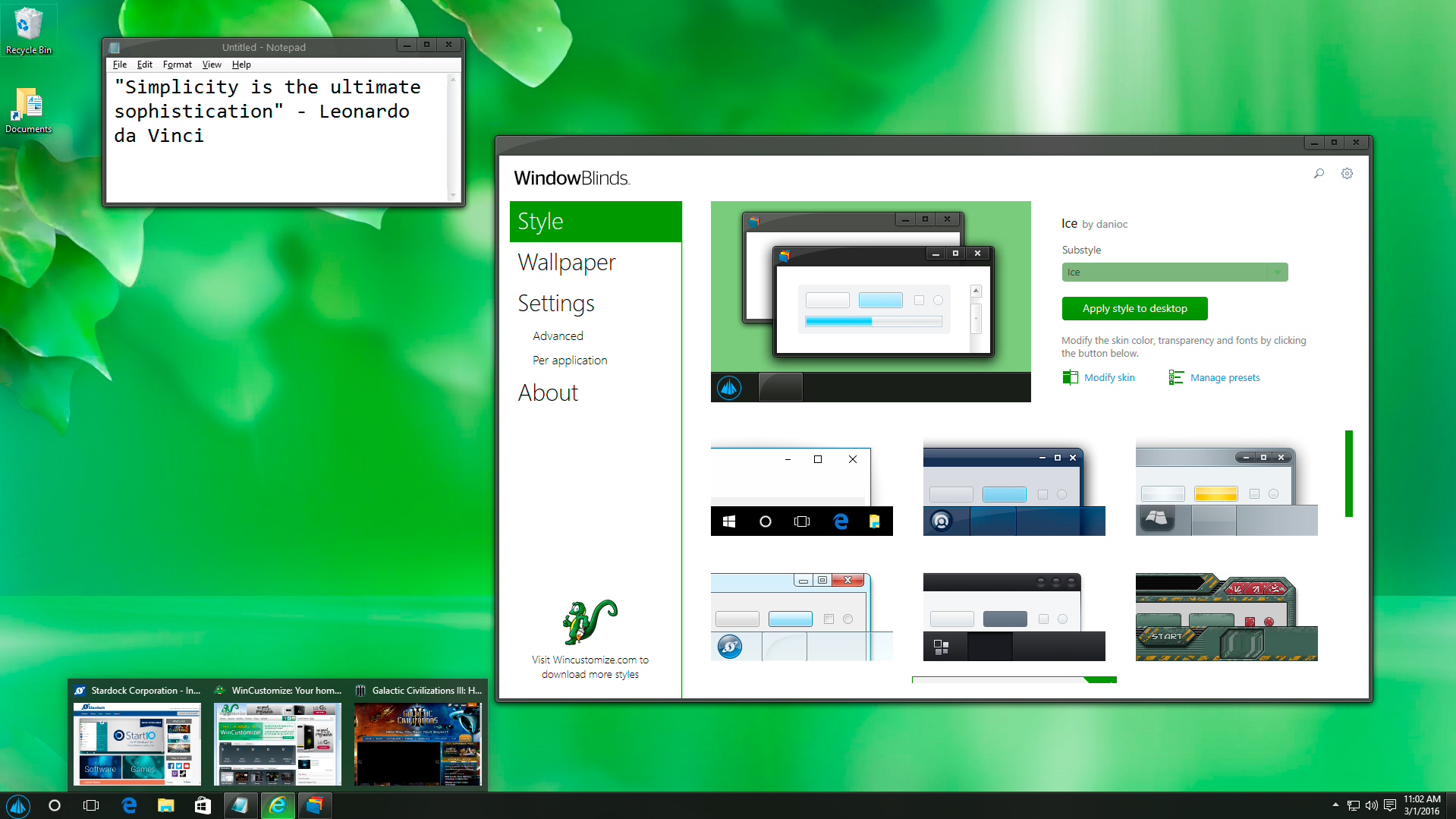
Change the entire user interface with WindowBlinds
WindowBlinds has been the ultimate customization app for Windows for many years and has been download millions of times. WindowBlinds lets you change the entire user interface to one of the thousands of custom skins that are available on WinCustomize. These skins can be customized further by changing the color, transparency, and texture to suit your style. If you're aWindows 10 user, then using Start10 along with WindowBlinds will also give you the ability to change the Start menu to match the rest of the skin.
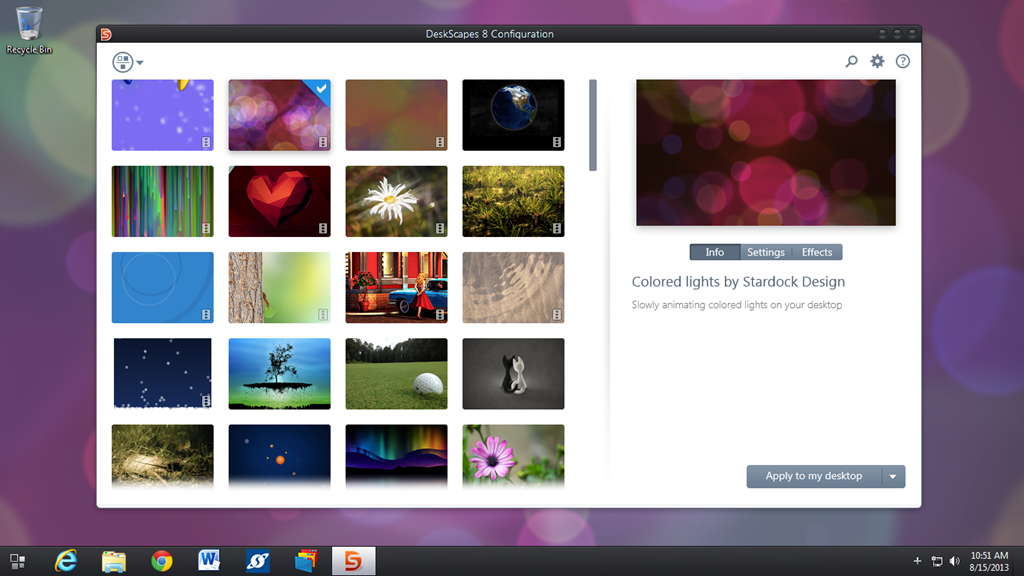
Animate your desktop wallpapers with DeskScapes
DeskScapes lets you have cool animated wallpapers right on your desktop. It has over 40 special effects that can be applied to wallpapers in order to take your customization even further. You can apply your images and videos to be the desktop wallpaper and can use any animated wallpaper as your PC screensaver.
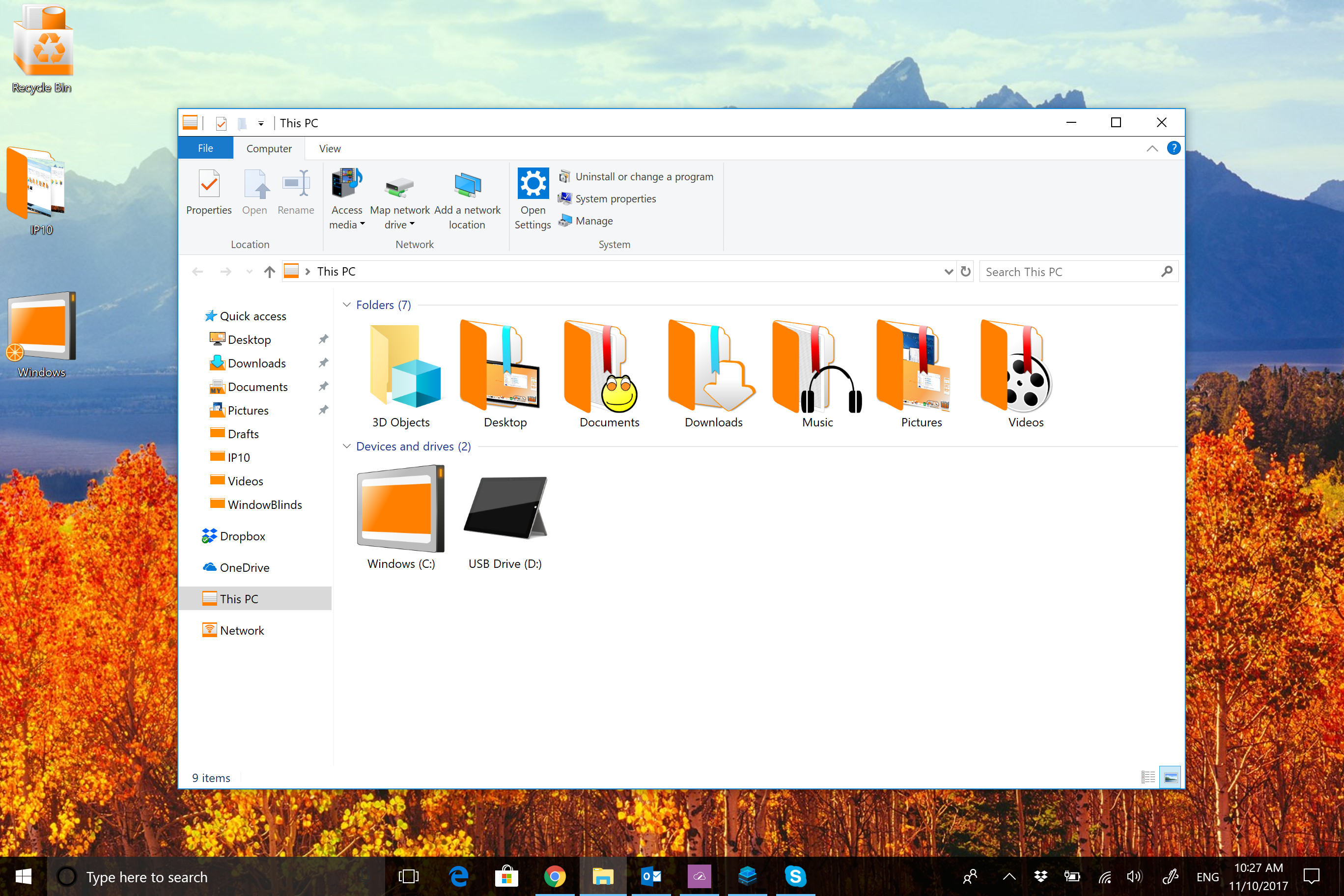
Change your desktop icons with IconPackager
Want to change all the icons on your PC at once? IconPackager uses an entire package of icons to change nearly every one at the click of a button. You can also change the icons individually, but there are thousands of icon packs available that can apply a matching set across your entire Windows PC. These bundled packs of custom icons can also be customized and recolored from within IconPackager. This is great for matching the color scheme of other skins you might be using.
All of these applications are individually available for your Windows PC, but you can get them all (and more!) with a low-cost membership to Object Desktop. While you're a member, you'll get free updates, access to all betas, and any new apps for one year. In addition to the apps listed above, Object Desktop suite includes:
- Fences
- Start10
- Multiplicity
- SpaceMonger
- and more!
Visit the Object Desktop site for more information!