


















































Stardock has a new killer app: Groupy - organize your windows together
Tuesday, November 14, 2017 by Draginol | Discussion: Object Desktop blogs
From the people who brought you Fences, Start8, ObjectDock, DeskScapes, and countless other amazing programs comes a new one that will transform the way you use your PC: Groupy.
At any given moment, people have a lot of windows open.
Maybe it's a few Explorer windows, a couple of Excel spreadsheets, maybe a a Word document or a PowerPoint presentation. Maybe they're working with Adobe Premiere and After Effects and a few other windows. In any event, dealing with all these windows can get to be quite a mess. So what's the solution?
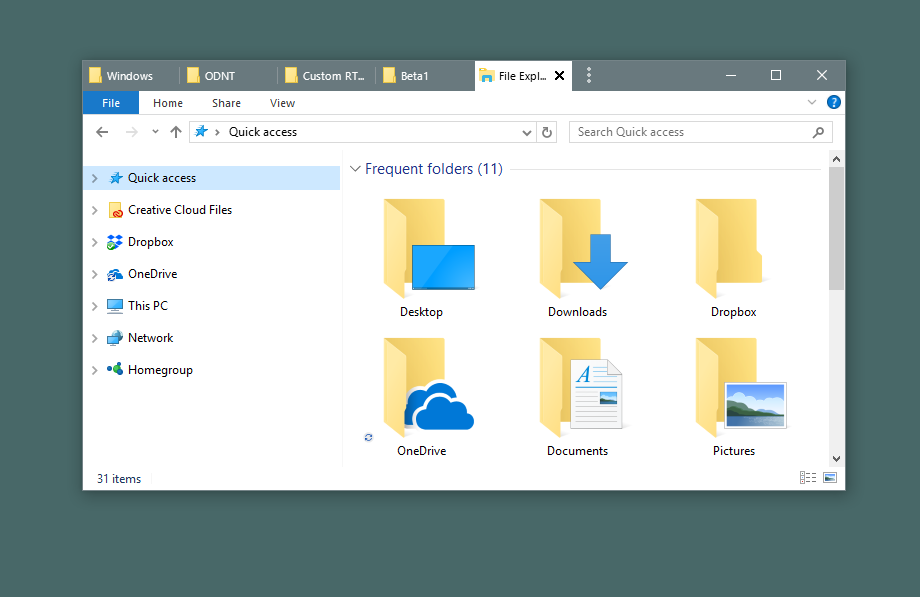
The answer is: Stardock Groupy, the program that lets you treat all your windows the same way you are now used to treating browser windows -- put them them together with each window given its own tab.
Example 1: Got lots of Explorer windows?

No problem:
Example 2: So many spreadsheets
Lots of people end up with several Microsoft Office apps running that can easily get misplaced, especially if you have multiple monitors. Groupy fixes that.

Just put them together.

Example 3: For the Adobe power user
Many artists are familiar with working between the various amazing Adobe applications. Navigating between them adds up over time.

Instead, just put them together. Now you can switch between tabs with the Win-~ key instantly.

Now it acts as a single app. If you need to pull them apart, no problem - just drag the tab off like you would with a browser window.
Example 4: Chrome and Edge living together in harmony
Do you find yourself using multiple web browsers occasionally? Groupy can help with that, too.

Groupy supports tabs within tabs.

Edge and Chrome are now acting as a single web browser.
Example 5: Mix and Match
Maybe you are a power user or developer who has a diversified mix of applications in use to get a job done. No problem, Groupy will let you group any window with another window.

And to ungroup, just drag the tab off from the group.
It's both the simplest app and most useful app you may ever buy. Get it now as part of Stardock's award-winning Object Desktop suite of utilities at www.objectdesktop.com today.
Are you an active Object Desktop owner?
Get access to the Groupy beta today by logging into your Stardock Account. If you can't remember the email you used to purchase Object Desktop with, check out this helpful post.
Personalize Your Windows Desktop with DeskScapes and Thousands of Custom Dreams from WinCustomize
Check out these 3 tips for downloading, applying, and customizing wallpapers and dreams for your desktop!
Tuesday, November 7, 2017 by Tatiora | Discussion: Personal Computing
Between work and gaming at home, I spend a lot of time on my computers. Because of this, I like to personalize my PCs to suit my style, both organizationally and aesthetically. There are tons of awesome apps for both in the Object Desktop Suite, but I want to focus on aesthetics for today. So, let’s talk about how to get the most out of DeskScapes!
Get DeskScapes here.
Tip #1: Visit WinCustomize
You can actually create your own “Dreams” and wallpapers with DeskScapes (more on that later), but a good place to start gathering some for your desktop is WinCustomize. There are thousands of wallpapers and animated Dreams to choose from there and it caters to a very wide variety of tastes. If you enjoy theming your desktop to certain holidays, there are lots of options for all times of the year!
Start browsing DeskScapes Dreams here.
Downloading a wallpaper or Dream is extremely easy. Simply select the one you’d like and click the download link. Once it’s complete, you can either click on the download itself and it’ll apply to your desktop, or you can find it within your Deskscapes menu, along with some additional customization options.
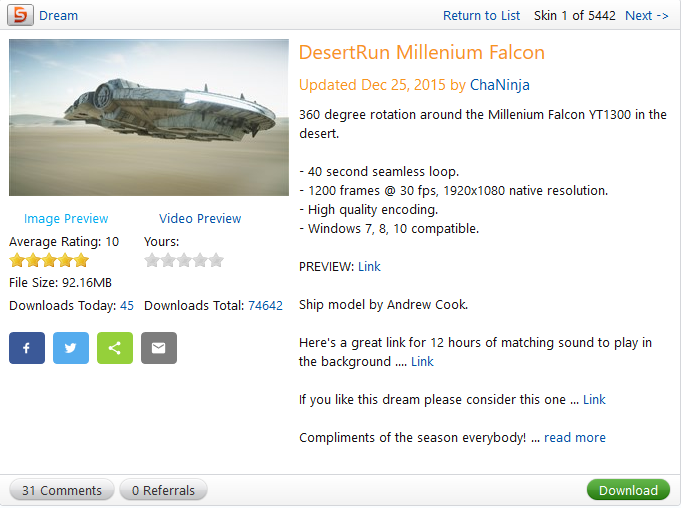
Pro Tip: To get the most out of WinCustomize, please make sure you create an account! You can subscribe to WinCustomize for no ads, unlimited downloads, and other benefits as well. If you’ve purchased a product that utilizes WinCustomize, you’ll have unlimited downloads for a year.
Tip #2: Adjust the Background Settings
Once you’ve selected a Dream or wallpaper, you can customize it to suit your desktop. Click on the “Adjust” tab in the DeskScapes menu to choose your background settings. You can assign the dream to a specific monitor, meaning that if you can’t decide between Dreams, that’s ok -- you can assign a different one to each monitor for a variety of looks! You can also set how it appears on the screen (stretched, tiled, centered, etc.).
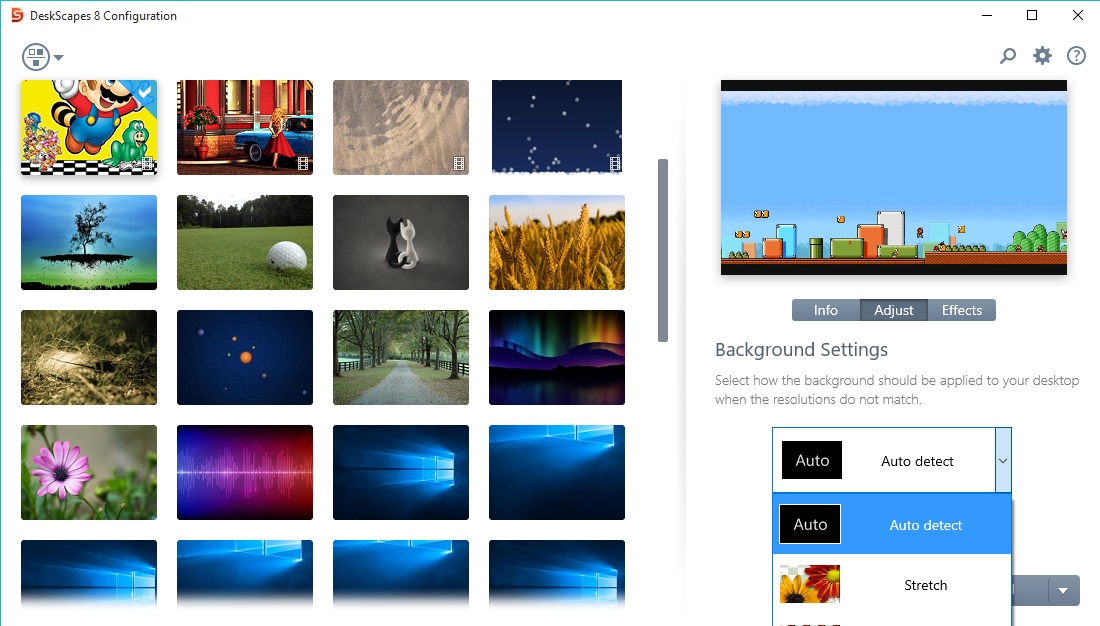
Pro Tip: Some dreams have effects that you can apply your own background to! Instead of an “Adjust” tab, you’ll see one that says “Settings” instead. Clicking on that will lead you to a secondary menu that will let you choose a picture saved on your PC to use with the animated effect. Try it out with “Water Dream” by Stardock Design (it is automatically included in DeskScapes).
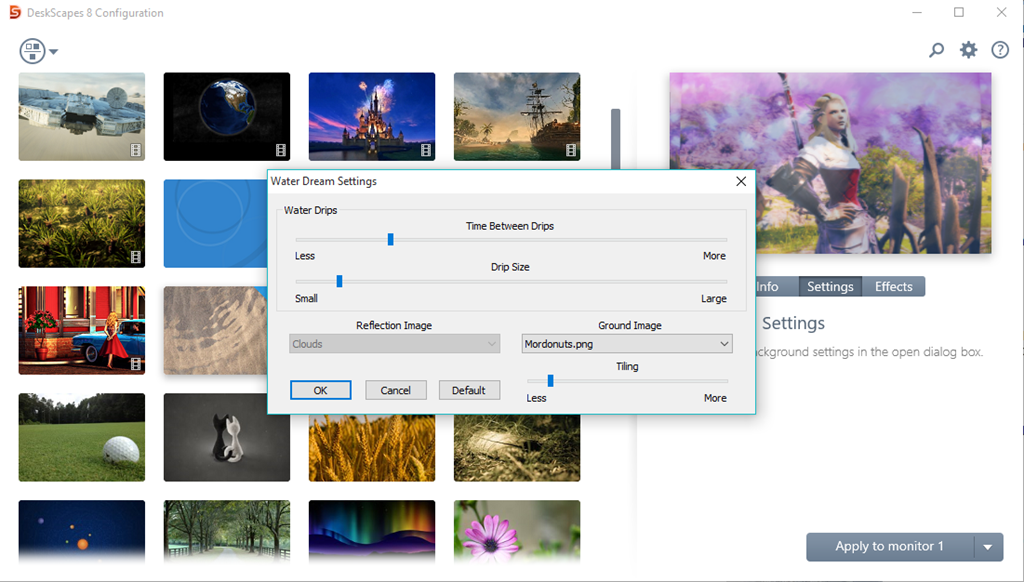
Tip #3: Apply Effects
Once you’ve chosen your Dream(s), you can further customize them by going to the “Effects” tab for that Dream. There are dozens of options that will let you alter the Dream to suit your style! You can change it to black and white, add colored filters, textures, mirror effects, and more. If you’ve chosen a wallpaper, there will also be a tab for color adjustment and saturation available.
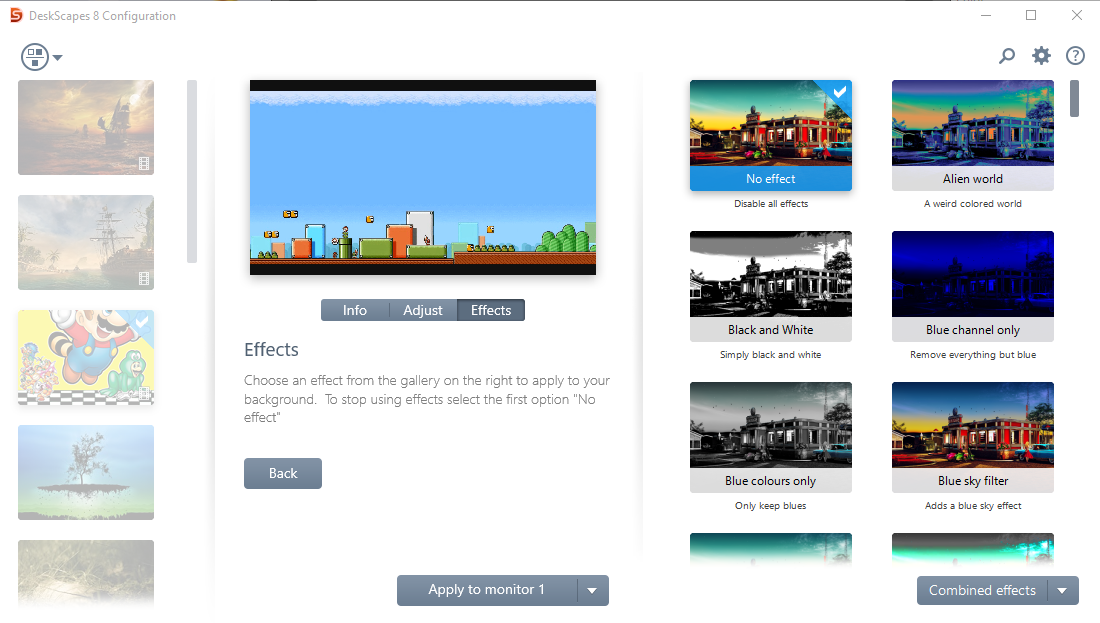
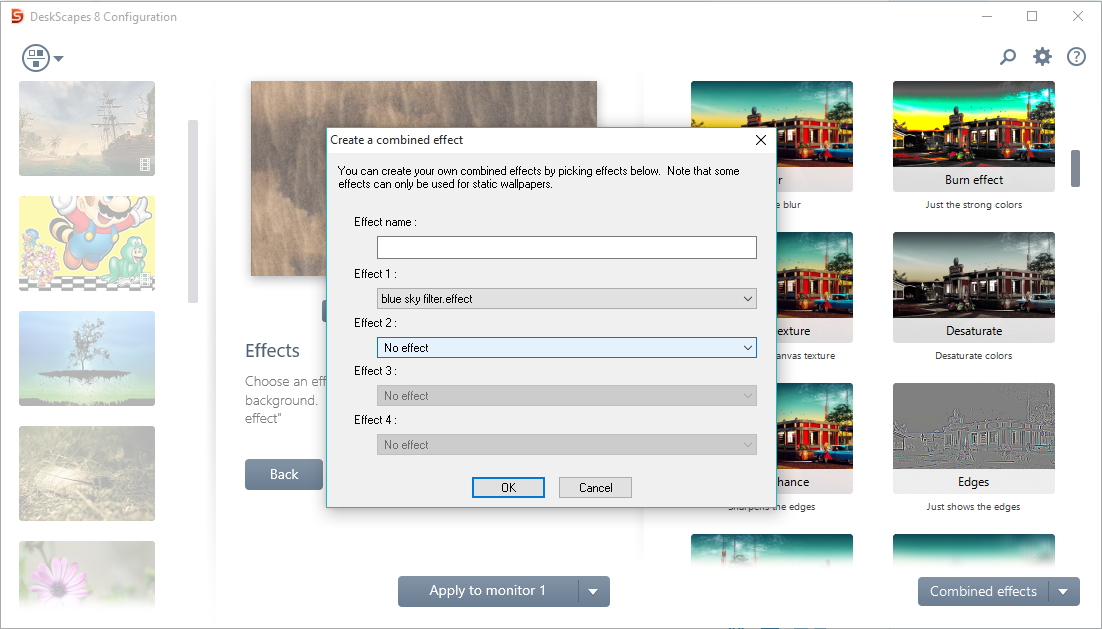
Pro Tip: You can combine different effects to make up your own! Click the “Combine effects” menu at the bottom of the menu, then choose “create new combined content.” Give it a name, choose the effects you’d like to combine, and then save it. It will remain in your menu as an option for future applications.
I hope you get a chance to explore DeskScapes and browse the thousands of options available to you over at WinCustomize! Get access to unlimited downloads on WinCustomize and a bunch of other awesome desktop enhancement programs by becoming an Object Desktop member today.
How to Customize Stardock Fences
Tuesday, October 31, 2017 by Island Dog | Discussion: Personal Computing
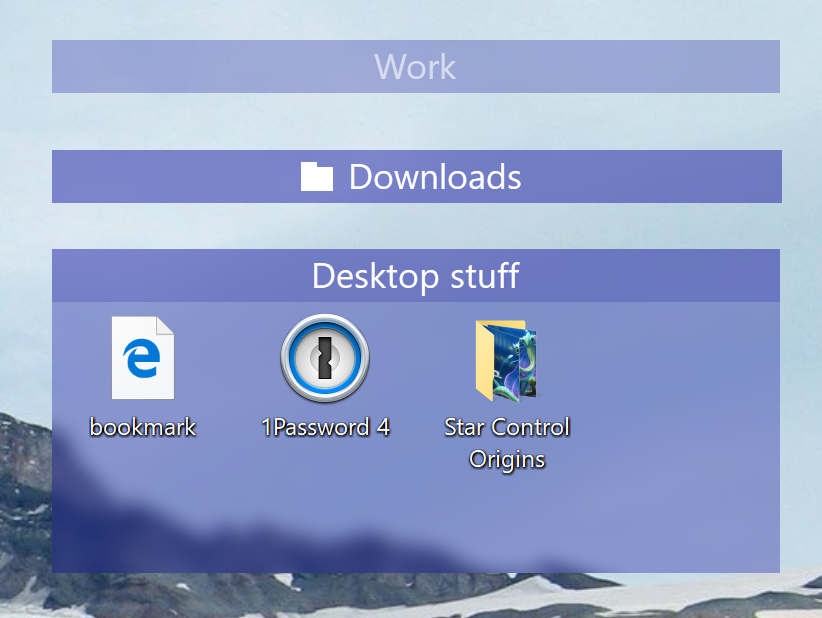
Fences is one of our most popular desktop apps for Windows! It allows you to sort and organize your icons and folders into customizable “fences” on the desktop. Some of the coolest things about Fences are the customization features you can apply to make your fences look and function how you want them to.
In this guide, I'll show you some common customizations and how you can adjust and apply them to your fences.
Adjusting color and transparency
This is probably one of the most popular customization options available in Fences. Open the Fences configuration window and click the "Color & appearance" tab. Here, you will see most of the customization options you have to work with. You'll have several sliders which will allow you adjust the colors and transparency of your fences. Just use the sliders to apply the amount of transparency you want, and adjust the various coloring sliders to change the colors of the fences. You can apply these settings to all fences, or choose individual ones by selecting that option in the drop-down menu.
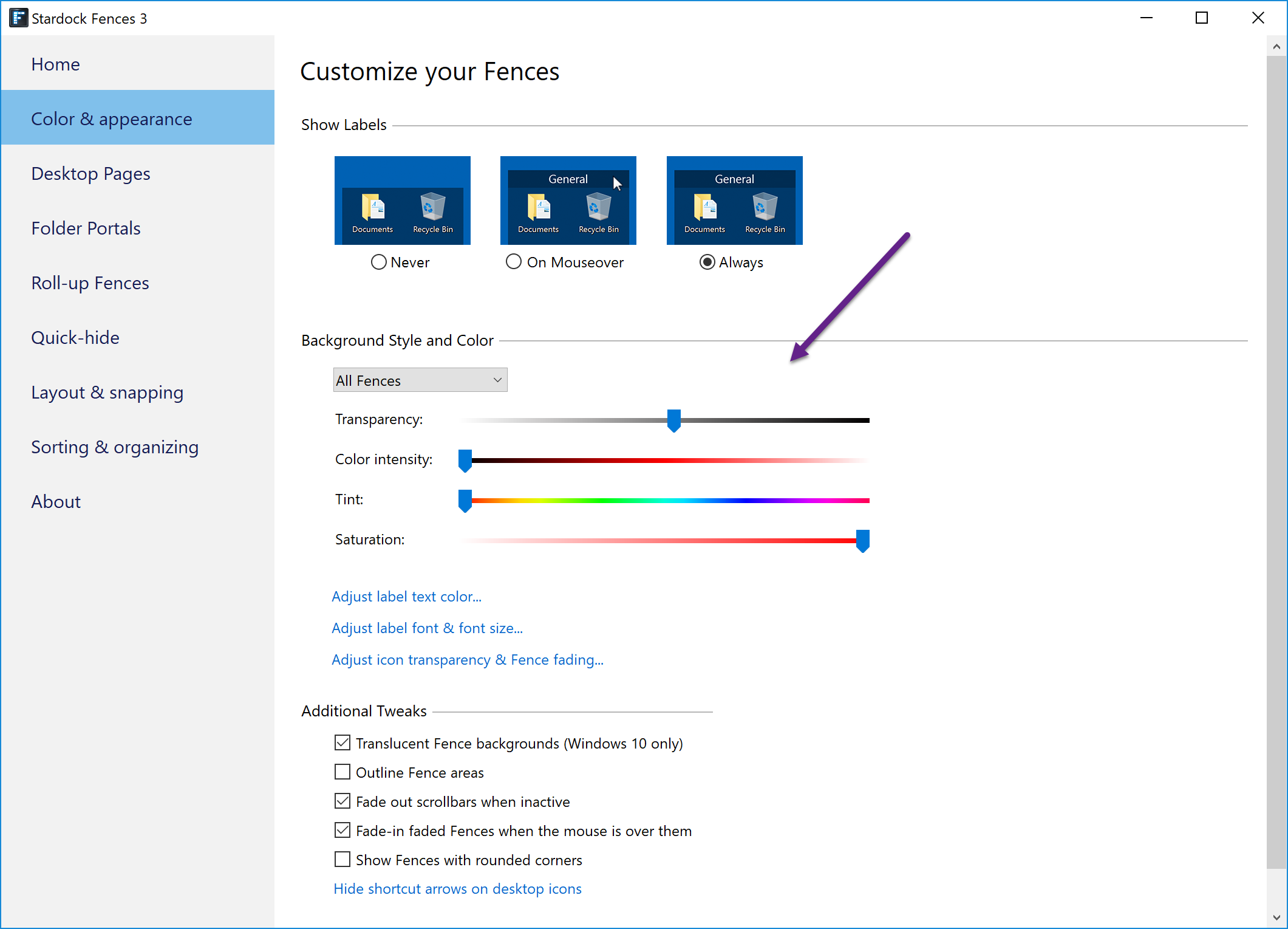
Changing the opacity of a fence
Adjusting the transparency slider in the configuration won't affect the opacity of your icons inside a fence. If you want to adjust the opacity of the fence and icons, then right-click inside a fence, select View, then Opacity, and adjust it to where you want it to be.

Re-sizing fences
When creating a new fence, you can draw the dimensions of the fence by clicking and dragging with your mouse. Some people don’t realize that you can change the dimensions of a fence just by grabbing the edge of the fence and dragging it with your mouse to resize it. While re-sizing a fence, you can also hold down the Shift key to disable snapping for a more precise placement.
Fences is also available as part of the low-cost membership to Object Desktop. While you're a member, you'll get free updates, access to all betas, and any new apps for one year. You’ll also get access to other great programs like Start10, DeskScapes, WindowBlinds, Multiplicity, and many more! Learn more about Object Desktop here.
4 Apps for a Productive Home PC
Tuesday, October 24, 2017 by Tatiora | Discussion: Personal Computing
If you’re like me, you spend a lot of time at a computer every day. Whether it’s for work or for hobbies (in my case, it’s both), having an efficiently organized and productive desktop for your PC can cut down on the amount of time we spend hunting for documents or trying to remember where we put something.
Object Desktop contains over a dozen PC productivity, customization, and optimization apps that can keep your desktop a flawless and fun place to work.
Fences
For me, the number one app that helps me work efficiently is Fences. I’m one of those people who saves everything to her desktop so that I can access it easily, then gets frustrated when I’ve saved so much and I can’t find a darn thing. Fences doesn’t stop my bad habit of over-saving things to my desktop, but it does organize everything for me so that I can actually find it.
To create a Fence, I just click and drag a box around the icons I’d like to put in it. An option will pop up, I select it, and voila! -- new fence. You can name the fences anything you like and even set filters that will determine where items you save go to. Right-click on the desktop and select “Configure Fences” to get to the configuration menu, then click on the “Sorting and Organizing” section. You will be able to set your default location for all new icons, plus set type, name, and time-based rules for your fences.
If you love having a tidy desktop and appreciate what Fences does for you, then you’ll be happy to know that it fully integrates with the next program we’re going to talk about...
Start10
I don’t know about you, but when Windows released Windows 8, the interface threw me completely for a loop. Windows 10 was definitely better, but I still find myself preferring the Start menu that I grew used to. Start10 lets you bring that classic menu - or a new, Modern styled menu - back to your PC.
Like I mentioned above, Start10 integrates with the Fences app so that you can access your fences right from the Start menu. It’s great for keeping everything grouped and within quick access so you’re not flooded with tons of folders and apps.
Start10 also has some cosmetic benefits for your PC. It allows you to change and customize Start menu color, layout, and icons. This can be helpful for creating unique and diverse desktop spaces among multiple computers in your work space. Our next app is a must have if you run more than one PC...
Multiplicity
In my house, physical desktop space is a premium. I also have a cat, so having one less keyboard for her to walk over and send indecipherable messages from is definitely a plus. Multiplicity has been a lifesaver for me and the 2 PCs that I run regularly.
One of the things I hate the most is sending files between computers either through email, or the cloud, or the archaic flash drive. With Multiplicity, all I have to do is drag my files and folders from one PC to another and I’m done! This is especially great when I’m working on editing streams or gaming videos and need to move saved files to my PC that has more space.
Speaking of video editing, another feature of Multiplicity that I appreciate is being able to listen to audio from both of my PCs through only one headset. I don’t have to switch back and forth or fight with my speakers. The best thing, though? No expensive (and space-consuming) KVM hardware!
Since I mentioned conserving space above, that brings me to the last item on my list for a productive home office...
SpaceMonger
I tend to forget that I have a finite amount of space on my computer, shared networks, or in the cloud. When it starts running slowly or acting wonky, I like to know how I can make room on it to help it run more smoothly.
SpaceMonger will let me scan, map, and manage my storage by letting me copy, move, and delete files in order to free up space. The Treemap visuals let me locate large files and folders quickly - I can even set search criteria to let me look for file size or type.
This may seem like a little detail, but monitoring how much space is used up on your PC and knowing just how much you have left is critical for knowing what you’re going to need to upgrade or adjust in order to remain efficient.
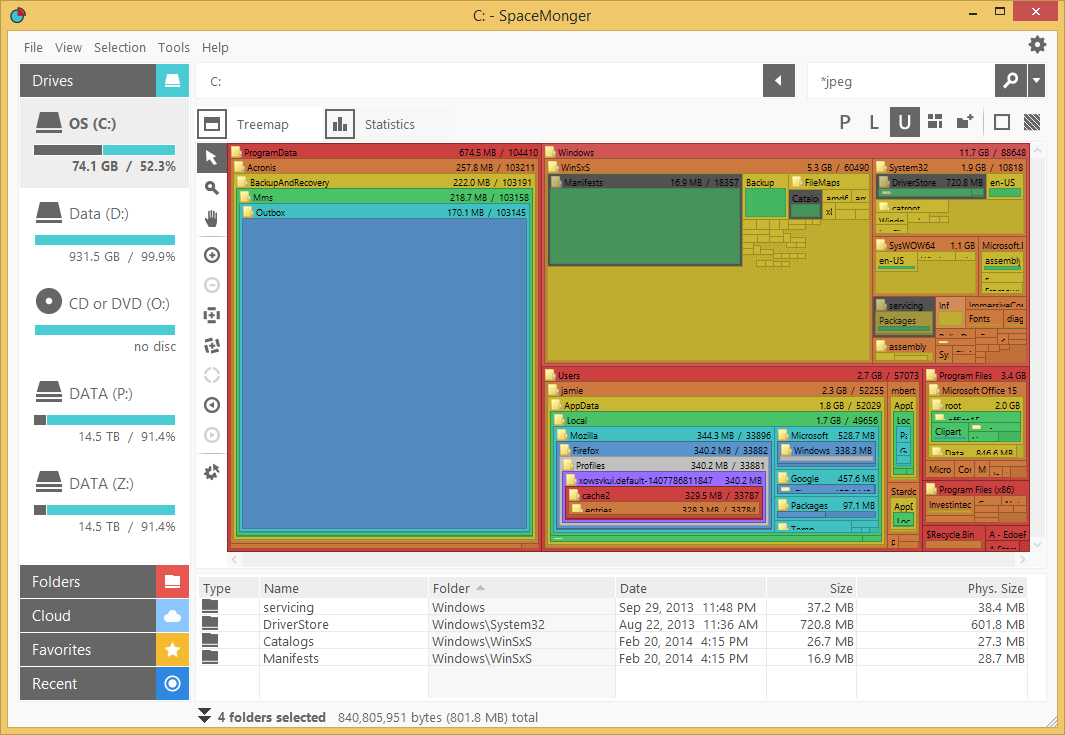
These apps can be found in the Object Desktop suite, along with several other great apps. You can learn more here.
3 Tips for using WindowBlinds
Tuesday, October 17, 2017 by Island Dog | Discussion: OS Customization
WindowBlinds allows you to change the complete look and feel of Windows by applying skins to the user interface. This popular app includes several great looking skins, plus you can download thousands more on WinCustomize.com.
I wanted to share a few tips for using WindowBlinds, especially for those who are new to it!
Use WindowBlinds with Start10 for a complete customization experience
If you're a Windows 10 user and want the Start menu to be skinned, then you will need to get Start10. Start10 is a Windows Start menu alternative and, when used with WindowBlinds, it will let you skin your Start menu.

Modify a skin within WindowBlinds
There are tons of great skins that you can download and use with WindowBlinds, but sometimes you might want to customize it even further. WindowBlinds allows you to modify a skin by adjusting the color, transparency, texture, and fonts used in the skin. When you select a skin, just click ‘Modify style’ and you’ll be able to adjust all those options to your liking. If you find a color and texture you like, you can also save that as a preset.

Manage and apply wallpapers
Not only can you apply skins, but WindowBlinds can also manage and apply your wallpapers. In the WindowBlinds configuration screen, click 'Wallpapers' and you will see the wallpapers on your PC. You can apply them by double-clicking. If you click the ‘Settings’ button, you have options to set wallpapers to change at certain times or events.

Learn more about WindowBlinds here.
WindowBlinds is also available as part of the low-cost membership to Object Desktop. While you're a member, you'll get free updates, access to all betas, and any new apps for one year. You’ll also get access to other great apps such as Start10, DeskScapes, Fences, Multiplicity, and many more! Learn more about Object Desktop here.
How to Customize Windows 10
Wednesday, October 11, 2017 by Island Dog | Discussion: OS Customization
Most of us use Windows 10 on our desktops, laptops, and tablet devices these days. Did you know that there are a ton of ways that you can customize Windows 10 to style it how you want and also make it easier to work with? I wanted to create a guide to customizing Windows 10 using Stardock software and the best skins, themes, and wallpapers that you can find on WinCustomize.com.
Use a custom theme with WindowBlinds
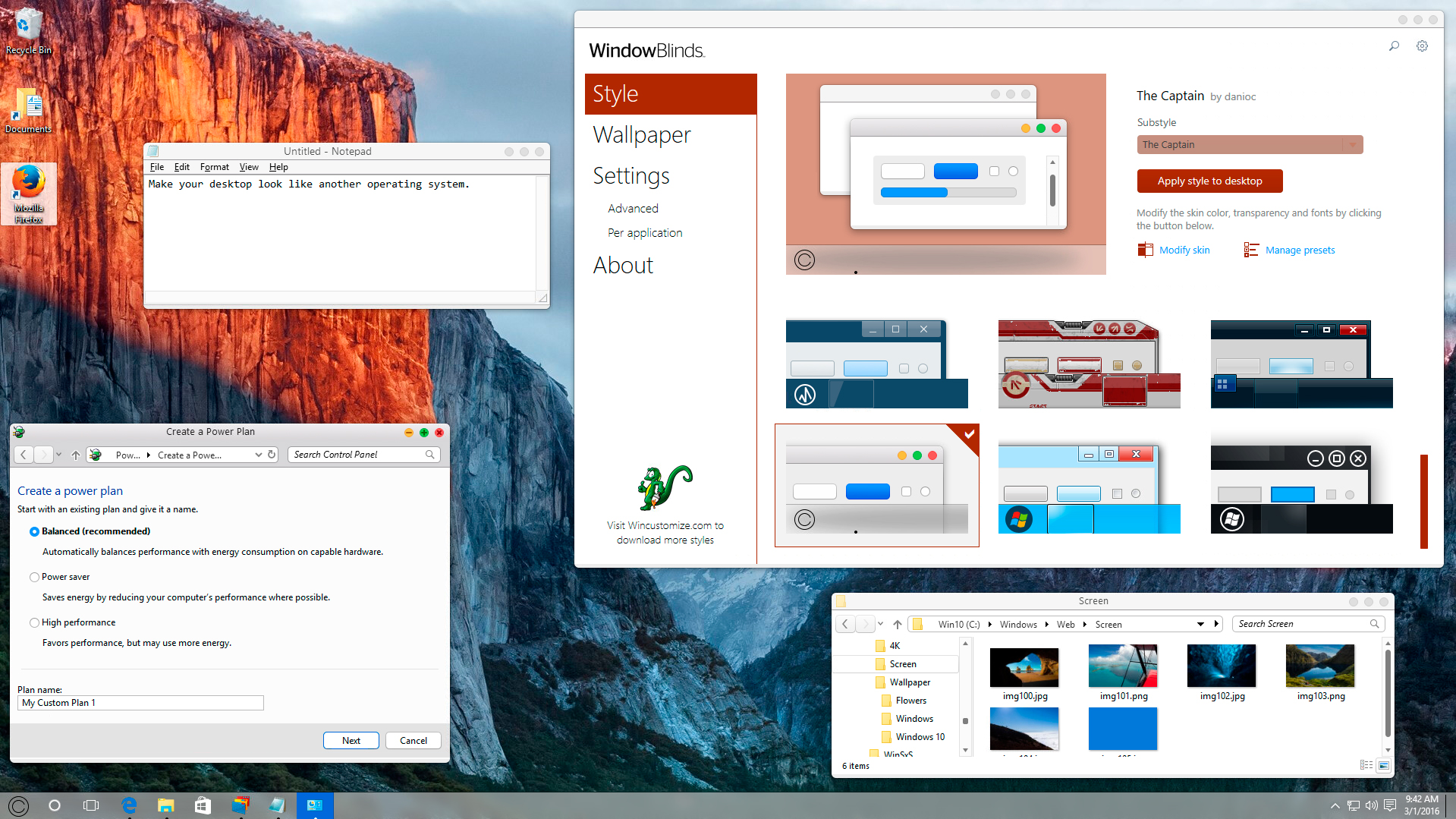
One of our most popular desktop customization apps is WindowBlinds. It lets you completely change the look and feel of your Windows desktop by applying skins to the user interface. These skins can change the start menu, window frames, taskbar, and much more. Thousands of skins are available to download from WinCustomize.com in a variety of styles and colors. They can also be customized further by adjusting transparency, applying different colors and textures, etc.
If you are using Start10 , then WindowBlinds will also change the Start menu to match the rest of the skin.
Add animated wallpapers with DeskScapes
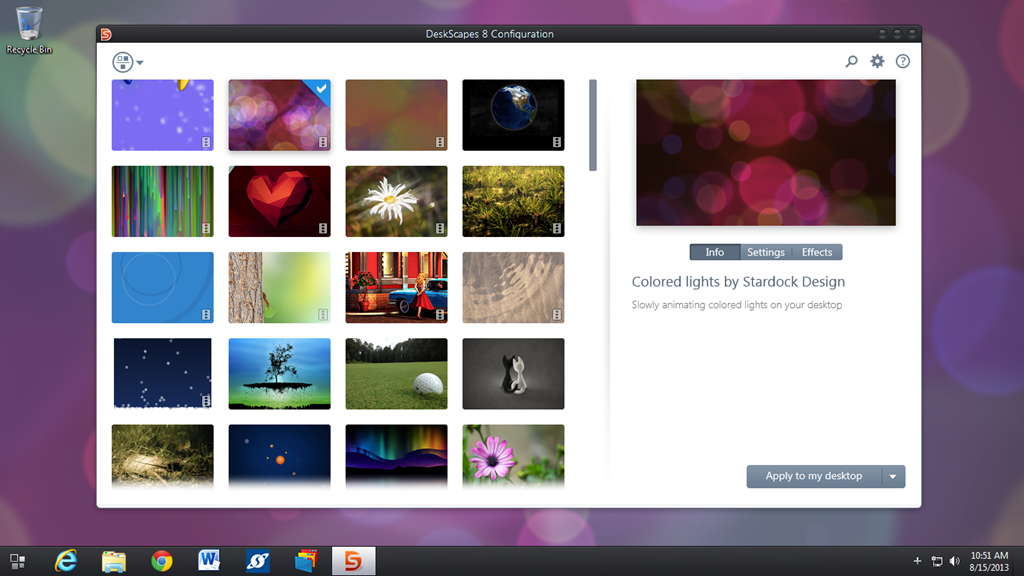
DeskScapes gives you the ability to have custom animated wallpapers right on your desktop. Not only does it apply both animated and static wallpapers, it also has over 40 special effects that can be applied to them. Wallpapers can also be customized with animations, while animated wallpapers can be used as a screensaver. You can download dozens of options or even create your own from pictures or video!
Customize the Start menu with Start10
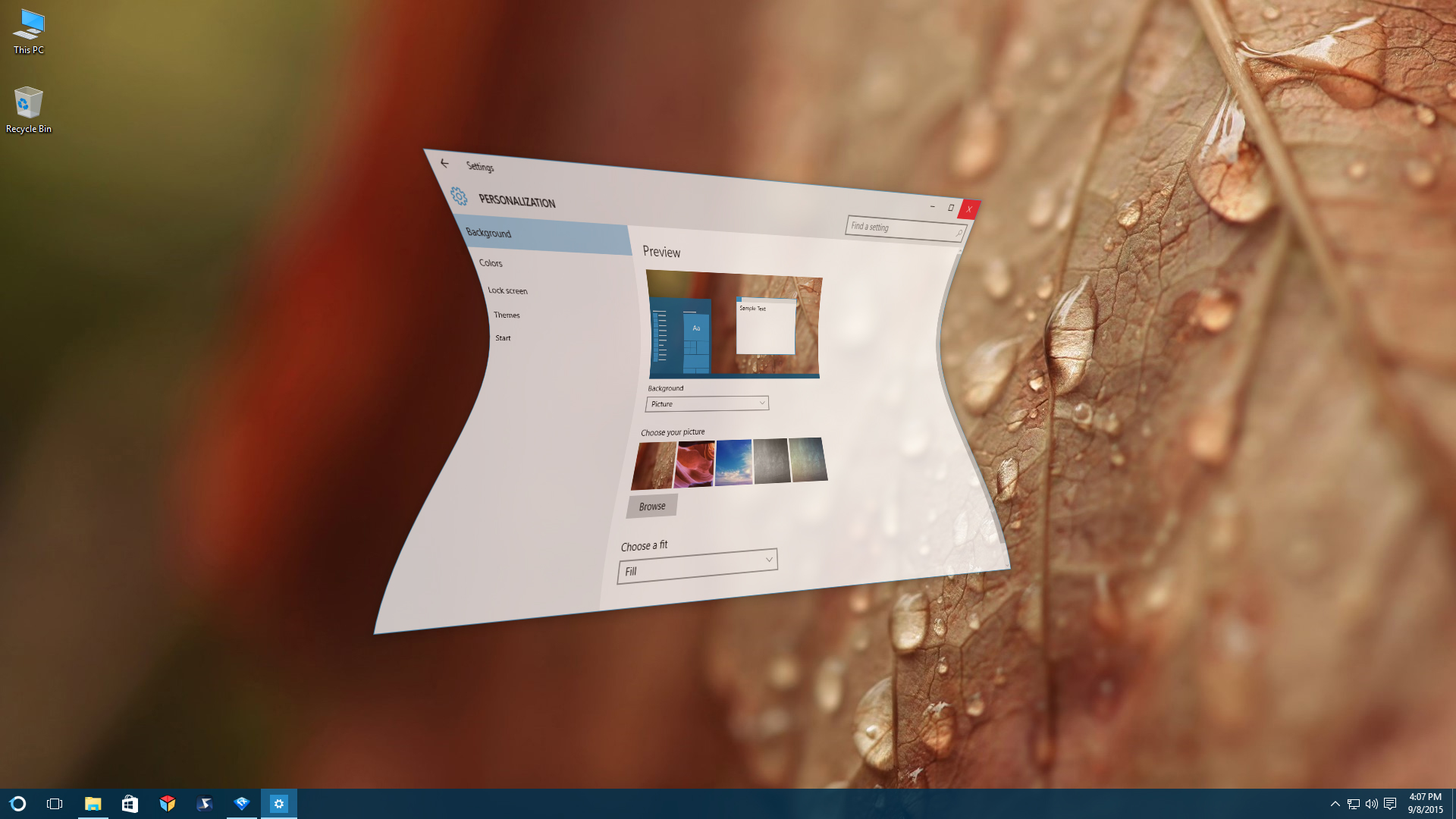
Start10 gives you the features and customization options to make the Windows 10 Start menu look and function like you want it to. Choose from a Windows 7 or Windows 10 style menu, or pick the Modern style to combine the best of both. Start10 also lets you maintain the "All Programs" folder metaphor, filter searches in the Start menu, and even integrates with Stardock Fences, another popular desktop application. You can also customize its transparency, coloring, texture, custom start buttons, and more!
Organize your desktop with Fences
Fences is designed to organize your desktop icons to help reduce clutter and allow you to sort icons for easy and quick access. You can create and label “fences” for your icons and folders, which then can be moved around and placed on your desktop however you like. You can adjust the size and shape of the fences to fit your needs, create rules to sort your icons and shortcuts, customize the color and transparency of the fences, and much more.
You can even create folder portals, which gives you easy access to frequently used folders without having to search around for them. Fences can also be rolled up (so that you just see the title bars) to create an even cleaner looking desktop.
Animate windows with WindowFX
WindowFX enhances your Windows desktop experience by adding over 30 animated effects to your desktop windows. There are even some (over 20!) that can be added to your Start menu. These animations can be applied to things like the opening and closing of windows, moving windows, and much more.
Additional features include the ability to automatically resize windows, hide labels on desktop icons, and use a focus feature to highlight open windows.
View and manage your running applications with Tiles
You can increase your productivity by adding Tiles to your desktop. Tiles lets you easily view and manage the running applications with a customizable sidebar that can be configured a variety of ways. Use pages for different classes of windows, and even drag applications to the bar to add them as shortcuts. Tiles is also skinnable and includes several themes and more can be downloaded from WinCustomize.com.

Add custom drop shadows
ShadowFX lets you add custom drop shadows to Windows 10. You can choose from a variety of pre-made shadows, or you can design and use your own. You can also download additional shadows from WinCustomize.com. ShadowFX is great to use when you have windows stacked on each other, since it helps you distinguish between the windows.
Change your desktop icons with IconPackager
There’s really nothing more plain than the default icons in Windows. However, they're easily changed with just a few clicks using IconPackager. Instead of changing icons one by one, IconPackager uses an entire package of icons to change nearly every one at the click of a button. Of course, you can change icons individually, but there are thousands of icon packs available that can apply a matching set across your entire Windows PC. These bundled packs of custom icons can also be customized and recolored from within IconPackager.

All of these applications are individually available for your Windows PC, but you can get them all (and more!) with a low-cost membership to Object Desktop. While you're a member, you'll get free updates, access to all betas, and any new apps for one year. In addition to the apps listed above, Object Desktop suite includes:
- Multiplicity
- SpaceMonger
- Launch
- and more!
Visit the Object Desktop site for more information!
Wincustomize Download Guide
Need help with something you downloaded? Try here!
Tuesday, September 26, 2017 by Island Dog | Discussion: OS Customization
WinCustomize has a wide variety of skins and themes for nearly every aspect of your Windows operating system. From animated wallpaper for DeskScapes all the way to skins for WindowBlinds, from cursor themes to icon packs, we are the site for finding the best themes to use with your Stardock applications. Since we have a massive amount of available downloads, we've created a guide that explains what software is needed (if any) in order to use these great skins and themes.
I’d also recommend subscribing to WinCustomize. Once you become a subscriber, you'll have access to unlimited downloads, ad-free browsing, and discounts on Master skin purchases.
Become a WinCustomize subscriber here.
Galleries
When you want to browse the galleries on WinCustomize, the "explore" button on the site is the best place to start. Clicking here will take you to an overview of our featured galleries, which showcase the most popular categories on the site. You can also get a list of the galleries by hovering over the "explore" button. If you're a WinCustomize subscriber, you can customize this menu to show only the galleries you want to see.
When you click to view a gallery in WinCustomize, the gallery you select will have a description telling you which software (if any) you need in order to use that particular download. The screenshot below highlights the description area.

In the screenshot above, we’re looking at the WindowBlinds gallery. It gives you a brief description of the software and links to the product page required for that download. If you don’t already have that application, you can download the free trial from its site. If you are interested in customization and productivity for your desktop, I would recommend checking out Object Desktop. This is our suite of over a dozen desktop applications. You can see the benefits of being a member here.
To download a skin, just click the Download button on an individual skin page. If it is an item that requires the use of an application then read more about that below.
Software
While we have a variety of downloads available on WinCustomize, these are some of the most popular applications that users come to download skins and themes for. Click the links to find out more information about the product and to download a free trial.
- wba - Windowblinds
- dream - DeskScapes
- cursorfx - CursorFX
- .iptheme - IconPackager
- .dockzip - ObjectDock
Many other downloads will be contained in a .zip file, which you will need to extract once downloaded.
Master skins
WinCustomize creators who have reached the rank of Master are able to sell their skins on WinCustomize. These premium skins are available to purchase, but if you are a WinCustomize Subscriber then you will get a 20% discount on the purchase of these skins. When browsing the galleries, Master skins will have a special badge indicating they are from a Master skinner. You can also use the filters in the galleries to only show Master skins.

Tutorials and community help
For a list of tutorials on how to use many of the Stardock apps, see here. If you have questions about the downloads on WinCustomize, or just want to come chat with the rest of our great community, be sure stop by and visit our community forums here.
Using Stardock's Fences and Start10 Together
Wednesday, September 13, 2017 by Island Dog | Discussion: Personal Computing
Fences and Start10 are two popular apps from Stardock. Fences is an app that lets you organize your desktop icons into customizable fences. Start10 is an alternative Start menu for Windows 10 that brings additional options over the default Start menu. Both of these are also included with an Object Desktop membership.
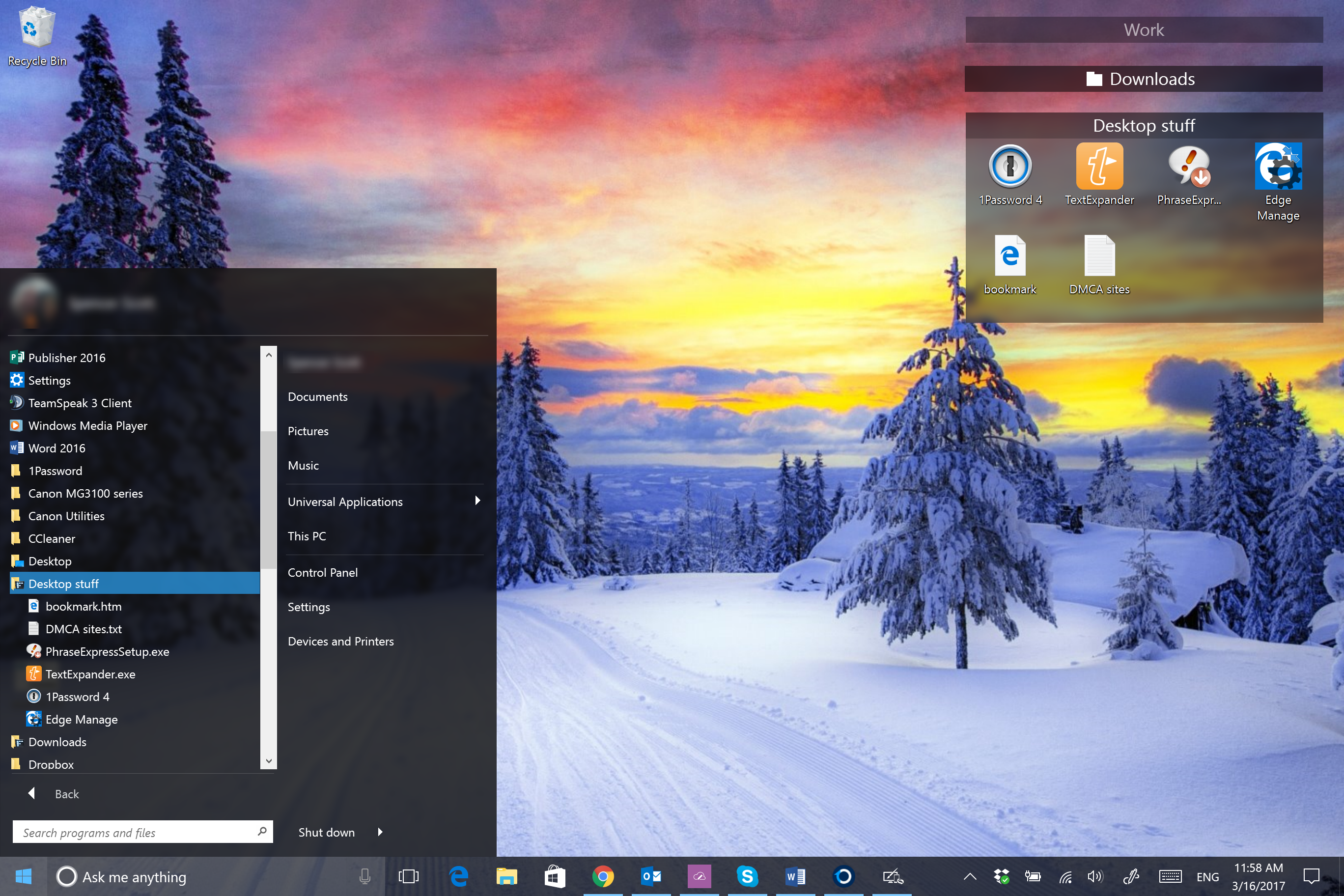
One of the great things about having both these apps is they work wonderfully together and Start10 has an integrated feature with Fences which allows you to show your fences in the Start menu.
There’s really no setup involved, you just need to make sure in Start10 you are using either the Windows 7 Style or Modern Style Start menu configuration.

I have several fences on my desktop including folder portals, and with the Start10 integration I can now have quick access to them via my Start menu.
As you can see in the screenshot below, my ‘Desktop Stuff’ fence also shows up in my Start menu.
Managing your Stardock account
Wednesday, August 30, 2017 by Island Dog | Discussion: Stardock Software
Our support team here at Stardock fields a lot of questions, but most commonly they receive communication from customers who aren't sure how to use and access their accounts. This quick guide will show you how to navigate our support site and make changes to your account without having to contact anyone!
Navigating the support site
First, let's take a look at where you can access your account info, product downloads, password reset, and much more. Check out our support site here: https://www.stardock.com/support/

Updating email address and account info
Sometimes, email addresses aren't used forever. We get a lot of messages asking us how to change email addresses or update account information. It's really easy if you've created a Stardock account! You can change or update your email address, community avatar, and name through our support site. If you don’t have a Stardock account, you can easily create one here.
Here's where you can edit your account details: https://www.stardock.com/accounts/accountinfo

Resetting your password
When you have a million passwords to remember (because every website has different password creation conditions, am I right?), it's pretty common for people to forget which one they're using for their Stardock account. Resetting your password is really easy, all you'll need is the email associated with your account! Then, you'll get a return email with instructions on what to do from there.
You can reset your password on this page: https://www.stardock.com/accounts/resetpassword

Accessing your downloads and product keys
Your Stardock account is your friend. Well, not really, but it's definitely the key to keeping track of any software or games you've purchased from Stardock's store. If you need to access a product key for any reason, you can have it emailed to you by entering your account email here.
For more details on your downloads, look here: Stardock Store: Downloading Your Purchases

Managing mailing list preferences
You can sign up for different mailing lists and manage your preferences here. To stay up to date on what's going on here at Stardock, subscribe to our Stardock Magazine. To be sure you don't miss a great sale on software or games, join our special offer mailing lists.

Managing and accessing your Stardock account is super easy! However, if you still have an issue or question about your account, you can always feel free to contact our support team and they will be happy to provide additional help.
You can contact our support team here: https://www.stardock.com/support/
Object Desktop: The Benefits of Membership
Wednesday, August 23, 2017 by Island Dog | Discussion: Personal Computing
If you read any of our software blogs or keep up with our news, you probably see a lot of discussion about Object Desktop. So, what is Object Desktop? I'm going to detail what's in the suite, plus some of the benefits of a membership.
For starters, Object Desktop is a suite of over a dozen of our most popular Windows desktop applications that customize your PC. Its yearly membership includes apps that organize your desktop with Fences, create a customized Start experience with Start10, control multiple PCs with a seamless connection using Multiplicity, and much more.
The suite was created to answer the requests of our loyal community. They wanted a central spot where their favorite Stardock apps could live and be managed on their PCs, plus enjoy a bit of a discount as well!
Learn more about Object Desktop
Why Become a Member?
- Get over a dozen customization, enhancement, and productivity apps for Windows
- Free access to updates
- Access to newly added apps at no additional cost
- A chance to test out software betas before they're released publicly
- Customize the Windows user interface with visual styles to window frames, fences for organizing your icons, animated wallpapers, and more
- Enhance your desktop by shading windows to make them stand out or returning your Start menu back to what's familiar
- Increase your productivity by organizing icons easily on the desktop, controlling multiple PCs with one keyboard and mouse, and managing storage.
The software in the suite is valued at around $100, but membership only costs $49.99. Yearly renewals are just $29.99.
What's Included in Object Desktop?
You get a whole collection of desktop enhancement apps that change the look of Windows and help improve its functionality. You can download the individual apps from your Stardock account, or use our Object Desktop Manager to keep up with updates. The Object Desktop Manager will notify you about any new updates available and give you easy access for installing any of the suite's other apps.
Here is an overview of some of the top applications included in Object Desktop:
Fences
A popular desktop utility program that removes those messy, out-of-control icons on your desktop and lets you wrangle them into shaded areas called "fences." You can label, resize, and even create rules for them in order to keep your desktop clean and tidy. Additional features include letting you create folder portals so you can have direct access to favorite folders right on your desktop.
Start10
Return to the classic Windows 7 look or try out the new Modern style. Change colors and apply textures, create filtered searches, and easily access Universal applications. All of this, plus integration with Fences, makes Start10 your number one Start menu alternative.
Multiplicity
Instantly connect multiple PCs and move files seamlessly between them using a single keyboard and mouse. Multiplicity is a versatile, secure and affordable wireless KVM software solution. Its KVM switch virtualization frees up your workspace, removing the cables and extra hardware of a traditional KVM switch.

WindowBlinds
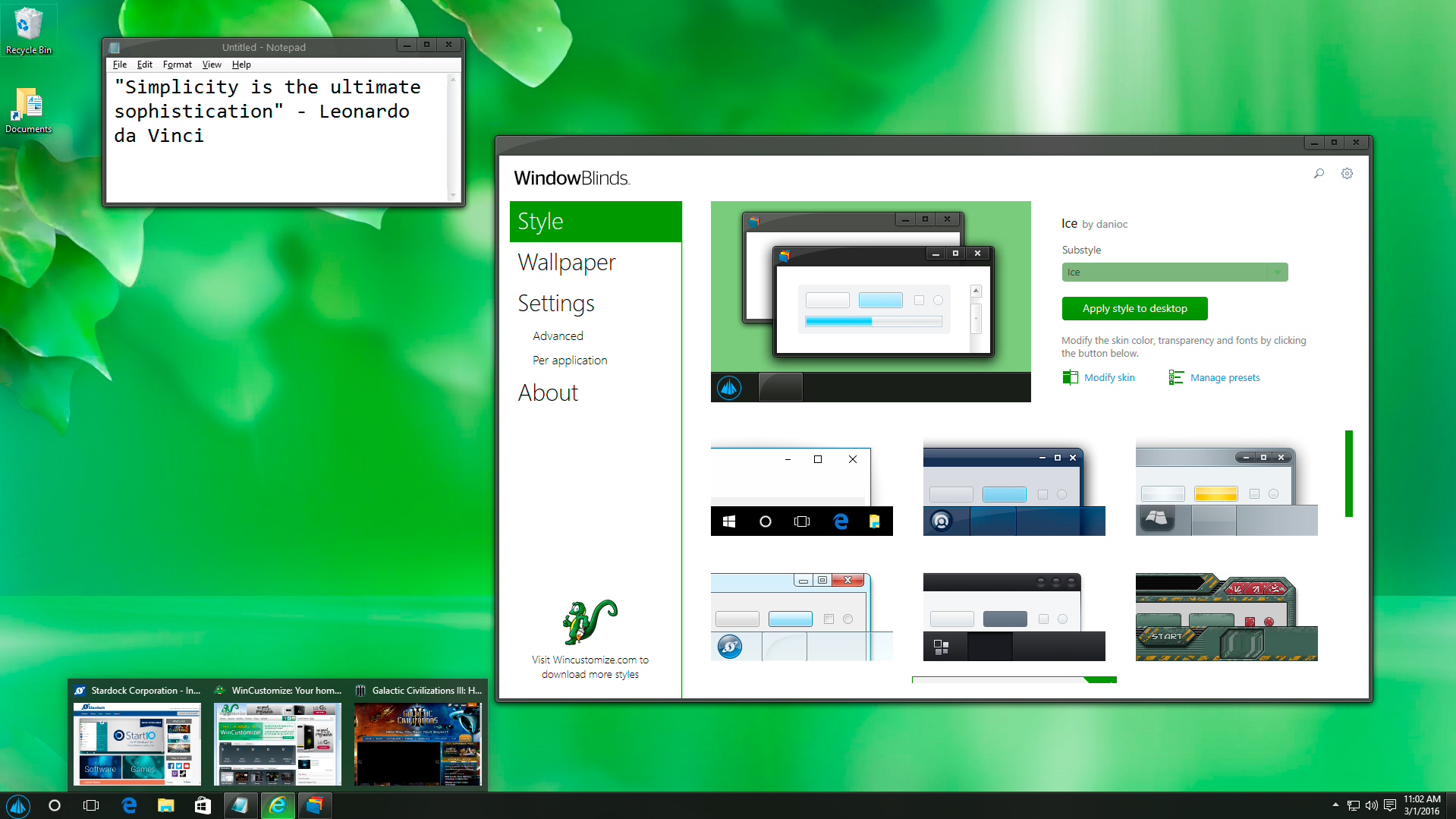
One of the most popular desktop customization apps in Object Desktop. Completely change the look your Windows desktop by applying skins to the user interface. These skins will change the start menu, window frames, taskbar, and much more. Thousands of skins are available to download from WinCustomize.com, and there are styles to match just about every kind of taste.
DeskScapes
DeskScapes does lots of cool things, the coolest of which is putting animated wallpapers on the desktop. Whether you’re looking for a subtle landscape animation or a 3D rendered animation of the solar system, there are Dreams (animated wallpapers) available. Not only does it apply both animated and static wallpapers, it also lets you add effects to them, which gives you even more customization options.
Once you become a member, you can download the Object Desktop Manager from your account.

Alternatively, you can download the individual installers from your Stardock account. This is also recommended for backing up the versions you are using.
These are just a few of the popular apps included with Object Desktop. You'll get many other applications like SpaceMonger, IconPackager, ShadowFX, WindowFX and more.
Learn more about Object Desktop here.
|
Purchase Object Desktop $49.99 | Get it Now |
Upgrade from any single product in Object Desktop $34.99 | Upgrade Now |
Renew Object Desktop $29.99 | Renew Now |