






















































WindowBlinds 8 Walkthrough: The New User Interface
Thursday, June 20, 2013 by Island Dog | Discussion: Personal Computing
 WindowBlinds 8 has arrived and is available now for users on both Windows 8 and 7. There are a lot of features to cover with this new release, so be on the look-out for more WindowBlinds walk-thrus.
Purchase WindowBlinds 8 for just $9.99
The New User Interface
I wanted to start off with a general overview of the new user interface and the basic functions. The UI has been completely redesigned, so I want to make sure everyone is up to speed on the new look and functions of WindowBlinds 8.
This is the new main interface for WindowBlinds 8. If you already own WB, then the UI probably looks substantially different. The basic functionality remains the same, but we will cover it for new users.

On the left side of the window (screenshot above) you have a list of skin previews. WindowBlinds comes with several great looking skins, and you download more from WinCustomize.com. When you select a skin, it will display a preview on the right side of the configuration screen. Here is where you can adjust the "Color", "Texture", and "Background" per the chosen skin. Whenever you want to apply a new skin, or see the changes you made, just hit the "Apply Style" button in the bottom right corner of the WB config and you'll see the changes being applied to your desktop.
Styles
Under the "Style" tab, you can select a different substyle of the skin. Some skins come with substyles, and some don't. Usually the substyles offer a lighter or darker version of the skin, or even one specific to a specific OS.

Colors
Selecting the "Color" tab gives you the ability to re-color the skin you have chosen and change the color of some system colors. You can pick from several common color choices and fine tune the coloring options with the adjustment sliders.

Transparency Adjustments
"Transparency" is another option under "Colors". This is another favorite feature among users as you can add and adjust the transparency of the start menu, task bar, and window frames. Just use the sliders to adjust the amount of transparency you want, then apply the skin again to make the changes.
If you're feeling really ambitious, choose "Fonts". The fonts tab allows you to change the font shown in your windows. Tired of the standard sans serif font that comes with Windows? Choose something more stylized, or simply change it to a serif font, like Times New Roman.

Textures
Selecting the "Textures" tab button allows you to apply a texture to the skin you've chosen. There are several textures included with WindowBlinds, and you can easily add your own texture effect, or download more from WinCustomize.com.

Desktop Wallpaper and Explorer Backgrounds
Lastly, we have the "Background" section. You can manage your desktop wallpapers from within WindowBlinds, add specific directories where WB can look for images to use, and even set WB to automatically change your selected wallpapers at set intervals.
"Explorer Backgrounds" can also be applied here, along with the opacity levels of active/inactive Explorer windows.

This gives you a good overview of the functionality and new user interface of WindowBlinds 8. The best way to experience WindowBlinds is to download skins, apply them, and explore all the cool features that can be found in WindowBlinds!
ObjectDock: How to Change the Background Theme
Monday, June 3, 2013 by Island Dog | Discussion: Personal Computing

I wrote a similar article to this years ago, but ObjectDock has had several updates since then, so I created a new one to help with questions on how to change the background theme. ObjectDock has become a favorite app among Windows users over the years as it’s a great app for organizing your desktop icons, shortcuts, etc. To see more of what ObjectDock can do and how you can configure it, be sure to check out my article.
Link: Organizing Your Desktop with ObjectDock
ObjectDock not only offers the great features listed above, it's also customizable. There are thousands of icons and background themes available to download from WinCustomize.com. Many of them are made to match popular WindowBlinds skins, so you can have matching components on your desktop. There are all styles and colors available, and once you download them they can be added to your ObjectDock collection very easily.
Purchase ObjectDock for just $4.99
Adding a New Background Theme
If you downloaded a new background theme, we’ll start with how to add it to the existing ObjectDock collection. Most of the backgrounds will come in a ".zip" format, so the first thing to do is unzip them into a folder of their own.
Next, move that folder to the ObjectDock "Backgrounds" folder, and they are now added to the background selector.
TIP! The ObjectDock theme folder will typically be located here: C:\Program Files (x86)\Stardock\ObjectDock\Backgrounds

Changing the Background Theme
Whether you want to change to one of the included backgrounds, or one you added yourself, you can do that with the Background chooser in the ObjectDock configuration.
You can access the settings through the ObjectDock tray icon, right-clicking a dock (select settings), OR via a shortcut on the dock itself.
See the screenshot below:
Click "Style/Color" > "Change Theme". That will bring up the Background chooser and from there, simply select the background you want to use.
TIP! The process is the same for tabbed AND animated docks.

Organizing Your Desktop with ObjectDock
Wednesday, May 15, 2013 by Island Dog | Discussion: Personal Computing
 ObjectDock 2.1 is now available, and it has been one of my personal favorite apps for a long time. I like to keep a more minimal and organized desktop, which can become difficult--considering the wide variety of projects I have going on at any given time.
That said, I would like to share several setups using ObjectDock that will give you some help organizing your desktop.
Purchase ObjectDock for just $4.99
Use the "Tabbed Docks" feature
If I had to pick my favorite feature from ObjectDock, it would be the tabbed docks. This will help you with getting an organized desktop quickly/easily, and that’s why I’m talking about it first. I like to have tons of shortcuts on my desktop, but also want to get to them quickly. The best solution for me is to create several tabs with different app categories in one dock, then place my shortcuts into the desired tabs.

The image above shows an example of a tabbed dock I have on my desktop. I have more categories to add, but for now I am featuring the ones I use the most. The "Office" tab has the Microsoft Office shortcuts I use the most – Word, Excel, PowerPoint, OneNote and Publisher. I've done the same with my "Adobe" tab which holds the various Creative Cloud apps like Photoshop and Lightroom. You can configure the tabbed docks in a way that works perfect for YOU. This is also a great way to keep your favorite game shortcuts handy as well.
Go Minimal
If you really want a clean desktop, you can replace the Windows taskbar AND desktop icons with ObjectDock dock. There's an option on the configuration screen that allows you to hide the Windows taskbar, so your custom dock is the only one showing on your desktop. You can configure your dock to display the system tray and running tasks, too.
You can also add a start button to your dock.
If you are on Windows 7, the start button will bring up your normal start menu.
If you are on Windows 8, the start button will take you to the Win8 start screen. However, if you have Start8 installed, it will bring up the Start8 start menu. (If you don't have Start8, you should get it here)

Use Multiple Docks
You don’t have to limit yourself to one dock. ObjectDock allows you have multiple docks on your desktop. Use one for shortcuts to websites, and have another with flyout menus for your documents folder.
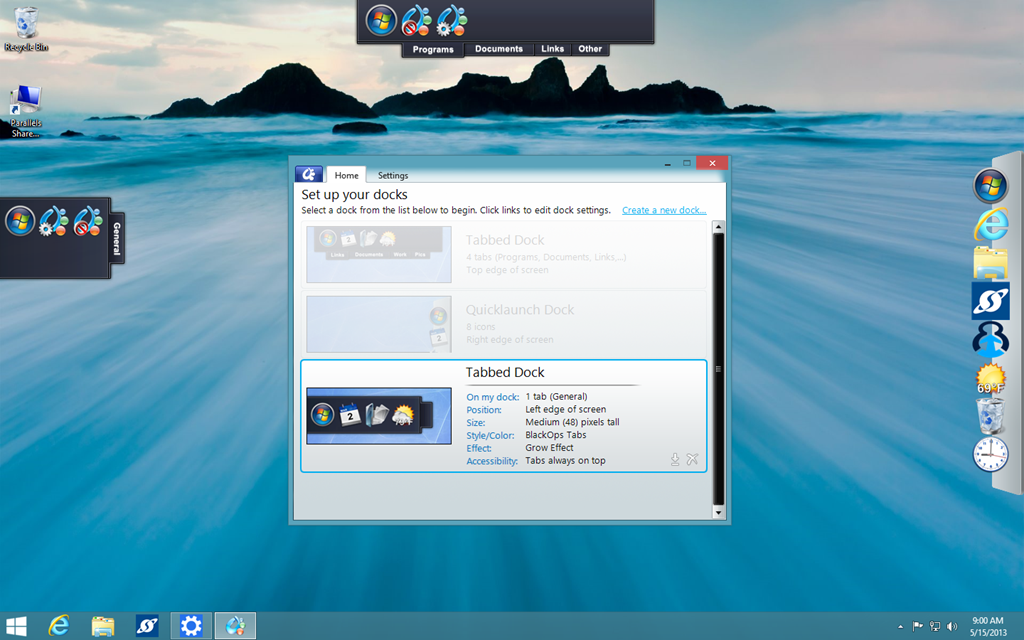
ObjectDock is easy to setup and configure for what you need. Create docks, move them around to different locations, try different setups. It’s a very useful tool for desktop productivity and organization!
Learn more about ObjectDock here.
Stardock's Brad Wardell on Geeks With Wives Podcast
Friday, May 10, 2013 by Island Dog | Discussion: Personal Computing
 Stardock's Brad Wardell is on the latest podcast from Geeks with Wives. Wide range of topics are discussed from gaming to comics, and it’s a great podcast to listen to.
http://geekswithwives.com/geeks-with-wives-podcast-episode-83/
Get Additional Start8 Start Buttons for Windows 8
Wednesday, May 1, 2013 by Island Dog | Discussion: Personal Computing
Start8 has shown to be very popular with Windows 8 users looking to get the Windows 8 start men and button back on their desktop.
Not only does Start8 give you back the Start menu, it also gives you the ability to boot directly to the desktop, and other features like disabling desktop hot corners. Another cool feature that sometimes isn’t mentioned is the ability to customize Start8 to look and feel how you want it to.
Purchase Start8 for only $4.99 today!
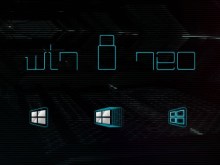
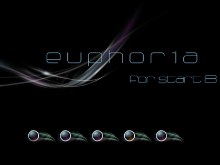
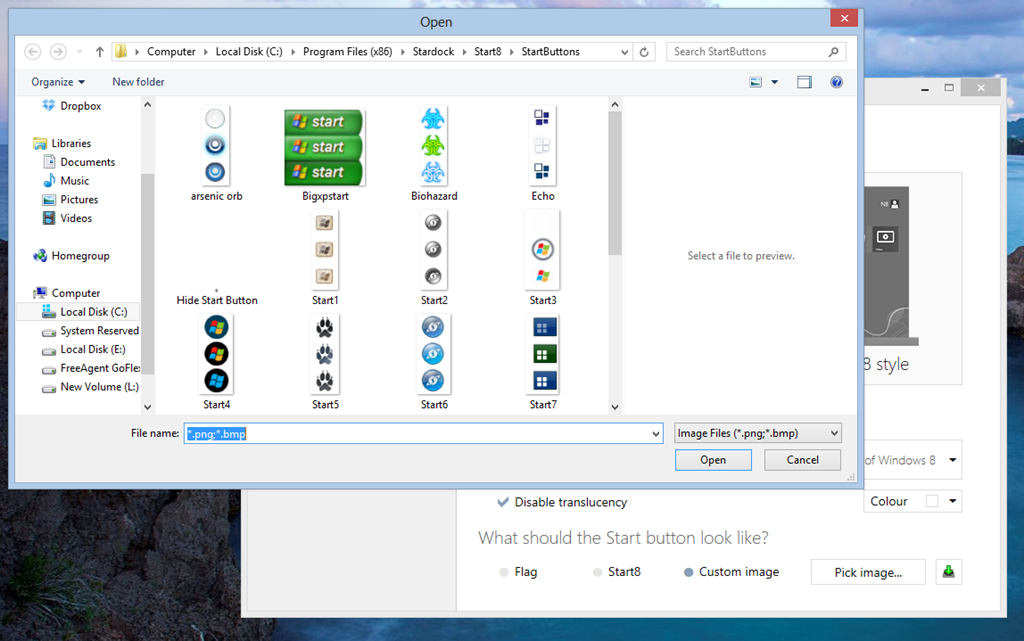
One of the easiest ways is to customize the start button to one of several that are included, or download more content from WinCustomize.com. There are many user-created buttons that can be added to Start8 in a variety of colors and styles.
Some examples of downloadable start buttons:
 |
 |
 |
Changing the start button is easy. Just open the Start8 configuration, select the ‘Style’ section and either select one of the two default images, or pick the custom image button to select additional button.

Now you can have a bit of a personal touch on your Windows 8 desktop, and all the benefits of a functional start menu.
Run Modern (Metro) apps in a window on your desktop
Getting started with Stardock’s ModernMix
Tuesday, April 23, 2013 by Island Dog | Discussion: Personal Computing
ModernMixTM from Stardock is the latest app to help you take control of Windows 8 and have it work the way you want and are familiar with. Windows 8 has a new start screen, once called Metro, that’s home to Modern apps for Windows 8 such as Mail, Calendar, etc. There are thousands more of these Modern applications that can be downloaded from the Windows Store, and many of them are very useful and great to have.
The problem is these apps run full screen, and for many apps that’s just a bit of overkill. With it being more common that people use dual monitors, or very large monitors, having one app run full screen wastes a lot of space. Do you need the weather app to run full screen? Windows 8 limits you with this, but ModernMix lets you run these applications in windows just like the apps you are typically familiar with.

ModernMix is easy to use and setup. Download the fully-functional free trial or the full version for only $4.99.
Once installed you can get started with ModernMix right away. Your once full screen Modern apps are now in windows on your desktop. You can use F10 as a hotkey to switch between modes. It’s really as simple as that, but if you want to configure it a bit further you can certainly do that in the configuration screen.

In the configuration screen, you can dig into the settings and specify how Windows 8 Modern apps open when launched from the Windows 8 Start Menu or from the Windows desktop. ModernMix also places a control overlay in the top right corner to switch modes, and that can also be enabled/disabled here.
ModernMix remembers the last state of your application, but you can also change this per app in the setting, along with other more advanced settings.

ModernMix is quite easy to setup and use, and once you start using it you’ll see all the advantages of having these Modern apps right on your desktop.
Get ModernMix:
Best Value!
Improve your Windows 8 experience more by returning the start menu with Start8™.
Get the ModernMix and Start8 bundle now for only $7.99.
How to get the Windows 8 Start Menu Back
Tuesday, April 16, 2013 by Island Dog | Discussion: Personal Computing

Yes, the start menu and start button is gone in Windows 8. No worries though, as there is a quick and inexpensive way to get that functionality back plus many other additional features. Start8 brings back the Windows 8 start menu, and gives you several ways to customize it so you can make Windows 8 look and feel the way you want it to.
Purchase Start8 for only $4.99 today!
Features and advantages of using Start8:
- Customizable Start Menu for Windows 8
- Start button which can be skinned with other button images
- Boot directly to the Windows 8 desktop
- Pin Modern (Metro) and desktop apps
- Jump List support
- One click access to shutdown, documents, music, etc.
Getting Started
Pick a Windows 7 or Windows 8 Style start menu.

Choose what kind of Start menu button you want. You can also easily make your own, or download many available at WinCustomize.
Configure and Control the way Start8 works. Set the start button to open the start menu, or set it to open the Windows 8 modern start screen. You can make it function how you want it to work.

Now you can have Windows 8 setup for the way you work, and have a great looking and functional desktop for your home or work environment.

3 Favorite Windows 8 Modern Apps
Tuesday, April 2, 2013 by Island Dog | Discussion: Personal Computing
There are a lot of good Windows 8 modern apps out there, and with the addition of ModernMix which allows you to put those apps on the desktop, they are even better. I’ve been trying out a bunch of modern apps and wanted to share a few of my favorites that I have come across.
When normally using these apps in the modern start screen in Windows 8, they are full screen. As you can see in my desktop screenshot I’m using ModernMix and running them in windows on my desktop so I can have multiple apps open making the most of the space on my desktop.
Try it here! https://www.stardock.com/products/modernmix/

Package Tracker
I receive a decent amount of packages, and ship some too and having an app that can keep track of those is essential. Package Tracker lets you enter the tracking numbers from a wide variety of delivery services and will notify you with the delivery status of your packages. It’s $2.99, but well worth it if you need to track packages. If you have a Windows Phone they also have an app that will sync with that.

Pulse News
This is a fantastic Windows 8 modern app for the popular Pulse News. You might have heard of Pulse News before, they have apps for other platforms and web browsers, but the Windows 8 app is really nice. This app lets you pull together news from your favorite outlets and gives you several viewing options to read them. I get lots of news updates from this and your feeds will also sync with other devices you use this service on. Another great thing, it’s free!

Wordament
I guess this is technically a game, but still falls under the Windows 8 category. Wordament is a fast and fun word game you can play online where you try to put together as many words as you can in the time allowed. It’s a fun casual game and it’s free, so give it a try. This is another example of an app that works great with ModernMix as you don’t need the full screen to play this game.

3 Desktop Tools to Get the Most Out of Windows 8
Tuesday, March 26, 2013 by Island Dog | Discussion: Personal Computing
As Windows 8 gains traction with users upgrading their current OS and people purchasing new PCs, the desire to find solutions to common issues has also risen. While Windows 8 is a fine OS overall, there’s still lots that can be done in terms of usability and functionality.
That’s where these 3 desktop tools step in.
Let’s take a look at some shortcomings of Windows 8, and how we’ll correct them.
Bring back the Start Menu
Yes, Windows 8 does not include the start menu you have been using for years and years. The start button and menu are gone, replaced by the new “Modern” start screen. The start screen is useful, but there’s no reason you can’t have it and the start menu as well.
Start8 brings the start menu back and better than what Windows ever delivered. There’s also several styles of the start menu you can choose from, so you can customize it to how you like. Start8 can be configured to automatically take you to the desktop when your computer starts, disable hot corners, show a start button on a second taskbar, customize the start button image and many other features.
Start8
Try it free for 30 days [Link] | $4.99 [Link]

Run Modern (Metro) Apps on the Desktop
The Windows 8 start screen runs “Modern” apps (previously referred to as Metro apps). There’s some really great apps available such as Netflix, Rowi, SkyDrive, and many others. The problem is these apps only run in full screen making them less useful, especially for users with larger screen sizes.
ModernMix takes those same Modern apps and allows you to run them in a window on the desktop, just as you would with any other desktop app that you normally use. You can also pin those applications to the taskbar and ModernMix will explicitly close the Modern apps when closed with the close button.
ModernMix
Try it free for 30 days [Link] | $4.99 [Link]

Customize the Windows 8 Start Screen
ModernMix and Start8 help improve the functionality of Windows 8, and last up we have Decor8 which lets you customize the background in the Win8 start screen. This is something else you can’t change unless it’s one of the included images in Windows. Whether you want to use your own custom images, or a picture from your image library, Decor8 can take of it. Other features give you the ability to create your own Windows 8 color scheme, randomize the backgrounds for the start screen, and change the image of the login screen.
Decor8
Try it free for 30 days [Link] | $4.99 [Link]

ModernMix Windows 8 app news round-up
Wednesday, March 13, 2013 by Frogboy | Discussion: Personal Computing
To say the response to ModernMix has been overwhelming would be an understatement. In the 20 years that Stardock has existed, we’ve never put something out that has has been this positively received, this fast.
To recap: Last week we put out the first beta of ModernMix, a program that lets users run Windows 8 ModernUI (Metro) apps in a window, on the desktop. It’s a free download that you can also buy for $5 (which gets you the full beta and final version).
The reaction has been universally positive. But also, people (including myself) have found that ModernMix may be the single best thing to happen to ModernUI apps. It makes them relevant because many of them are really good – but not something you’d want to dominate a 22 inch monitor.

Can anyone seriously say that these ModernUI apps would be better run full-screen on a large monitor?
Here are some of the headlines:
Here’s the $4.99 utility that might just have saved Windows 8 [The Register]
Slick Trick: $5 tool runs Modern apps on the Windows 8 desktop [Computerworld]
Start8 and ModernMix – Windows 8’s last, best hope for normality on the desktop (ZDNet)
ModernMix Runs Windows 8 Full-Screen apps on the desktop (LifeHacker)
Run and resize Modern Windows 8 apps on the desktop (Neowin)
Windows 8 tip: Run Metro Apps in windows on the desktop (WinSuperSite)
ModernMix: Makes Windows 8 better by running Metro apps on the desktop (GHacks.net)
Stardock’s ModernMix lets you use Windows 8 apps in desktop mode (WinSource)
ModernMix runs Windows 8 Metro apps in traditional desktop windows (GizMag)
This five-dollar app solves the biggest problem with Windows 8 (CiteWorld)
ModernMix: Runs Windows 8 apps on the desktop (The Windows Club)
How to run Windows 8 apps on the desktop with ModernMix (CNET)
Stardock ModernMix app allows ALL Windows apps to run in desktop mode (Mobile Magazine)
ModernMix enables all Windows 8 apps to run on the desktop (Geeky Gadgets)
ModernMix lets you run Windows 8 apps in a window on the desktop (WinBeta)
ModernMix Fixes Windows 8, runs all apps on the desktop (Laptop Magazine)
And these are just the ones I know about and is by no means complete (and it hasn’t even been a week since the beta went out).