


















































IconPackager Changes those Bland Desktop Icons
Thursday, April 7, 2011 by Island Dog | Discussion: Personal Computing
One aspect of the Windows desktop customization experience that is often overlooked is the icons. These are things you interact with so often I think even I sometimes just glance over them. As with many things in the default Windows desktop, the icons are bland and are the same from desktop to desktop. All these icons can easily be changed by using a tool from Stardock called IconPackager. IconPackager has been around for years, and has well over 4 million downloads on Download.com alone.
Open IconPackager, browse through the installed icon themes, hit apply and you have a completely new icon set for your PC! Icons can be changed individually or all at once using packs of icons. Thousands are available for download on WinCustomize.com with an almost endless variety of styles to choose from.

Head over to the IconPackager website to download the free trial version! IconPackager is also part of the Object Desktop suite with many other desktop customization and utility apps.
https://www.stardock.com/products/iconpackager/
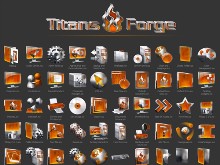
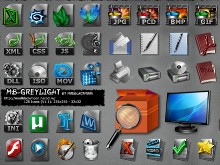
Popular Icon Packs for IconPackager
|
|
|
|

How Have You Been Using Stardock Tiles?
Tuesday, March 22, 2011 by Island Dog | Discussion: Personal Computing
Tiles from Stardock has been out (in beta) to Object Desktop subscribers for a couple of weeks, and I wanted to follow up and ask our users how they like it so far, and how you have been using it. For me, it’s quite common that I have many windows open, and I have used Tiles to fast switch to each window without having to look at the task bar.
I also use a custom page to drag certain document windows to keep them in a place I can quickly access them.
https://www.stardock.com/products/tiles/
How have you been using it?

Getting Started with Stardock Tiles
Thursday, March 10, 2011 by Island Dog | Discussion: Personal Computing
With the release of the beta for Stardock Tiles I wanted to write a quick getting started guide on some of the basic features of the app. I have been using Tiles for a while now, and it’s another one of those must have apps that resides on my desktop daily.
https://www.stardock.com/products/tiles/
What is Tiles?
Tiles is an application that lets you easily manage running applications and windows with a customizable interface that resides on your desktop. Many of us are used to switching windows via the start menu, but that can become difficult with lots of apps open, especially with apps with multiple windows or documents that you might be working on.

Using Tiles
Tiles is very easy to use and within just a few uses you will be breaking the habit of using the taskbar for running applications. Tiles has pages like Apps, Webs, etc. that will display the applications running for that category of app. Switching between pages is done by swiping left or right. The display windows in Tiles are live previews, and you can quickly select and bring to focus any window that is open. Click the window within Tiles to minimize and maximize the windows as well. All the options for Tiles can be accessed by right-clicking in the Tiles interface.
You can customize your pages further by creating your own filters. You can set specific applications to be open in your pages, and pick running apps to be included that are already running. Another feature is holding down the Shift key and dragging a window into Tiles. I usually do this with apps I have open for a short time and use it to keep them organized in a custom page I have setup.

Is it Skinnable?
Of course it is! Tiles has several skins included to get you started, and even includes a skin editor to help you build your own custom skins. If you are a WindowBlinds user it will also match the skin you are using so everything goes “together” on your desktop.

So that was just a quick overview of Tiles, but there is much more to explore. Check out the demo video below to see Tiles in action and let us know how you like it!

Stardock’s Tiles reimagines the Windows task metaphor
Thursday, March 10, 2011 by Frogboy | Discussion: Personal Computing
Over the years, Stardock’s Object Desktop suite of utilities has been the source of many innovations on the PC. It is where the concept of “widgets” and “gadgets” was born. It is where ZIP files being treated like folders came from, it’s where GUI skinning came from, it’s where animated desktop wallpaper came from. And more recently, it’s where the popular icon organization program, Fences came from.
This year, Stardock is proud to add Tiles to the list of new Object Desktop programs. Tiles is to tasks what Fences is to desktop icons. It is designed to allow users to more effectively manage what they are working on.
“The current PC task management metaphor hasn’t really changed in over 18 years,” said Brad Wardell, President & CEO of Stardock. “In recent years, mobile devices have been able to introduce users to more modern metaphors of arranging their digital life. Tiles has been designed to update that metaphor to the PC experience.”
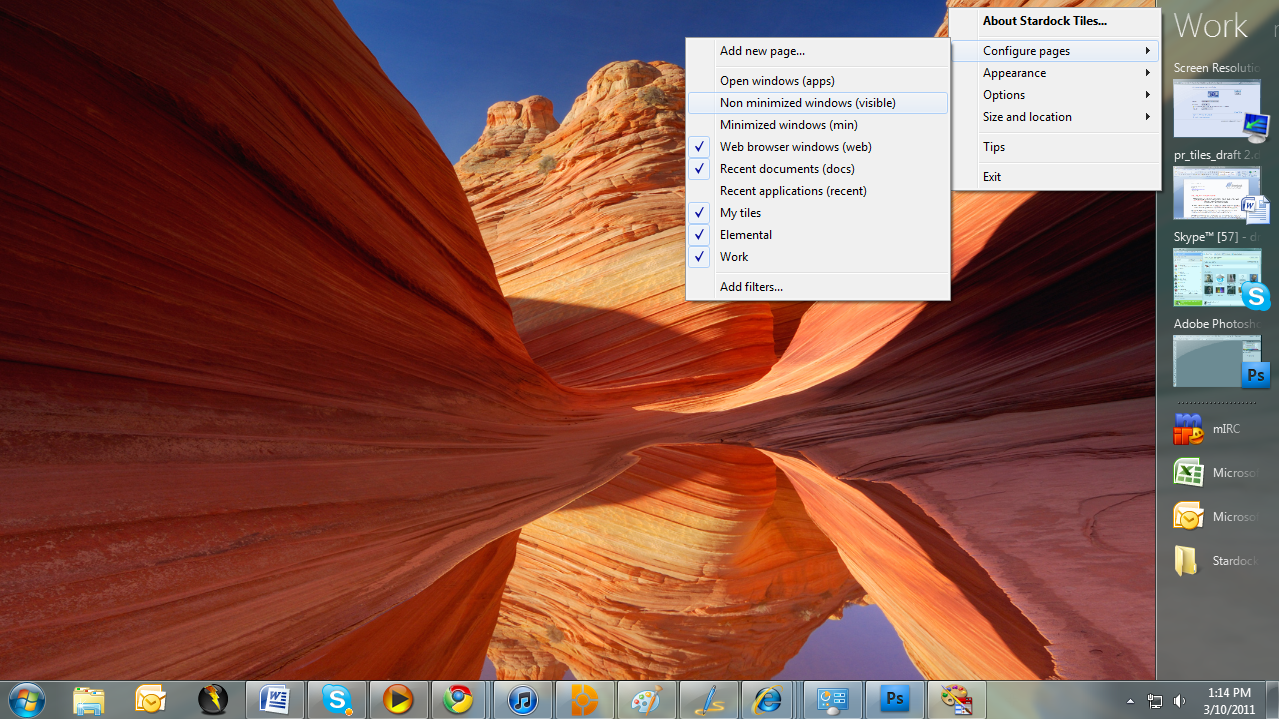
Tiles works by taking advantage of the wider aspect ratios of today’s desktops. On the right side of the screen, a page of tiles is displayed. Users may have multiple pages that they organize as they see fit or make use of several sample page filters such as displaying only active windows or only web pages. Users can then switch between pages either by clicking on the page title or on touch systems by sweeping their finger across the page to “turn the page”.
Users add tiles to a page through either holding the shift key down and dragging a window onto a page or by dragging an icon onto the page. When the tile is active, it is displayed as with a thumbnail of the window. When the tile is inactive, only the program’s icon is displayed. Users can configure Tiles to be different sizes, automatically maximize the windows selected tiles, automatically hide and show windows based on the tiles on a particular page as well as dozens of other options to enable users to customize Tiles to their work style.
Tiles is currently in beta exclusively on Stardock’s Object Desktop software network. Users can get Object Desktop at www.objectdesktop.com. It is expected to be generally released this Summer.
Download:
Video:
http://www.screencast.com/t/u4oK0520uoK
Screenshots:


ObjectDock Plus 2: Changing Background Themes
Thursday, February 24, 2011 by Island Dog | Discussion: Personal Computing
There is another tutorial out there I wrote, but that was for the previous version of ObjectDock so I figured now is a good time to get a new one up. ObjectDock 2 had a major overhaul in its user interface, and with that came a few new ways to do things that people might not be familiar with.
If you don’t already have ObjectDock 2, then get it from here: https://www.stardock.com/products/objectdock/
There is a free and Plus version, and the Plus version gives additional features such as multiple docks, tabbed docks, and much more.
Open up your ObjectDock configuration and you will see a list of docks you currently have on your desktop. Click Style/Color for the dock you wish to change, and then select Change Theme.

Now you will see all the background themes you have available. To change to another theme, simply click on one in the list.

WinCustomize has an dedicated gallery for ObjectDock Backgrounds, and there are tons available to download. You can open your backgrounds folder from the theme configuration to install them, or automatically if they have a .dockzip extension.
Impulse Guide: Backing Up your Object Desktop Apps
Tuesday, February 15, 2011 by Island Dog | Discussion: Personal Computing

If you have a subscription to Object Desktop you should know that as long as your subscription is active then you will always have access to the latest and greatest apps available. One very important point to make is that everyone should make a backup archive of their apps in case they ever need to be restored if for whatever reason you don’t have access to the current updates.
Here’s how to do it:
Go to the My Software tab in Impulse and right-click the application you want to archive. Select Archive Application and that’s it, you now have an archive of that version which will be shown as a .impulse file.

Your archive files can then be found in C:\ProgramData\Stardock\Impulse\backup. Once they are backed up you can copy them to an external drive or DVD for storage if you wish. In the Impulse preferences you can also specify the archive file location.
In Impulse preferences, under the Advanced Settings there is an option for the archives. You have a box here you can check that will automatically archive your applications before they are updated. This way you will always have an archive when a new update comes through.

If you ever need to restore that archive, you can find that option in the Impulse preferences menu.
If you don’t have access to Impulse, you can alternatively download .impulse files from Impulse Anywhere, but you will need Impulse to install them.
3 Essential Apps for the Home Office
Thursday, February 3, 2011 by Island Dog | Discussion: Personal Computing
I was reading a couple of articles this week on how telecommuting and working at home is become increasingly popular and more efficient in some cases. I am part of that group and I wanted to share 3 pieces of software that get daily use on my desktop, and can benefit many others as well.
- SnagIt – I have so many uses for SnagIt I couldn’t possibly list them all here, but it provides some features that really can benefit anyone who does work on their PC. SnagIt at its core is a screenshot tool, but goes way beyond that with its comprehensive image editor, use of stamps and callouts, and sharing features. You should use this to take screenshots of webpages for research or sharing, or place callouts on images to show co-workers details about something that needs to be addressed.

- TweetDeck – I can only imagine you know what Twitter is and are taking part in it. The cool thing about Twitter is you can shape it to your own taste. You don’t have to get involved in social circles of people if you don’t want. One great Twitter use is just following news outlets to get the latest headlines as they come in, or follow companies that specialize in your area of business. It’s a fantastic tool and TweetDeck is by far the best client out there. You can have multiple accounts and it offers other features that nobody else does.

- ObjectDock Plus – The key to running a successful home office is organization. That is true for both your computer desktop and your physical office space. While I use multiple desktop tools, ObjectDock Plus has always been the favorite. I create a tabbed dock bar and create tabs for each software type I commonly use – for instance I have a Office tab that contains shortcuts to all my Microsoft Office applications. With ObjectDock I don’t have to clutter up my desktop with icons or browse through the start menu to open an application, it is right there is an easy to access dock.


ObjectDock Plus 2 Featured in PCWorld
Tuesday, January 25, 2011 by Island Dog | Discussion: Personal Computing
PC World’s Download This has a feature on ObjectDock Plus 2!
“Color me impressed. ObjectDock Plus 2 combines the best of OS X's and Windows launch features into one interface. The free version, ObjectDock, allows only one dock and is missing several features such as tabbed docks, and the aforementioned docked folders, but is still well worth the download. However, it may prove so addictive that you'll want to buy ObjectDock Plus.”
Read the full feature at PCWorld.
WindowFX 4: Inactive Windows
Monday, January 24, 2011 by Island Dog | Discussion: Personal Computing
In the last article we talked about the Window Animations in WindowFX 4. The topic for today is going to be Inactive Windows where WindowFX 4 can apply some really cool and useful effects to the windows.
Get WindowFX 4
You will need WindowFX 4 to get started, so if you don’t have it already head over to the website and grab the trial version. The full version of WindowFX 4 can be purchased for just $9.95 and it is also part of the Object Desktop suite where you get a bunch of cool desktop apps for just one low price.
https://www.stardock.com/products/windowfx/
Inactive Windows
The features and effects we are talking about in this guide can be found in the Inactive Windows tab in WindowFX 4. What WFX4 does here is makes the active window stand out and apply effects like fading to inactive windows. We have 3 different areas we can focus and apply here.
Darken Inactive Windows. This will make everything under the active window darken which gives you absolute focus on the windows you are working on or looking at. The slider allows you to adjust the darkness, and there are options to blur the windows (Win7/Vista only) and to use a circular darken in stead of a flat effect.
 |  |
Automatically minimize inactive windows. If you work with lots of windows open, but like a clean desktop then this might be one of your favorite features of WFX. Here you can adjust the slider to increase/decrease the amount of time before inactive windows will minimize.

Make inactive windows transparent. This is a very cool effect, and as the title says this will make inactive windows transparent. As with the others, you have a slider to adjust the transparency of the inactive windows.

Here is a video example of the effects.

Backing Up ObjectDock Plus 2.0
Wednesday, January 19, 2011 by Island Dog | Discussion: Personal Computing
People have been asking how to backup their settings for ObjectDock Plus 2.0, so here is a quick tutorial on how to do it.
Open ObjectDock settings, and select Troubleshooting Options.

The window that opens will have a button that will take you directly to the ObjectDock settings folder.

Now you just need to backup the settings in this folder, and if you ever need to restore just copy these files back over. Alternatively, you can go directly to this folder in Windows - C:\Users\YourName\AppData\Local\Stardock\ObjectDockPlus.
