











Check Out GAME.AMD.COM
Tuesday, November 4, 2008 by Island Dog | Discussion: Personal Computing

I was browsing the AMD website today and came across a couple of resources I wanted to share. Gamers will particularly be interested in this, but it’s a great resource for anyone.
AMD GAME! is a resource from AMD that gives you the latest news on graphics cards, processors, drivers, and everything else you need to get the most out of your gaming experience. It also includes resources on where to obtain AMD GAME! systems and components. They also have a vast community area with downloads, blogs, forums, contests, and much more.
Don’t forget that there is an AMD branded version of Impulse available for download. There is much more going on over there, that it’s too much to list, so just take a browse through the site and check out what they have to offer.
FrogBlog: October 2008 look back...
Monday, November 3, 2008 by Frogboy | Discussion: Personal Computing
 Seems like it was only yesterday that we were discussing Longhorn/Windows Vista. And now here we are talking about Windows 7. There's been some great coverage about Windows 7 on our partner site, Neowin.net which you can get to here:
 I personally wish Microsoft would make Windows 7 64-bit only. It would make everyone's lives better. Oh well, another N years of dealing with two different versions of Windows it appears.
One thing I am excited about is the "Super taskbar" in Windows 7:
First, be aware it's super configurable. But what's a big deal about this is the skinning possibilities for this are substantial. With the extra space, a lot of cool stuff becomes possible to do that we couldn't really do with the existing taskbar.
Object Desktop News
Meanwhile, things are going very well with the upcoming Object Desktop 2009. Hard to believe it's only 16 days away (November 19).
Check out these screenshots:

The completely rewritten Theme Manager 3.0 should bring a smile to people's faces. The .suite format gets revitalized and MyColors support is integrated in as well.
One of the reasons Theme Manager 3.0 is so important is that it will allow Stardock to release a .suite version of MyColors themes that don't use licensed IP so that skinners can more easily make use of them. Right now, it's extremely difficult for us to do that which has caused some consternation in the skinning community.
Of course, the other big updates to Object Desktop 2009 include a Vista version of BootSkin and an XP version of DeskScapes.
Mega Games Week
 This week there will be a ton of big announcements on the game front. First, Demigod is heading towards Beta 2 which will introduce a bunch of new elements to the game (the details will show up on Gamespot, IGN, GameSpy, XPlay, GamesRadar, 1Up, and beyond).
The second big announcement happens tomorrow with the much anticipated announcement of Stardock's next major PC title after Demigod, the fantasy strategy game that has been described as a spiritual successor to Master of Magic.
GUI Champs
 The GUI Championships have continued in earnest. There's been some great entries already. This year we've gotten a ton of prizes for the contest (over $15k). If you're an artist or skinner, you should definitely check it out.
The current deadline to get stuff is still weeks away so there's time to create some cool stuff. It'll be interesting to see how much gets made. It's always exciting to see skinners from around the world create this stuff.
Sinning...
I don't know about you but I'm waiting on pins and needles for Sins of a Solar Empire v1.1 and the micro-expansion pack, Entrenchment. I hope to have some news on that shortly.
Windows 7 Demo Videos
Wednesday, October 29, 2008 by Island Dog | Discussion: Personal Computing
I wanted to share some videos of Windows 7 that have been coming out of PDC this week. There are all types of good stuff here.


Windows 7 Early Wishlist
Monday, October 20, 2008 by Island Dog | Discussion: Personal Computing
You have been hearing quite a bit about Windows 7 lately, and Brad has given his wishlist, so I wanted to follow him and give my early wishlist as well. Although mine is a bit different in nature, these are things I think will make Windows 7 popular, and distance itself from Vista.
- No Multiple SKU’s. Sorry, but I honestly think this was one of the worst marketing mistakes made with Windows Vista. Just off the top of my head there are about 6 SKU’s for Vista (Home Basic, Home Premium, Business, Ultimate, Enterprise, and the Starter Edition). Can anybody really tell the major differences between these versions? Most consumers have no idea, and I have never run into a salesperson who did a good upsell of Vista. Too many editions are confusing, stick to one version, and make the case on why people should use Windows, not the 10 different iterations of it.
- Family Pricing. I have about 5 Windows PC’s in my household, and only two run Vista. I run two because I received two free licenses by attending Microsoft events, if I wanted to install Vista on all my home PC’s, it would have cost a minimum of around $500 depending on what “versions” I chose. There is just no incentive for purchasing multiple licenses of Windows. Why not have a family pack of say 3 or 4 licenses for a fairly reasonable cost?
- 64-bit Only. I’m going to echo Brad’s statement on this and say now is the time to take the plunge. The memory limitations are reason enough to go this route, why be so limited when RAM is so inexpensive these days?
- Focus on the Cloud. I have seen some statements from Ballmer about cloud computing, and possibly it’s own OS….no thanks. Integrate this into Windows 7 and make Windows 7 fully integrated with Live Mesh, or whatever other service they come up with. Live Mesh is really cool so far, but it’s integration with Windows is flaky, and should be a native integration with it. I want to see seamless syncing of my contacts, calendar, e-mail, etc. to the “cloud” without having to download additional clients.
That is my quick list for today, and I’m sure once we get more details about Windows 7, I will definitely expand on these. However, I think Windows 7 can be a huge success if Microsoft rethinks some of the issues stated above.
Stardock 2008 Report
Wednesday, October 15, 2008 by Frogboy | Discussion: Personal Computing

Like most companies, Stardock puts together an internal business plan for setting up goals and objectives for the company for the forthcoming year (Stardock's fiscal year begins its execution phase every October 1). As part of this business plan is an appendix that acts as a critical analysis of what Stardock customers can expect to see and what challenges the company faces to better satisfy customer expectations.
For this year, it has been decided to make this appendix available to the public. The Stardock 2008 customer report goes over some of the successes Stardock has experienced but also looks at the failings with a considerable amount of criticism in areas that the company needs to improve on.
The contents include:
- Impulse digital distribution status report
- The status on Stardock game projects
- Stardock's position on "DRM" and copy protection explained
- An update on the Gamer's Bill of Rights
- The status of Object Desktop
- A look at the dock technology now used by Dell and others.
- The results of the 2008 customer survey report (VERY interesting results)
If you're interested in the inner workings of a consumer PC software company, you may find this document to be very interesting.
URL: https://www.stardock.com/media/stardockcustomerreport-2008.pdf
Windows 7 it is...now for my wish list
Monday, October 13, 2008 by Frogboy | Discussion: Personal Computing
So it's official, the successor Windows Vista is Windows 7.
Windows 7 is designed to be all the things Windows Vista wasn't including:
- It's faster. MUCH faster.
- It's cleaner. The UI has been cleaned up a lot.
- It's easier to use. A lot of the functionality is more streamlined
- It's richer. The ribbon seen in Office becomes part of the OS allowing app developers to have a standardized way of taking their apps to the next generation UI (I love the ribbon).
- The UAC is...a little bit better. I still think Microsoft should have a setting to allow signed applications to be always okay'd by users if they want.
- It apparently has a new Start menu and taskbar.
- The included applets are modernized
- It may come with native VHD (virtual hard disks) support
- Better system tray handling
That's all well and good but I have a few other things I'd like to see added to the list:
- Make it 64-bit only. PLLEEASE!
- Give us better and cleaner access to manage the junk that loads on boot-up. (Stardock TweakWindows 7 will certainly do this otherwise)
- Make it a LOT easier to share drives over the Internet
Let me talk about 64-bit a little bit. A lot of people don't realize just how much effort developers have to go through to support 64-bit and 32-bit. It's a mess. Windows 7 is a great opportunity to cut the umbilical cord on legacy 32-bit. Most modern PCs are already 64-bit. They're just running a 32-bit OS which is a shame. Drivers, desktop enhancements, and all kinds of other things have to do special versions for 64-bit because most people run 32-bit OSes on their 64-bit hardware.
Memory is incredibly cheap and yet we're still stuck with a 2 gig limit on program memory use (a pain for game developers trying to have lots of rich textures). My next PC is going to have 16 gigs on it minimum.
Moreover, the handle issue of 32-bit NT OSes pretty much goes away at 64-bit. It's just a vastly more robust experience.
I'm typing this on a Thinkpad T400 which is running Vista 64 and the experience has been phenomenal (and it only has 4 gigs but I end up with an extra gig of disk caching).
Consider the performance ramifications of a system that has massive amounts of memory. You leave your PC on long enough and you could end up with massive amounts of it stored in a huge disk cache. Windows is using 2GB for caching my system right now and the performance difference is noticeable - very noticeable. If I could get 8GB for this machine, I would.
So hopefully, we'll see Windows 7 get a lot more 64-bit users.
Get More From Your Screenshots with Snagit 9
Thursday, October 9, 2008 by Island Dog | Discussion: Personal Computing

As you might know, taking screenshots is a big part of my daily work. Whether it’s taking screen captures of applications, games, skins, etc., having the ability to easily take these screenshots is a must. The old “print screen” button works just fine for taking screenshots every once and a while, but if you want to take it to the next level then you need to grab a copy of SnagIt 9 from TechSmith. Even if you are a previous user of SnagIt, the upgrade is a must-have, and new users will be hooked on all the features it has.
Let me start off by showing what is new in version 9.
- New User Interface. The interface and workflow has undergone a complete makeover. It’s a huge difference than previous versions, but it takes not time at all to become familiar with this one.
- Auto-storing. When you take a screen capture, SnagIt automatically saves it until you decide on what to actually do with it. Perfect for when you need to take several screenshots, and you don’t have to worry about saving each one until you are done.
- Combine images. This is one of my favorite new features. The SnagIt Editor just became even more powerful, so now I can do editing right in SnagIt that I once had to use an external image editor for. You can now take multiple captures, and combine them by simple drag and drop
- Search and Organize. SnagIt 9 has a great integrated visual search and tagging/flag features to make organizing and finding your screen captures as simple as can be.
There are just a ton of options and configurations for SnagIt regarding captures and outputs, but they are easy to understand and configure. There are a bunch of capture profiles included. Some of these include taking screen captures of regions, full screen, scrolling windows, webpages, and more. SnagIt also allows you to create your own personal capture profiles to easily tailor the capture to your specific needs.
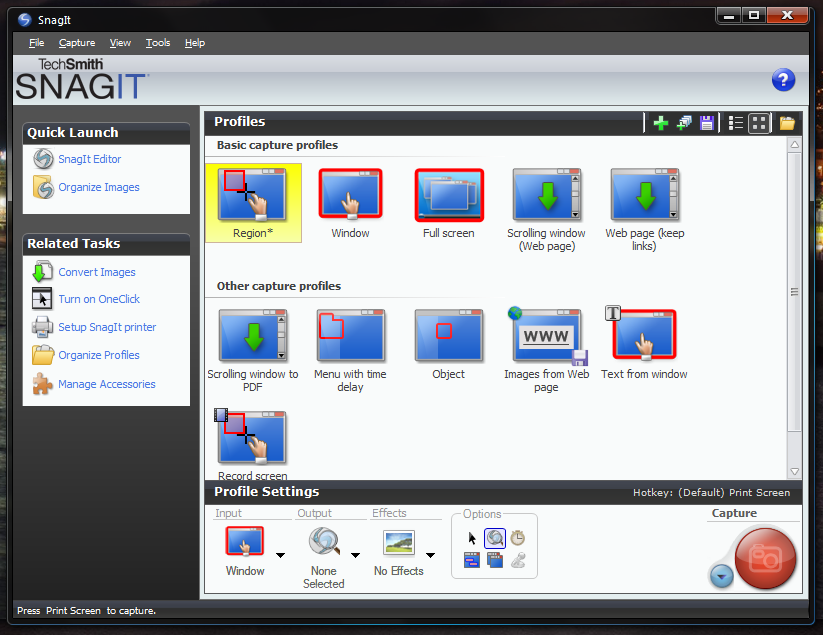
You can also select a profile from the system tray, along with quick access to other common functions. Once you are ready to take your screen capture, you can do it via a configurable hotkey setup, through the system tray, or through the main interface. The hotkey option is definitely the best way to go.
After you capture is done, you can either take more or use the SnagIt Editor to do a variety of things with the images. The SnagIt Editor is a very powerful tool, and TechSmith really poured some extra effort into making it a full fledged image editor. I have actually found myself turning to the SnagIt Editor instead of higher-end graphics applications when needing to edit an image. The Editor has a ribbon-like interface, with tabs which give you quick access to the many editing features that are available.

A brief overview of the functions of the tabs:
- The Draw tab allows you to get access to the clipboard, drawing tools such as adding text, callouts, shapes, arrows, etc.
- The Image tab gives you tools like crop, resize, rotate, etc. It also has an ‘image style’ section where you can apply a variety of edge effects, shadows, and other image styles. This section also gives you the options to add blur, color effects, filters, and much more.
- The Hotspots tab lets you add hotlinks, tooltips, and flash popups to your images.
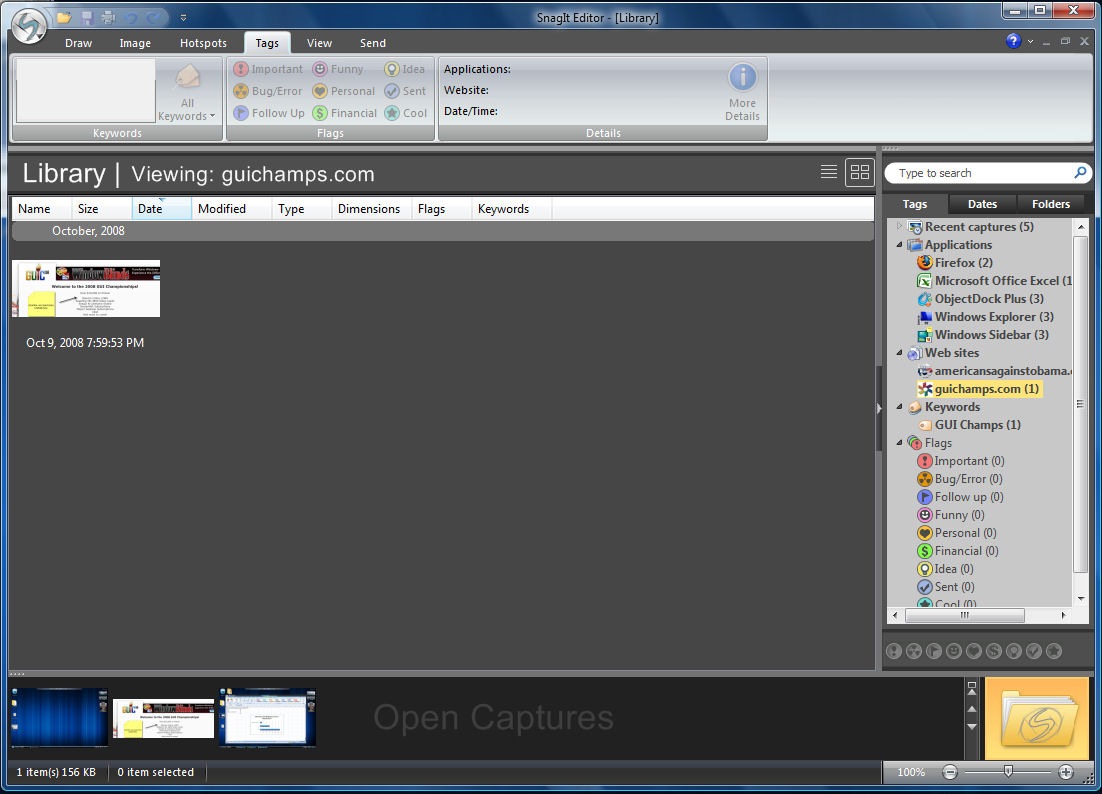
- The Tags tab lets you add keywords to your images, set flags for the images, and gives you a detailed description of the captured image.
- The View tab gives you control over zooming, windows arrangement, and help/training sections.
- The Send tab is where you can take your finished image, and send it to a huge variety of outputs like e-mail, FTP, applications like Word, and even upload directly to Flickr.
I just wanted to focus on a couple of my favorite features which I use regularly. When I take a screenshot of say an application or website, I often need to make ‘notes’ about a specific part of the captured image. I used to have to break out Photoshop and add some arrows and text boxes, but no more. I can do this in seconds with SnagIt. All I have to do is select a Callout image, add my text, and then add an arrow. It can’t get much easier than that!
 |  |
Once I have my image ready, now I can tag with some keywords, so if I need to find it later, I can find it via the search pane either through keywords, websites, date, and more.
When everything is done, I just now need to figure out where to send it to. You can of course just save it as an image file, but there’s so much more you can do with it if needed. If you need to send it to an application like Word, Excel, or Powerpoint, you can do that with a simple click. E-mail and FTP uploads are just as easy, and you can visit the SnagIt Accessory page for more outputs that can be downloaded. My favorite option is the ability to upload the images directly to my Flickr account. Uploading through SnagIt saves a bunch of time on my part, and it’s a welcomed feature.
I could really go on and on about all the features, but the bottom line is SnagIt is worth every cent. If you need to take screen captures of any type, then there is no substitute, SnagIt is the way to go.
You can find more information, and a free trial download at http://www.techsmith.com/screen-capture.asp.
Screencast: Impulse Interface Walkthrough
Thursday, October 2, 2008 by Island Dog | Discussion: Personal Computing
We have been putting out updates to Impulse quite often, so I thought now would be a good time to do a quick walkthrough of the user interface in Impulse. Impulse is Stardock’s next-gen digital distribution platform. You can get the free download and more information at www.impulsedriven.com.
Object Desktop 2009 Preview
Friday, September 19, 2008 by Frogboy | Discussion: Personal Computing
 It's hard to believe 2008 is starting to come to an end. The yearly snapshot of Object Desktop is starting to come together. This year, however, we're doing to do some things differently. First, we're going to release a lot of updates/new features with the snapshot instead of releasing putting things out bit by bit in the months leading up to it. This way, the release is more of an event.
Object Desktop Today
Let's first start off with Object Desktop as it is today:
Object Desktop is a suite of desktop enhancement utilities that allows users to transform their Windows experience. It comes in two forms: Object Desktop and Object Desktop Ultimate. The Ultimate Edition is designed for power users while the standard
edition is designed for everyone else.
The key parts of Object Desktop are:


- WindowBlinds - which can change the Windows GUI.
- IconPackager - which can change the icons of Windows all at once
- DeskScapes - which can provided animated wallpaper
- SoundPackager - which lets users package and share sets of sound schemes
- DesktopX - which lets users create and use widgets and desktops
- MyColors - which lets users apply professionally created themes that completely change the Windows experience. And Object Desktop users get 4 free ones per year.
Object Desktop Ultimate adds:
- TweakVista - a utility for getting the most out of Windows Vista
- WindowFX - a utlity that lets Windows XP users add special effects to their PC
- SkinStudio - an application that lets usres create skins
- IconDeveloper - an icon creation utility
- ObjectBar - let users create and use their own replacement UI elements to Windows
- IconX - Lets users enhance the Windows XP desktop icons
- LogonStudio - lets users create and use their own Windows XP or Windows Vista logons
- Keyboard LaunchPad - lets users assign hot keys to common actions
- RightClick - lets users replace the desktop right-click menu with one of their own creation
So that's where we are today. Anything not listed above is something that is already probably set to legacy already.
Object Desktop Tomorrow
Now, someone who purchases Object Desktop right now gets everything we do for an entire year which includes Object Desktop 2009. Below are the things we're working on for Object Desktop 2009. All of this is subject to change but this gives you an idea of what we're hoping to accomplish/do within the next year when Object Desktop 2009 is released.
Things that are going to go away...
Some programs are going to be phased out (existing users will still be able to download the latest version):
- IconX is going to go away. Sorry. I like this program too but making it work on Vista would be virtually impossible.
Things that are going to go into maintenance mode (no longer updated):
- ObjectBar. This is one of my favorites but we need to rewrite this to keep it up to date and at that point, we would release a new program based on today's requirements.
So there's the bad news.
Things that are going to get attention for Object Desktop 2009
+ DesktopX.
+ RightClick.
+ Keyboard LaunchPad.
+ SoundPackager.
Things that are going to get a lot of attention but may not be available on the release of Object Desktop 2009 but should be released within a year depending on Windows 7's release date.
+ DesktopX 4.0 (Vista/XP/Windows 7)
+ WindowFX 4.0 (Vista/XP/Windows 7)
+ WindowBlinds (Vista/XP/Windows 7)
+ SkinStudio (Vista/XP/Windows 7)
+ DeskScapes 3 (Vista/XP/Windows 7)
Also, anything that doesn't work on Windows Vista 64-bit by the time Object Desktop 2009 ships gets pulled (other than WindowFX). 64-bit is the future.
NEW THINGS we hope to have available either on the release of Object Desktop 2009 or shortly after:
+ Theme Manager 3.0. Major update, everything everyone was hoping for.
+ BootSkin Vista.
+ StyleVista 1.0. (Ultimate Only)
NEW THINGS that are in development
+ Fences (Ultimate only)
NEW FOCUSES IN DEVELOPMENT
We are looking at Windows 7 closely and one of the things we are going to be looking to do going forward is developing more software that improves system performance and usability as well as improving productivity. Keep a close eye out on Impulse. It's not just a download manager, it's a platform. Expect to eventually see a lot of "cloud" features in Object Desktop that help make Windows faster and easier to use.
To learn more about Object Desktop, visit www.objectdesktop.com.
Stay tuned!
Genie Backup Manager Home 8.0 Walkthrough
Wednesday, September 17, 2008 by Island Dog | Discussion: Personal Computing
For anyone who uses a computer at least on a daily or weekly basis, or someone who uses their PC for things like keeping photos, doing financial work, etc., a backup solution is very important. I’m sure everyone knows someone, or at least heard the stories of people who have lost very important data that was unrecoverable, and that’s why finding a good solution is key. I was happy to see that Genie-Soft has some applications available on Impulse, so I wanted to give the Home version of Genie Backup Manager a run through.
The first thing I noticed is it has an “Easy” and “Normal” mode. Easy mode has a very basic interface that even the most computer illiterate could use, but for most users, the Normal mode should suffice.
 |
 |
One of the great things about an application like Genie Backup Manager is that you can either backup your entire system, or just pick and choose the elements to backup. Getting started is easy as you just click the Backup button and you are guided through the steps to create your backup. In the left hand menu you can see the steps and jump to a certain section if needed.
Flexibility is key, and Genie Backup Manager gives you several options on how you actually want to get your data backed up.
- Local/LAN
- Removable Media
- Remote using FTP
- CD/DVD
- Online backup
I think the bases are covered when it comes to location choices, and where you backup will really depend on your system, your needs, and really what is easiest for you to manage. By no means think you are limited to one backup, I personally do a full backup and then a separate backup of items such as mail, photos, etc. I will typically do a full system backup using an external USB hard drive, and for my smaller backup jobs I will use a DVD, and also the online backup service. More on that in a minute.

Moving on to the next step, you can now select the data to be backed up. What really stood out to me is how Genie Backup Manager not only lets you select the specific item to backup, but has selections of “common” items like Contacts, My Photos, Fonts, etc. You can even backup the registry from here.

Now here is the feature that seals the deal for me…..plugins! There are tons of free plugins available that make backing up specific applications that much easier. I was browsing through and found one that will backup the themes and settings of WindowBlinds 6. No more lost skins!

After you select your data, you can now give the final options such as enabling password and encryption protection on the backup job, and enable the SwiftRestore feature which creates an .exe that can be viewed and restored on a system regardless if Genie Backup is installed or not. That is a very useful feature. There is also a scheduling manager that lets users select the times and frequency of scheduled backups. Genie Backup Manager Home also has a disaster recovery feature to help you in the event of a system failure. It guides you through the process of creating a boot disk which you can use to restore your system if you ever find yourself in that situation.
Now to my favorite feature of all…..online backup. Backing up to online services has always been a bit tricky, and finding a good service always seemed difficult, but not anymore. Genie-Soft has their own online backup service which can give home users up to 5GB of storage space. There are other plans available, but this is perfect for home users. There is a free 1 month trial available for Backup Manager users to try it out, but I’m sure it’s something many people will want to upgrade to and use. I ran several online backup jobs and every one of them was very, very fast. Even through the restore process it acted as if it was just an external HD connected to my system. Kudos to Genie-Soft for making this so easy to use.
There are many features that I could go into, but after using using Genie Backup Manager 8.0 for a while now, I definitely can and will recommend it to anyone looking for a complete backup solution for their PC. The ease of use and reliability make this a winner. Next I will take a tour of the Pro version, and see how that can benefit users who need more than what the Home solution offers. Genie Backup Manager 8.0 is compatible with Windows XP and Vista, and is available in the Impulse Store for $49.98.