











Life with Microsoft Surface: Day 6
Thursday, November 8, 2012 by Frogboy | Discussion: Personal Computing
Yesterday I mentioned that there's no Metro version of the Windows essentials utilities. This remains a baffling issue as a Live Movie Maker and a Live Writer would be very nice to haven.
I will say that the Metro version of Skype is nice. Which brings me to today's observation: Microsoft has got to come up with a distinct classification for WinRT apps because it's impossible to do a decent search on the terms Modern and UI. As in, what is the best Modern UI Facebook client.
The nice thing about the term Metro is that it's distinct. Like iOS or Android, it lends itself to being easily searchable and instantly recognizeable as being different from a normal Windows app. Modern UI won't cut it. We need a term or else we'll end up stuck with something like WinRT which in itself is problematic. I think Microsoft should have just bit the bullet and paid whatever they had to pay to keep referring to these apps as Metro apps.
Surface isn't competing against my iPad for use right now. Instead, it is competing for use with my MacBook Air. It's ironic that Surface shines the most as a notebook rather than as a tablet. I can, and have, used it as a tablet but I find it most useful in using the upgraded keyboard with it. Frankly, if it didn't have so many rough edges (not the hardware, but the software) I'd be tempted to recommend it over any ultra portable out there. It's that good.
Start8: Using a Custom Start Button Image
Monday, November 5, 2012 by Island Dog | Discussion: Personal Computing
Start8 has been well received and has become quite popular with users of Windows 8. I wanted to focus on one feature in particular today which is the ability to use custom images for the start button. Start8 already includes a couple you can choose from in the main configuration, and there’s also several custom ones available that are included as well.
Change the Start Button
Changing the start button image is easy, just click the ‘pick image’ box in the Style section of the Start8 configuration. You’ll then open up a window where you can choose from quite a few different start button images.

We have a gallery on WinCustomize just for Start8 start menu buttons, and you can download more from there, and make your own to submit to WinCustomize to share with others. Once you download a start button image, just place it in the Start button folder in the Start8 directory.
Typically, that would be here: C:\Program Files (x86)\Stardock\Start8\StartButtons
Create Your Own Button
Start8 Start buttons are pretty easy to create. It’s just one image file with 3 images stacked vertically saved in a .PNG format.
Here’s an example:

Here are the 3 graphics stacked. The top is the normal state, then the hovered state, and the bottom is the pressed state. Each image represents what the button will look like in those states. That’s what the start menu button consists of, and when you have your image done you can place it in the folder mentioned above.
A free trial for Start8 is available, and the full version is just $4.99.
IS Microsoft Surface the Zune of tablets?
Monday, November 5, 2012 by Frogboy | Discussion: Personal Computing
I'm writing this with my brand-new Microsoft Surface. The best way to describe it is that Surface is to tablets what the Zune was to music players. It's not terrible but the $500 device has nothing to recommend for it.
As a notebook device, it's certainly better than the iPad. It supports multiple users. It supports mice (and on-screen mouse cursors). In short, you could realistically use this device as a very very light work machine. In theory. It comes with a Windows RT version of Office Preview which works adequately, if slowly.
Ironically, it's as a tablet where it falls down. I always assumed that the "Metro" experience would shine on a tablet. It doesn't. It's annoying and perplexing even there. Give me the option of having the charms bar up all the time and the specific app bar up all the time and it would be much more tolerable. I really don't like having to swipe at the screen in just the right way to get options to display. Getting around the Metro experience is a chore, even as a touch device.
It's very frustrating, at times, to navigate around Metro. I'm still new with I accidentally closed my editor because I was trying to switch to another tab (Which you do by swiping down from the top and selecting the tab). However, if you swipe too far down, it closes the app. Bam. Gone.
What's worse is the app selection is pitiful. Don't even think about using Office apps as a pure tablet. It's very frustration trying to use what is clearly a Win32 port with a touch screen. It does much better once you've sat down, hooked up a mouse, and started working with a real keyboard. The situation with Modern UI apps (which I'm just going to keep calling Metro) is even worse. The included ones are slow. Very slow. I also couldn't find decent third party apps that I'd use. If there's a Pulse/Flipboard quality RSS reader for WinRT I haven't found it yet. There just isn't that much to do with it.
The form factor also makes it an awkward tablet. It's very long (or wide, depending on how you look at it). It's also quite heavy. Too heavy to want to use as a tablet for an extended period of time.
Getting more apps for it is also painful. The Windows Store is terrible. As anyone who has used Windows 8's store knows, it's an assault on the eyes. Lots of multi colored blocks that tell you nothing about the app. It's just very hard to find things.
The Unopening:
Here's my friend Paul (former guest on PowerUser.tv) trying it out.
Just a few points to take home from this from my notes:
The Bad:
- Note Facebook app
- No bundled Twitter app
- No bundled RSS app
- Apps load extremely slow
- Very hard to navigate around
- Too easy to unload things entirely
- Too heavy to use for an extended period of time as a plain tablet
- It's ergonomically inferior as a tablet
- The Office port is embarrassingly half-assed
- Lack of app selection makes it hard to justify using vs. an iPad or Android device.
- UI usability lacks a lot of polish, awkward to use at times
- You cannot use this as a laptop (the stand requires a desk)
The Good:
- The mouse and on screen cursor is a huge win.
- It's actually a pretty decent notebook PC if you buy the upgraded keyboard.
- The screen isn't bad.
Overall, for $599 it's not a bad little notebook PC. But I can't imagine why anyone would want to use this as a tablet versus its competitors unless you have some specific enterprise need for multiple users and superior security.
Grade:
Hardware: B
Software: D
Update:
I am really digging the form factor. It's replaced my MacBook Air for light computing. But it's pretty mediocre as a tablet. It's a light PC.
Meanwhile, Halloween strikes Stardock
Wednesday, October 31, 2012 by Draginol | Discussion: Stardockians

It’s a mad house! A MAD HOUSE!

I can feel your anger.

Prince Ari, turns out to be, Aladin!

I…don’t know what this is. Journey?

You gotta find that paw print!

She is in charge of our health care insurance.

The marketing team is ready!

Don’t let Kotaku see this

Awesome

This costume is so good that I actually don’t recognize who this is.

Just very disturbing.

Oh Kael. Why? WHY?
Multiplicity 2.0: Feature Focus - Drag, Drop & Transfer Files
Monday, October 8, 2012 by Island Dog | Discussion: Personal Computing
This video demo shows how to easily drag, drop, and transfer files using Multiplicity 2.0.
https://www.stardock.com/products/multiplicity/index.asp
Multiplicity 2.0: Feature Focus - Quick & Easy Setup
Monday, October 8, 2012 by Island Dog | Discussion: Personal Computing
This video demo shows how easy it is to setup Multiplicity to control one or more PCs.
https://www.stardock.com/products/multiplicity/index.asp
Meeting trolls in real life
They're pathetic
Friday, September 28, 2012 by Frogboy | Discussion: Everything Else
Great article by someone who got seriously harassed by a so-called Internet troll.
http://www.traynorseye.com/2012/09/meeting-troll.html?m=1
I've had to deal with a lot of crap over the years due to idiots on the net. The most recent due to gullible people buying into things they read on the net without critical thinking. Every comments section is filled these losers who regurgitate crap they read somewhere with no inkling of the reality of the topic. People like that do that not just because they're idiots (and they are) but also because they're pathetic. They think of people in the abstract as if we are just characters in some meta game.
You can't reason with them. I've made that mistake in the past, even recently. The best thing to do is ignore them (or alternatively, ridicule them). But in real life, every one I've met in person was driven not by envy but out of a total lack of sense. They're just sad creatures. But I don't pity them. They choose to be malicious.
i liked how the author dealt with the situation. every time I see some commenter on some site regurgitate some hateful thing about me or my friends I picture some snotty kid like in the article.
GUI Champs 2012 Has Begun!
Tuesday, September 4, 2012 by Island Dog | Discussion: WinCustomize News

The 2012 GUI Champs is now officially open for submissions!
Thousands of dollars in cash and prizes is up for grabs from our sponsors at Logitech, Stardock, and WinCustomize. Submissions are open for wallpapers, WindowBlinds skins, and DeskScapes animated wallpapers!
http://www.guichamps.com/prizes
The first category, Wallpapers, closes on October 31st, and the full schedule can be found on the GUI Champs site.
Start8 brings the Start menu and button back to Windows 8
Wednesday, August 29, 2012 by Frogboy | Discussion: Personal Computing
In preparation for the Windows 8 launch, Stardock has released a near-final version of its highly anticipated Start8 utility.
Start8 is a program that adds the Start button back to the Windows 8 desktop as well as provides a fully function post-Windows 7 style Start menu.
What’s New:
- Windows 7 style Start menu with Windows 8 enhancements
- Users can search for Windows 8-style (Metro) apps with it
- Users can pin Metro apps to it
- Full support for Jump Lists
- Unified Search
- Automatically matches color to the color of the taskbar
- Start button is now skinnable
- Users can boot directly to the Windows 8 desktop
- Optionally disable the desktop “hot spots”.
- Fast access to shut down, devices, music, documents, videos
- Supports WindowFX 5.1 startmenu animations (currently in beta)
- The Windows 8 Start screen becomes accessible from the Start menu
- Start menu size fully configurable
- Adds option for WinKey to show fullscreen Metro desktop.
Screenshots:
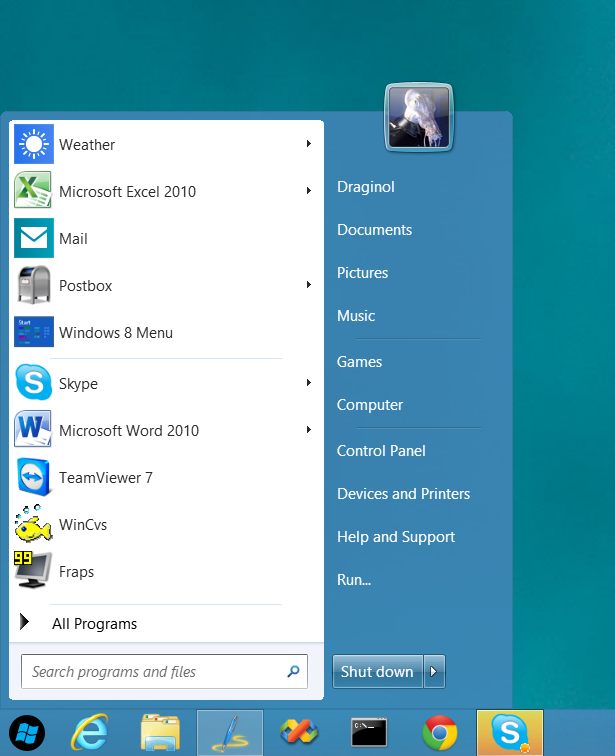
Post Windows 7-style start menu: Can “see” and interact with Windows 8 style apps.

Start button orb image can be changed
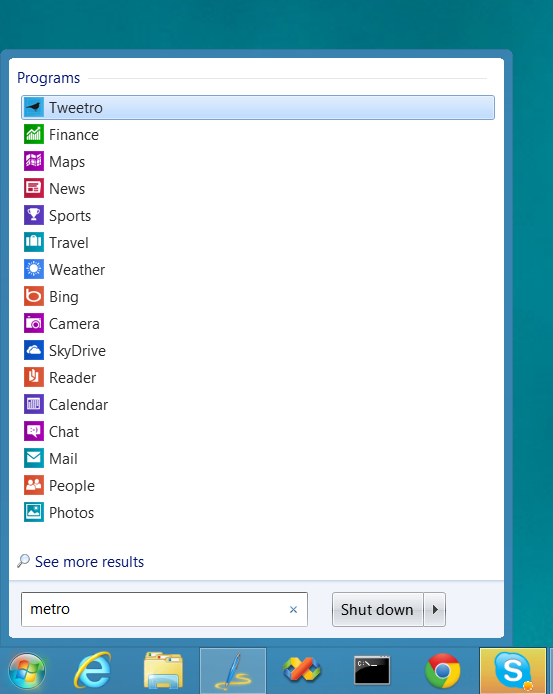
All installed Windows 8 style apps can be found by typing “Metro”.
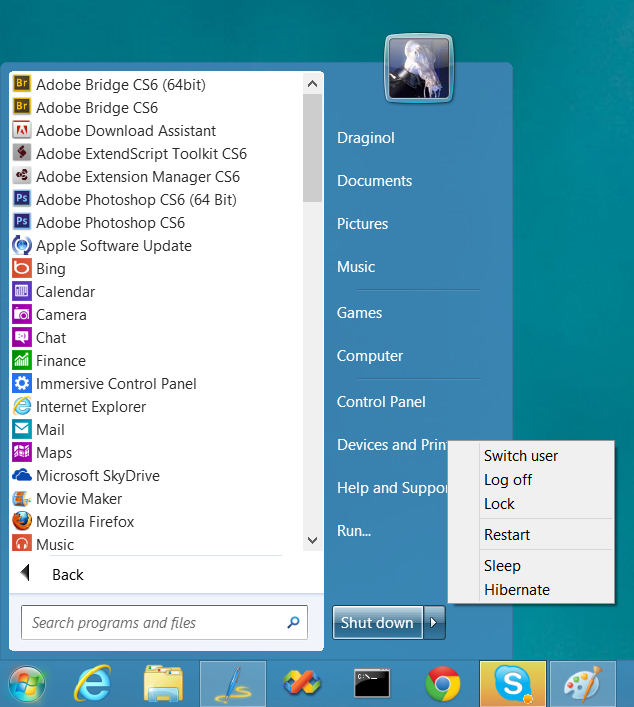
Users can quickly access all their programs and shut down options
Download at https://www.stardock.com/products/start8
5 Tips for New WindowBlinds Users
Tuesday, August 21, 2012 by Island Dog | Discussion: OS Customization
Every so often I like to focus on the new users of WindowBlinds, as although it’s very easy to use, there are some things that a new person skinning their desktop could miss. Some people just apply skins and go no further, and while that’s perfectly fine, WindowBlinds can let take things a bit further to enhance that experience even more.
Lets take a look at 5 of my favorite tips for new users.
Get WindowBlinds – www.windowblinds.net
1. Make Finding Installed Skins Easier
If you have a lot of skins installed in WindowBlinds, the skin list can obviously become quite large. There’s a couple of ways to easily navigate through all your skins. First, you can swipe through the skin list to move through the installed skins very quickly. Just grab a part of the skin gallery area and swipe your mouse to the left or right. If you know the name of a skin, there’s also a search box that you can use also. Another tip is that you can filter skins by their rating. This is a real useful feature for finding your favorite skins in a big list.

2. Re-color a skin
I think this is one of the coolest features of WindowBlinds and easily lets you customize a skin with just a few clicks. There are tons of WindowBlinds themes available in all sorts of colors and styles, but WindowBlinds gives you the ability to take a favorite skin and re-color it to match your wallpaper, a theme, or just whatever you like. Just select the Colours tab and select a color. There are also sliders where you can adjust the settings. Please note that some skins color better than others, and not all skins will re-color.

3. Apply Random Skins
If you like to change skins a lot, you can set WindowBlinds to automatically change skins each time you login or apply a skin. Click Settings then go to the Random skins tab for the option.

4. Adjust Transparency
Skinners typically do a great job at putting the right amount of transparency in their skins, but as always, some people might like a bit more. WindowBlinds gives you the option to the adjust the transparency of a skin. You can apply it to the Start menu, taskbar, Window frames, and more. If you don’t like what you changed, just hit the Reset all button and go back to the normal transparency.

5. Get More Skins!
WindowBlinds includes some great looking skins, but there are so many more out there available for download. WinCustomize.com is the spot to get them, and you can either visit the site directly or click the ‘Get More Skins’ button in WindowBlinds which will take you directly to the WindowBlinds gallery.
