











Po's Freebie Picks -Week 2
For The Kids
Saturday, March 17, 2007 by PoSmedley | Discussion: Personal Computing
First up is

The screenshot/gif doesn't begin to do it justice.
'Drempels makes colorful, swirling, hallucinogenic patterns that resemble a hurricane or tornado. It normally runs in your Windows background or "desktop", replacing your old still-image wallpaper with gently-animating visuals... and meanwhile, you can use your computer just like you normally would. It uses very little CPU overhead - so little that it even runs smoothly on a 233 MHz system!'
This item is way cool for the kids, especially if they have your old PC and don't have VISTA yet. It can run on the desktop and/or as a screensaver. I've been running it on my mine off and on for the past week and it's pretty cool. What I really like about it is that while it is running, you can adjust all the visuals from your keyboard. It's very easy to play with, even for the young ones.
Nest up we have

As you can see, I even had fun with this. (Sorry skinhit, but yours was the first pic that came to mind to mess with.lol) You can customize your colors, spray dispersal, and even which hand to use. You spray paint right over your entire desktop, windows, everything! It opens and closes very easily. It has very simple instructions and it's very easy to use. Keep those hooligans off the street!
Finally, the one that caught my attention to begin with
It's a free drawing program for kids 3 and up. This program is sweet for kids. It has a lot of really neat features built into it, FX, fonts, shapes, brushes, etc. Just not enough room to list them all. But I want to tell you what I think makes it really cool for kids, especially the really young ones.
You don't open anything up from your files or save anything to file. When the kids are using it, it's entirely self contained. All images are saved in it's program folder and show as thumbnails in the program for the kids to find again and open. So they can't misplace anything they are working on! It even comes with some images to get them started. What's also nice is that the parent can set it up at different levels, from easy on up. You can also move pics (must be in png format) into their thumbnail folder for them to mess with.
This is just a sample of what you can do on the fly.

So there you have it. Get 'em started now, Mom's and Dad's! They are the next generation of skinners and it's your responsibility to nurture their hidden talents!
Why Vista? Why 64 Bit? The Answers Are in the Questions!
Sunday, February 25, 2007 by Gideon MacLeish | Discussion: Personal Computing
The question was asked on another blog about why anyone would insist on 64 bit computing at this time when the technology is so new and computers are problematic. The same question, honestly, could be asked about Windows Vista, as a replacement for XP, which is a capable operating system, despite what I may usually think about it.
Now the question may be valid for the average end user, but for IT pros, it's a no brainer. The simple truth is, while you may make purchasing suggestions, usually it is someone else who ultimately makes the decisions, and if you're not on top of the game, you'll find yourself pretty quickly obsolete. There are a lot of business owners who haven't forgotten the insane 90's when a computer was obsolete as soon as it popped out of the box. They don't want to repeat that debacle with their networks today, and as soon as a contemporary mentions the hottest buzzword, they are asking questions, questions an IT pro needs to be able to answer.
As a support technician, my workplace has not upgraded to Vista. If I didn't have a working computer elsewhere (school) loaded with Vista, I'd be drawing a blank when users call in with Vista related questions. End users don't HAVE a choice in operating systems, or at least not one they are aware of, when they purchase their computers. They basically get whatever the manufacturer loads, and you can't find manufacturers loading their machines with XP. Getting a new machine loaded with LINUX is actually easier than getting a new one loaded with XP.
Because I've used both operating systems, I can make an informed decision. The same can be said of 64 bit computing. If you haven't worked with it, it's hard to give the kind of decision that a manager n eeds; the kind of decision that will give them confidence in decisions that you make in the future.
By the end of the year, I should have a home network with at least 5 computers (and hopefully a server...we're in negotiations...lol!) I hope to run a variety of platforms, and a variety of different hardware configurations, from my "dinosaur" PIII Linux machine on up to my TRS-80 case mod (it's gonna be HOTT! Man!). As I peruse IT employment sites, I see a lot of demand for cross platform experience. And I intend to meet that demand (but Mac still sucks! LOL!)
My Day at a Microsoft Launch Event
It was fun, well sort of...
Thursday, January 25, 2007 by Island Dog | Discussion: Personal Computing
I was invited a few weeks ago to attend a Microsoft Vista/Office 2007 launch event in Orlando which was being held today. So I decided to get up early and brave the cold and rain to see what Microsoft had to offer. It was being held at the beautiful Rosen Plaza hotel in Orlando. Unfortunately, there was more than 2000 people at this event and parking was almost impossible, but I eventually made it in.
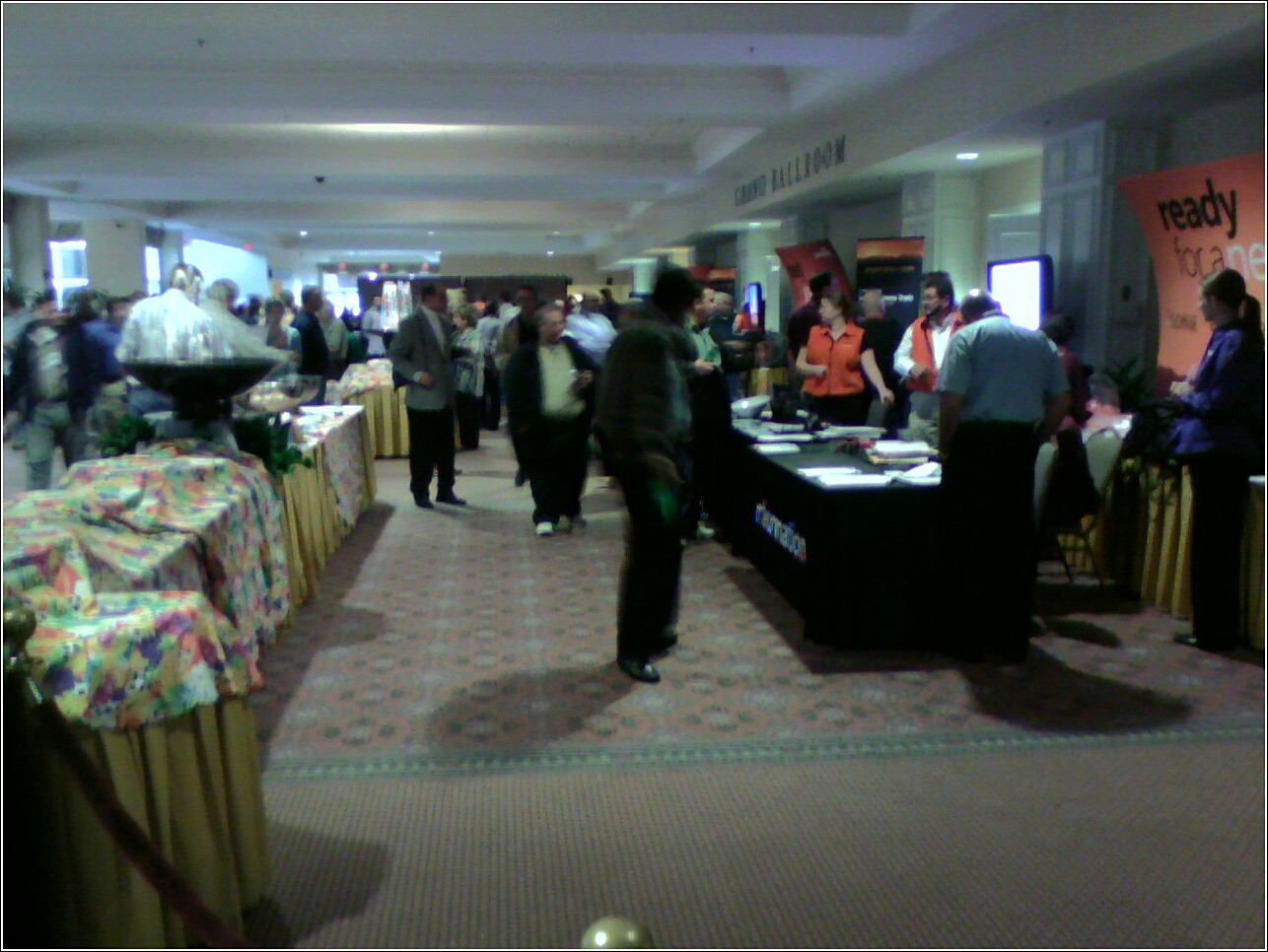 Microsoft had a very nice registration area setup with beverages and a light breakfast for participants. There were several representatives there to direct people, and they were all very friendly. I handed them my ticket and they gave me a string backpack full of goodies. By goodies I mean a pen and a t-shirt.
The presenter had just started a few minutes earlier, and he was showing some of the basic functions and some of the new features of Vista. He started off showing us the Documents folder and how in Vista you are able to "look in side the documents" and how the use of metadata makes finding and browsing your documents easier. He went on to show off other things like Windows Flip, Flip3D, and desktop search.
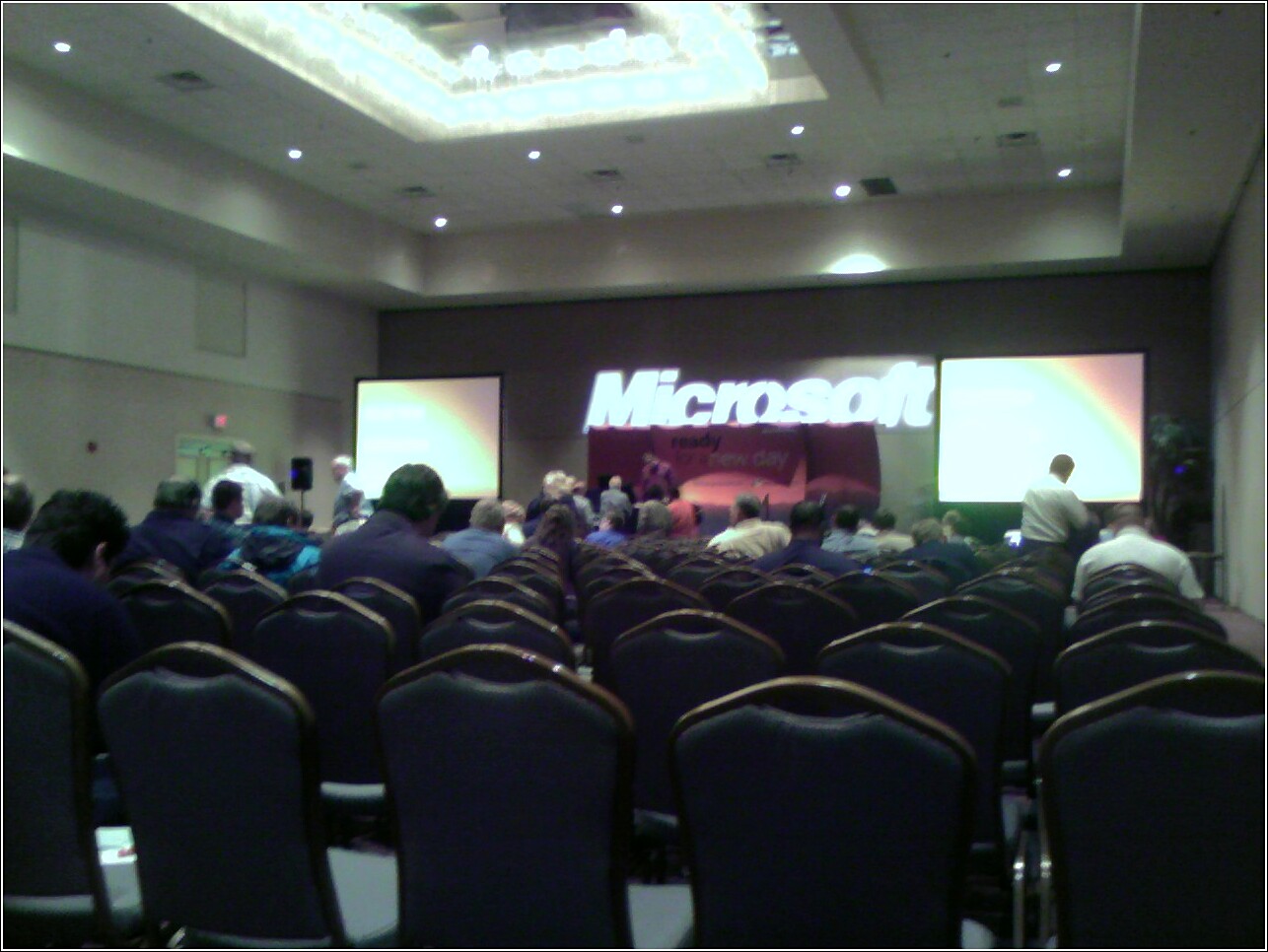 For some reason he spent just an hour or so on Vista, and the rest of the time telling us how great Office 2007 was. We saw a visual timeline of the progress of Microsoft Office, a few spreadsheet jokes, and a few minutes reminiscing about "Clippy". I will admit I learned a few new things about Office 2007 that I didn't pay much attention to before like previewing e-mail attachments inside the mail message.
During the breaks many people started "mingling" and I got a chance to talk to many people, most of which were from small or mid-sized companies. The big topic of discussion was obviously Windows Vista and many of the people I spoke to planned to upgrade to Vista. The interest in Office 2007 was quite high also, which I didn't personally expect.
Overall it was a good event, and I even learned a thing or two, maybe even three, and met some really nice people. Microsoft put on a great presentation, and it was well worth the drive. The Microsoft Launch events are still going on for several weeks, so if you have the opportunity to attend, go for it. You can get locations and dates from the Microsoft events website below.
Microsoft Events
Touring Windows Vista - Part 1
Our adventure begins...
Tuesday, December 26, 2006 by Zoomba | Discussion: Personal Computing
This is part 1 of a 5 part series offering a look into some of the new features of Windows Vista, slated for release to consumers on January 30th, 2007. These articles will be posted once per week starting at the end of December and leading up to the commercial launch of Vista.
There’s been a lot of commotion over Vista. It’s all over the press, people are writing about it extensively, and we’ve covered it in-depth here at WinCustomize through news postings and feature evaluations by some of our developers. Through the forums and our associated blog site, JoeUser, many of you have talked about your personal experiences with the beta and then release candidates made publicly available by Microsoft. Well, Vista has been released to manufacturing, and is available for purchase to business customers. Vista is now "in the wild" so to speak and people are starting to play with what is essentially Vista 1.0. What is out now is likely to be what’s available at consumer launch in January of 2007 and likely won’t change much until Service Pack 1 comes along in a year or more.
We here at Stardock have access to the RTM build of Vista. Today, I’m going to take some time to write up my experience with the "finished" version of Vista and talk about it from a user perspective. I’m not a developer, and I’m not a guru on the inner workings of the Operating System or computer itself. I’m a power user who spends a lot of time working and playing on my computer. If you’re looking for a critique of WPF, the new driver model, or even much in-depth coverage of the new security model to Vista, look elsewhere. This article is about Vista from the viewpoint of a power user.
The entire article spans nearly 20 pages, which is far too long to post all at once. Instead, the larger article has been broken up into five sections, starting with this introduction, and finishing with a general wrap-up and my personal thoughts on Vista after spending a week writing this series. The articles will be posted every Tuesday starting this week and going until Vista hits consumer release at the end of January.
1. Installation
We don’t have any DVDs burned at the moment, so I’ve put the RTM build from MSDN on an external hard drive and connected it to my secondary test machine. This is the box I’ll be evaluating Windows Vista on:2. Booting the New OSIntel Pentium 4HT 3.0GHz
1GB RAM
X600 Video Card
On-board sound
75GB HDDIt has a "Score" of 3.6 according to the Vista Ratings tool built into the OS. My averages were actually closer to 4, but the score isn’t an average. Instead it’s the lowest overall score your computer achieves. My lowest was a 3.6 on the Gaming graphics area. Not a surprise considering I’m running with an X600 ATI card. This means I can run glass without any trouble. Not sure how it will work with games though.
The Installation process itself was pretty painless, all I had to do was set my installation type (upgrade versus custom/new) and let it go. I told it a few things like what time of day it was, and what wallpaper I wanted, and I was off and running. The new image-based install system speeds things up substantially.
Starting up a PC with Windows Vista seems like it’s considerably faster. I was to the logon screen only a few seconds after my monitor had warmed up enough to display an image. This blinding speed however is instantly lost when you actually go to login. It launches into a "Preparing Your Desktop" window that churns for a while as the rest of the OS is loaded.
Once I made it to the desktop I was greeted by the now familiar Windows Welcome Center.
First things first, I wanted to see what exactly came in Windows Vista Ultimate, and why I might possibly want to buy this for home use later on. So I go and click on it and I’m presented with an immediate Windows Update. Turns out it wants me to get the latest Windows Defender definitions and apply sound drivers (the only hardware install didn’t auto-detect). And I’m greeted with the first of what I assume are many UAC (User Access Control) pop-ups asking me if I’m REALLY sure I want to apply the updates.
At this point I received some error. I’m curious as to what this error is about, since I’m doing what the OS told me to do, so I click on the "details" button to get more information. The message I received was complete gobbledygook, so it’s nice to see Microsoft is keeping the long-standing tradition of useless error codes and dialog messages alive and kicking.

3. Exploring the features of Vista Ultimate!
Patches applied, I dig again into the advantages of Vista Ultimate. It talks about cutting-edge programs, innovative services and unique publications that I won’t be able to live without. Well, maybe I can’t live without it… lets download some!
Whoops, nothing new for Vista Ultimate just yet. I kind of expected this since the consumer release, what Ultimate is targeted at, isn’t for another month. But I’m still a little disappointed as I was hoping to have a more complete evaluation of Ultimate. Even the link to learn more about the services and publications doesn’t go anywhere aside from the currently unhelpful Windows Vista website.
So what else do I get for using Ultimate? Well, there’s Windows Media Center. Now, I don’t have a tuner card on this machine, so I’m not entirely sure what I’ll be able to do with this just yet. Immediately on opening Media Center it asked me if I wanted to run setup, I just let it do its express setup thing, since I don’t have any media on the box I could control with it. Funny thing is several coworkers who are running Windows Media Player 11 were treated with a message asking if they wanted to share their media with my Vista machine. What’s odd is my XP box running WMP11 received no such message. Seems kind of arbitrary.
Windows Media Player is another area where it looks like there are placeholders for services that just aren’t available yet. Specifically in the "Online Media" tab which looks like it’s set to become a storefront and distribution channel for purchased TV shows, movies, music and games through the Live Marketplace. It’s all empty at the moment though. This is where you’ll hook up an Xbox or Xbox 360 to use your PC as a digital broadcast box for your home entertainment center. If I had a 360 in the office, I would test this feature out, but alas I don’t.
Overall, Media Center doesn’t have much for me to play with until I load it on a PC with my media collection.
Vista overall is all about the integration between the Operating System and the Windows Live offerings, an attempt to retake the online services market by Microsoft. From Windows I can get Windows Live Search, OneCare, Live Marketplace, as well as Live Messenger, Windows Meeting Space etc.
Funny thing though, components as basic as Live Messenger (the heir to MSN Messenger) are not included with the OS and you’re provided with a link in the start menu to download the application.

Come back next week as we begin our journey into the OS itself and begin using it, kicking the tires and peeking under the hood. We'll talk about the new Start Menu, Aero and the Sidebar gadgets.
Stardock 2006: The Year in review..
It was the best of times..
Saturday, December 9, 2006 by Frogboy | Discussion: Personal Computing
Holy cow what a year it has been at Stardock. 10 years ago, Stardock was an OS/2 developer. If you were with us from the OS/2 days, comment below. We'd love to hear what some of your favorite OS/2 experiences were. If 10 years ago someone had told us that we'd be helping Microsoft on Windows Vista projects and have top-rated turn based strategy game of the year we would have never believed it.
So what were some of the highlights of last year?
February: Galactic Civilizations II: Dread Lords
 Stardock released Galactic Civilizations II: Dread Lords in February of 2006. This turn-based strategy game put the player in the role of the leader of an interstellar empire at the dawn of the 23rd century. Set in a galaxy where the Terran Alliance, based on Earth, had set up a coalition to fight against the evil Drengin Empire and their vile allies, the stage was set for an epic battle. Stardock released Galactic Civilizations II: Dread Lords in February of 2006. This turn-based strategy game put the player in the role of the leader of an interstellar empire at the dawn of the 23rd century. Set in a galaxy where the Terran Alliance, based on Earth, had set up a coalition to fight against the evil Drengin Empire and their vile allies, the stage was set for an epic battle.
The game received incredibly positive reviews in the press and has sold over 200,000 copies worldwide this year so far (and remains a strong seller in the Christmas season in part because of constantly free updates that add new features). The reviews included:
While Stardock has made other PC games in the past, none have approached the success of Galactic Civilizations II. One of the things that helped make it a success we believe was the absence of CD copy protection. People could install it and toss their CD if they wanted. And even if they someday lose their CD when they go and get a new machine, no problem, they could (even if you buy it at a store in another country) simply re-download the entire game from TotalGaming.net (via Stardock Central) for free. Want to try it for yourself? It's at your local retailer or you can order and download it immediately while waiting for your box to arrive at www.galciv2.com.
|


April: KeepSafe
 For beta testers of the ThinkDesk suite, KeepSafe isn't new. But it was this year that it was finally completed. For beta testers of the ThinkDesk suite, KeepSafe isn't new. But it was this year that it was finally completed.
I can honestly say that of all of Stardock's products (and we make a lot) that KeepSafe is the one that I consider a universal must-have. You should have KeepSafe. KeepSafe integrated file archiving and revisioning into the file system. What this means is that when you make a change to a file type that you've decided to "keep safe", that file is then backed up as a revision automatically in real-time. The number of disasters a year that KeepSafe users avoid each year is countless. Ever been working on a document for hours and for whatever reason the file gets corrupted, lost, deleted, mangled, etc.? With KeepSafe, you can quickly go back to the last revision of the file. What I think KeepSafe compelling is how easy it is to recover. I've used a lot of backup packages in the past and they usually make it painful to get the file back. In KeepSafe you can get to it either by right-clicking on the file in explorer and choosing which revision you want to get or going to the KeepSafe dialog and typing in the name of the file and it will go through its entire archive database instantly. Just this past week it saved several hours of work for me. I was updating the Galactic Civilizations II manual, which is a huge file. I was working on it over the network and for whatever reason, our network connection hic-upped when I was getting ready to print a copy. I had to kill Word and when I came back, I was left with a 0 byte .doc file. I do regularly backups so I had a traditional backup from the day before. But what about what I'd been working on all day? Because I had KeepSafe, I was able to go back to the version from 16 minutes earlier. Like I said, KeepSafe is a must-have. Every time we post about it users will come on and relate their positive experiences with it. PC Magazine recommended it shortly after it came out.
Get it here: KeepSafe home page |


Summer 2006: Object Desktop 2007
 This past summer Stardock released Object Desktop 2007. This was the annual snapshot of the major components of Object Desktop put together as a single package. This year is a turning-point in desktop enhancement technology because next year, the cutting edge will be on Windows Vista. Object Desktop 2007 was timed so that Windows XP users could get the programs at their prime while also gaining access to the new Windows Vista content. This past summer Stardock released Object Desktop 2007. This was the annual snapshot of the major components of Object Desktop put together as a single package. This year is a turning-point in desktop enhancement technology because next year, the cutting edge will be on Windows Vista. Object Desktop 2007 was timed so that Windows XP users could get the programs at their prime while also gaining access to the new Windows Vista content.
A user with Object Desktop can completely control how Windows functions. There's no product, at any price, the comes remotely close to what Object Desktop can do. And with Windows Vista coming, the power of Object Desktop will only grow with the cool new features in Microsoft's next-generation OS. Object Desktop includes WindowBlinds, DesktopX, IconPackager, ObjectBar, RightClick, WindowFX, and much more! You can read more on what Stardock has planned for Windows Vista here.
Get it here: Object Desktop.com
|


Summer 2006: ObjectBar 2.0
 Long ago, there was a thriving category of desktop enhancement called the GUI extender. These were programs that were largely built around the idea of creating your own shell environment. The popularity of these has waned a bit as the Windows shell itself has gotten more powerful. Long ago, there was a thriving category of desktop enhancement called the GUI extender. These were programs that were largely built around the idea of creating your own shell environment. The popularity of these has waned a bit as the Windows shell itself has gotten more powerful.
ObjectBar 2.0 was designed to evolve with the changing use. Rather than being used to completely replace the shell, it has been designed to enhance it. It will use your existing WindowBlinds skin and it is much much easier to use than these kinds of programs tend to be. ObjectBar remains a very compelling and easy way to give your desktop its own look and feel. It is also one of the programs that makes up Object Desktop.
Get it here: ObjectBar.net |


Summer 2006: DesktopX 3.2
 Where ObjectBar makes it so that you can extend your desktop. DesktopX turns your desktop environment into clay for you to mold any way you like. Where ObjectBar makes it so that you can extend your desktop. DesktopX turns your desktop environment into clay for you to mold any way you like.
What DesktopX is allow Windows to have objects on the desktop. These objects can do anything you might want them to be. Some can be just eye candy that are short-cuts like this snow globe that you can shake (and doubles as a desktop short-cut that you can set):
Or you can build an entire desktop with it:
Or create a mini-application:
You can then export your creations for others to use. What's amazing about DesktopX is the relative ease of creating this stuff. There's literally a cottage industry of tutorials and content out there. A number of people sell their creations on-line. You can get some Christmas desktop objects here. DesktopX, like ObjectBar, is also part of the Object Desktop suite. Get it here: DesktopX.net |


Summer 2006: WindowFX 3.0!
| The long awaited release of WindowFX 3.0 helped make the summer complete for users of Object Desktop. WindowFX lets users add new special effects to Windows itself.
Effects like shadows under windows, animated transitions (minimizing and maximzing) and a slew of other handy features. One feature of WindowFX that hasn't gotten much attention until lately is the maximize to a set size. This is a feature you'll probably hear more about as those new big monitors get more popular:
Someone with one of those new 24 inch or 30 inch monitors could use WindowFX just for that feature and turn everything else in it off. Anyone doing web design or who is just browsing the Internet and doesn't need their browser to use up 1920x1080 could appreciate that one feature. Of course, that's not what WindowFX is best known for. It's best known for tons of eye candy special effects. Just a word of caution -- WindowFX is easy to use but it does have a lot of features which means that users can turn on every kind of special effect imaginable which will slow down your computer. It's best to pick and choose the features you want. WindowFX is an eye candy buffet that's all you can eat, but that doesn't mean you need to use it all to get your money's worth. Try it for yourself. It is part of Object Desktop as well. Get it here: WindowFX home page
|


Fall 2006: ObjectDock 1.5

The fall got started with a bang with the release of ObjectDock 1.5. This new version of ObjectDock added a ton of new features, improved performance, and Windows Vista support. ObjectDock is a program that enables users to organize their programs and running tasks into a dock. ObjectDock enables users to have more control over how they organize their desktop. Rather than have a bunch of icons on the desktop, these icons can be put into docks. ObjectDock can also be used to replace the Windows Start bar entirely freeing up valuable screen real-estate. The program comes in two forms -- a freeware version and a Plus version which adds tabbed docks and additional functionality.
ObjectDock Freeware ObjectDock Plus adds tabbed dock support too For a full list of what was new in 1.5 you can go here. Get it here: ObjectDock.com
|


Fall 2006: WindowBlinds Vista Beta
 WindowBlinds for Windows Vista has long been in development. Windows Vista has a fresh cool new look called Aero. And as good as Aero is, if you want to have your own look, you're out of luck -- unless you have WindowBlinds 5.5 Beta that is. WindowBlinds for Windows Vista has long been in development. Windows Vista has a fresh cool new look called Aero. And as good as Aero is, if you want to have your own look, you're out of luck -- unless you have WindowBlinds 5.5 Beta that is.
WindowBlinds 5.5 Beta is currently only available on Object Desktop so you'll need to get Object Desktop to use it. WindowBlinds on Vista makes use of the new 3D desktop compositor that is the backbone of the Windows Vista display technology. You can read a preview of it here.
Get Object Desktop here: Object Desktop Homepage
|


Fall 2006: The Dark Avatar Beta

With the popularity of Galactic Civilizations II: Dread Lords, it was inevitable that there would be an expansion pack. And this expansion pack goes way way beyond what most expansion packs deliver in terms of new features. The expansion pack adds customizable opponents, two new civilizations, planet environments, enemy agents, asteroid fields that can be mined, and much more. It's currently in beta and anyone who pre-orders before December 15th gets access to the beta. Here are some screenshots from the beta:
You can get Galactic Civilizations II: Dark Avatar at: www.galciv2.com/darkavatar |


Of course, this is not a complete list by any means. But these are some of the highlights fo what has been going on this year at Stardock. Please visit us at https://www.stardock.com to keep up with the latest goings on in what we do. What is it we do? We listen to what you guys want and try to create cool stuff with those ideas!
Using Multiplicity in a Home Office
One PC is just not enough
Tuesday, November 7, 2006 by Island Dog | Discussion: Personal Computing
I recently spent the entire weekend building myself a new home office. I previously had a small, cheap computer desk from one of the big office supply chains, and it just wasn't efficient for doing actual work. So I went and bought a nice new glass/metal desk, a few accessories, and went to work. I spent several hours carefully bundling and running wires, and making them nice and neat with wire ties. I think I actually did a pretty good job of concealing most of the wires, and making any visible ones appear organized.
Now in the next 2 or 3 weeks I need to purchase another computer and monitor. Space is a big problem because well.....I don't have that much left. So that also brings me to the next decision of what type of computer I have buy. That's a whole other article in itself, so I won't get much into that. However, I still have to plan ahead before I buy. Another computer means another box, another monitor, another keyboard, and another mouse. Or does it?
The last thing I want is more clutter and mess, so I found a solution that will fix some of that problem. I can use Stardocks Multiplicity, and can eliminate the need for another keyboard and mouse on my desk. I will be able to work with my primary and secondary computers as though they are one unit. I have been using this with a laptop until I get my new computer, and I have found it to be an invaluable asset to my desktop. Some of the benefits of running Multiplicity on my desktop are:
- Having dual monitors on my desktop, but each will have it's own dedicated PC without the need for another keyboard/mouse combo.
- Clipboard sharing between my computers, and Multiplicity Pro can copy files and directories from one machine to another.
- It now supports Windows Vista, so I can have my new machine running Vista and my current one running XP.
- The OS X client for Multiplicity is being developed, so I will be able to control my Macs also.
- I can play a game on one system, and work with Office or Photoshop on the other, while chatting on IRC on another.
I would definitely recommend this to anyone who uses multiple computers, and for anyone looking to save a little space in your work area. You can view a comparison chart and download a trial version to try for yourself at the link below.
Open Source Has Its Own "Vendor Lock-In"
Why the pot shouldn't call the kettle black.
Thursday, October 26, 2006 by Zoomba | Discussion: Personal Computing
Yesterday, I reformatted my main work PC. It had belonged to someone else before I started working here, and when I started, I didn't think to take the time to wipe it down and rebuild it to make sure there wasn't any lingering wonkiness from old applications or files. Well, after three months of me adding and removing my own software as needed, the system reached a point where pasting an image into Photoshop to resize was a serious undertaking that pushed the machine to the very edge of its capabilities. Now, I know Photoshop is a hog, and it's the age old joke of no matter how much RAM you have, it's only "almost" enough to run Photoshop, but this was just embarrassing performance for a Pentium D 2.8GHz with a gig of RAM. This sluggishness showed up when doing other taxing tasks such as loading up Firefox or IE. The hard drive was continuously thrashing, even though the disk was showing only 20% full and wasn't fragmented in the least. So yesterday, I bit the bullet, backed up all my files to an external drive, and started over.
Now, installing Windows XP is just old-hat. I've done it countless times on my home machines, for friends, family and in my various jobs in the past 5 years. There's nothing tricky and I had all my drivers on a USB flash drive ready to reinstall when I was done. I started backing up a gig of files around 1:00pm and by 2:00pm I had Windows running largely configured. By 3:00pm I had almost all of my basic software reinstalled (Firefox, Photoshop, Office, FrontPage, IM apps, IRC etc...) The last task was to restore my email.
Up to this point, I had been using Mozilla Thunderbird. It's a nice, basic mail application that doesn't have any bells or whistles. It runs well and does the email thing just fine. However, as I find myself with more and more on my plate, more tasks to keep track of, and in general trying to keep sorted a growing amount of information, Thunderbird was showing some significant weaknesses. It just doesn't have the additional features I needed, namely calendaring and a task list. So, it's back to Outlook for me. Despite my irritations with how it handles some things, and how it has the typical MS interface design stupidity, Outlook is probably the best overall information management app for Windows at the moment.
I fire up Outlook and go to import my Thunderbird mailboxes and contacts. The contacts would only transfer by doing them as a CSV and then doing about 20min of editing in Outlook to make them work right again. The mail itself though? Not quite so lucky. Turns out that Thunderbird, despite many complaints from users, has NO EXPORT FEATURE!
Yes, that's right. A feature that every mail client I've used since Eudora 1 is missing from Thunderbird. The ability to quickly and easily move the contents of my mail from Thunderbird to another mail application does not exist. I have been "locked-in" to Thunderbird. Let us pause for a moment to reflect on the irony of this situation.
Ok... moving on.
My messages are all there, I know they are, I can see them with Thunderbird. But I can't get them into any format Outlook can import (and outlook can import a fair number of file types, and export a few too). I know there's a way to get this all working, so I turn to Google, the repository of all human knowledge worth knowing, for the answer to this issue. Turns out this is a very common problem people run into as I found numerous forum and blog posts bemoaning the fact that they can't get their email back out of Thunderbird in any easy manner. A little more digging turned up the solution. Here are the steps in a nutshell:
- Open your c:\Documents & Settings\%user\%app_data\Thunderbird\xxxxxx.profile\ folder
- Find the file names for your mail boxes, the boxes themselves have no file extension (i.e. Inbox, Sent, Trash...)
- Copy the folders you want to recover to another folder on your PC
- Rename the folders to %Folder_Name.mbox
- Download a freeware program called mbox2eml, install
- Run mbox2eml on each of the .mbox files
- This will result in a folder with individual .eml files for every email message in the mailbox
- Open Outlook Express
- Select all the .eml files in the folder, and drag them over the open Outlook Express window. This will import them into Outlook express
- Export the contents of Outlook Express to Outlook.
- Cry as about a quarter of your emails are gibberish now since there is no direct translation from mbox to eml files, and some of your messages had a flaky character or bit of formatting that it couldn't handle. If you want those messages, you'll have to read through the raw text of the message to get all the data, but you won't be able to fix the headers in your mailbox. Those messages, for the average user, are gone.
There is absolutely no reason on earth I should have had to go through all of that to get my messages into Outlook. It should have been a matter of exporting from Thunderbird and importing into Outlook. Done. No muss, no fuss. Especially since so many people love to tout Thunderbird as being ready for the average user. That it's just as full-featured and stable as anything you could want in that market-space. Well, if the average user ever has to switch email clients for any reason (like lets say, their job requires it, or say Thunderbird development ever stops moving forward and the app gets abandoned), they're up a creek without a paddle unless they can find a computer geek nearby to take them through the arcane steps listed above. Even moderately technical users familiar with the workings of import/export features in their office apps won't be able to puzzle that one out.
Ultimately though, the biggest issue I have is that so many Open Source apps tend to make it difficult to abandon them and move to an alternative product. Settings, data files etc don't export, they're in some "open" format but no other application out there uses it or knows how to import it, or they're crippled when converting to certain applications. When anyone points these sorts of issues out, they get one of several responses:
- Want an export feature? Code it yourself! It's Open Source, you have the code right there, make it yourself.
- Why would you want to go from Thunderbird to Outlook? Outlook is just a part of the M$ vendor-lock-in monopoly!
- None of the developers see any reason why anyone would want to export their mail, since Thunderbird is just the best there is.
- It's Microsoft's fault for not building a translator to import our files!
Not a single one of those is a valid or reasoned response to the request for a BASIC feature that everyone else seems to have mastered. It's all a part of the high-and-mighty "Our way is the best way, because it's ethically and morally superior to proprietary, closed-source software" attitude that seems to permeate every nook and cranny of the open source world. It results in its own form of "lock-in", that dreaded and evil concept where a vendor makes software such that you can not switch to a competitor without losing a significant amount of time and/or data. Guess what? I lost a few hours of my time getting my email sorted out because of this, and lost several dozen messages to an inaccurate conversion between formats. Imagine the kind of cost this task would incur for any organization trying to make a similar transition... it would be horribly expensive in terms of lost productivity and data.
But I guess lock-in is OK, if you're locked in to software that is "morally superior"
Don't get me wrong, I like Open Source Software and the ideals behind it. I use it when it fits my needs (I love FireFox) but I'm not brainwashed on the whole absolute superiority to proprietary software thing. If a tool provides better features, usability and performance, I'll go with that, regardless of who made it and how. But I can't stand it when OSS pulls the same dirty tricks as closed-source software, but it's considered OK when OSS does it.
Installing Ubuntu Dapper Drake on my laptop
Easiest installation so far
Sunday, October 1, 2006 by jelvis | Discussion: Personal Computing
The overall impression of the installation was very positive. I could use the partitioning program to resize my existing NTFS-partition and I managed to squeeze two additional partitions besides the XP-partition that I am going to keep around for a while. Novice users would probably feel a bit intimidated by the text-based installer and all the questions during the installation process, but for me it worked very well.
The only thing that was really annoying was that Ubuntu did not properly configure my wireless network card. It identified the chipset (Atheros) correctly but there were no WPA options available. More on the wireless issue later.
With the exception of the wireless issue the operating system installed smoothly and upon booting I realized that I had installed from an old beta version of Dapper Drake. A quick search on the Ubuntu forums (which are quite good) revealed that everything I needed to do was to run an update.
sudo apt-get update
sudo apt-get upgrade
The download of all updates went quite fast using a mirror in Sweden. In contrast to the XP reinstallation I had to do the previous month,it was a real breeze. No multiple restarts, just one download, one reboot and everything was in place. The reboot was probably unnecessary since I did not upgrade the kernel, but I thought that it wouldn't hurt.
I had to do quite a bit of surfing before finding information regarding how to setup my wireless network card. It is a common Netgear WG511T and finally I just surfed by a page that recommended installing network-manager-gnome. A simple installation and a reboot later I had a network-manager symbol in my systray (or whatever its counterpart is called within Gnome) that allowed me to connect to my NetGear router using WPA.
I wish that the installation disk would include that program already, perhaps it does in the 6.06 installer.
A more annoying issue with Ubuntu(and much of the Linux world) is the exclusion of binary software for which the source code is not open. I really like Open Source, I do, and I use a lot of open programs if they are a viable alternative. Sometimes OSS software is superior, sometimes it is a cheaper alternative that proves to be sufficient. But still I want Codecs, Media Players, DVD-support and good graphic drivers available from the start. I don't really care that the OSS community is trying to make a point, I will still need to install this to have a fully functional system.
Fortunately I had heard of a script called Automatix that would install much of this more or less automatically. It worked well and installed all the parts I think should have been included in first place. Not much of a hassle for me but it is still an unnecessary additional step IMO.
The Ubuntu desktop is really nice, IMO. Very clean and simple and I like the brownish colours. This is the first Linux desktop that I would dare to put into the hands of my mother.
Now I will play around a little and see if it is as good as it looks.
Just some random minor notes comparing Ubuntu to XP running on the same laptop:
* XP GUI is a bit snappier to respond to input.
* I really like the update management in Ubuntu. Having all packages under one umbrella ensures that you have the latest software at a simple click. IMO it is long overdue for other ISV's starting to use Microsoft Update on Windows. I don't know if it is Microsoft not allowing ISV's to hook into the system or if it is the ISV's that are unwilling to use Microsoft Update. Either way, it could be greatly improved.
* Using Synaptic in Ubuntu you can point-and-click to install software from a big catalogue.
* XP installation is a bit easier but also slower and more tedious considering the multiple reboots.
* Better performance for my WG511T Netgear card in windows. I wish Netgear would provide a native Linux driver of their own.
* The time needed to get at fully functional Ubuntu system was actually much less than the similar time needed to get an XP system up and running. This surprised me.
180 Viruses!
Monday, September 25, 2006 by Dr Guy | Discussion: Personal Computing
That is no typo! 180 viruses! I am working on my cousin's daughter's computer and that is how many she had! It is by far and away the record for me. I have never had anyone even begin to approach that number of viruses on a single computer! And it is still not right!
In addition, it had over 1200 items of spy/ad Ware on it (I have heard worst stories on that as I am on a Resnet list). And why am I working on it? She complained she was getting "out of memory errors". No duh! I am surprised it even booted (barely. It took about 45 minutes to see the desktop, and longer to get into any application).
I am in the process of finishing the installation, but I am going to call my cousin and ask for the restore CD. I will recover files they have, but I would not feel right giving this back to him as Windows is severly cripled.
180 viruses! Amazing!
Are there any female computer geeks out there?
It seems as if only men are interested in computers and games
Friday, September 1, 2006 by Life is a Game | Discussion: Personal Computing
OK I admit those examples are a 'bit' extreme but it made me thinking about females and computers. Is it that computers are made by male for male that there are a lot more male computer geeks out there or is it just that generally females are not that attracted by technology. Shouldn't someone make computers and games that would appeal more to female users.
Please if they are any female computer geeks out there reply to this article just that I will know that female computer geeks exist in the real world as well and not just in my fantasies. Also can you write what kind of computers and games do you like. Me for example like laptops with big screens 17"-20" and good speakers. The most I like playing turn-based strategies (Civilization and Heroes of Might & Magic) and Sci-Fi RPGs (Star Wars: Knights of Old Republic) and NBA Live series.
Comments much appreciated.
