





















































Show Us Your Holiday Desktops!
Tuesday, December 22, 2020 by Island Dog | Discussion: WinCustomize News
 The Christmas and the rest of the holiday season is just about here, and we've been talking about and featuring holiday skins for weeks! So now lets show off those holiday creations and see what beautiful seasonal desktops you have displayed!
Head over to our December screenshot thread and post your holiday desktop!
December Holiday Desktop Thread
 Screenshot by Chasbo
Stardockians show off their holiday spirit with a virtual ugly sweater contest!
We usually do this in person, but you know...pandemic.
Friday, December 18, 2020 by Tatiora | Discussion: Life, the Universe and Everything
Seasons Greetings, everyone! All of us here at Stardock are wrapping up our work for 2020 as we prepare to go on our holiday break next week, but that doesn't mean we haven't made sure to fit some festivity into our days.
Normally, we'd be a'wassailing at our holiday party together right now, but for obvious reasons, we're skipping that this year. Instead, we decided to share some cheer from our home offices by displaying our merriment in the form of ugly sweaters. Here are the results:

I'll just start off by saying that I bought this sweater and skirt getup last year right after Christmas and have been waiting all year for this moment. The tinsel-laden mask I found at Five Below was, I thought, an entertaining touch.

Debbie, from our operations team, went all-in with this festive sweater and adorable Christmas leggings! I love the fun tree glasses and the elf hat, too.

William from the games team sports a fantastic sweater depicting an epic battle! Honestly, I love how the "ugly sweater" design has taken off in all sorts of fandoms and hobbies over the years.

Jillian, my partner-in-crime from the marketing team, found this "cool Santa" sweater and I am digging it! The matching stuffed Santa and over-the-top Christmas tree hat make this a pretty fantastic ensemble.

Raeann, another critical member of our operations team, is feline fine (I'm not sorry about the pun) in this adorable cat sweater, complete with actual shoulder cat! I'm jealous both of the sweater itself and the fact that she can get her cat to sit like that. Mine would beat me up.

We had some great sweaters, but in the end someone had to win, and it was Jillian! Raeann came in a respectable second place, followed by me netting the third place victory. I'm excited about the really cute Ugly Sweater ornaments that Alex from our games team printed up for us!

We hope you have a wonderful holiday season and a happy New Year! Stay safe, stay healthy, and we'll see you all in 2021!
DeskScapes: Simple, Fancy, and Everything in Between
Thursday, December 17, 2020 by Tatiora | Discussion: Stardock Blog
I have seen quite a lot of desktop backgrounds over the years from all manner of friends and family. Heck, I remember as far back as one of my family’s first PCs, a Packard Bell, that we excitedly bought a screensaver and background software for so that we could have aquarium fishes swimming around when we idled.
I mention the above mostly to point out a pretty obvious fact: everyone has different tastes. There’s no right or wrong way to customize your desktop - and, whether you’re looking for something fancy or a little more simplistic, DeskScapes will have something for everyone.
Recently, I talked a little bit about Fences and how I use it - combined with DeskScapes - to segment my two monitors during my stint working from home. One of the most important elements to that mental separation of “work monitor” and “play monitor” for me was having two different desktop backgrounds, something that is made possible thanks to DeskScapes.

DeskScapes offers plenty of other desktop customization options beyond just changing backgrounds on each of your monitors. Let’s take a look at a few of our most popular desktop backgrounds on WinCustomize and see how we can tweak additional effects to make them just right.
Currently, this is how my two monitors look:

I am using two different static image backgrounds - one of them is a screenshot from Final Fantasy XIV, a favorite game of mine, and the other is a cool image I got from the Windows Backgrounds gallery. I headed over to WinCustomize.com and took a look through some of the most popular Dream downloads there and selected a couple of them to play around with.
Now, these backgrounds happen to be animated, so please know that I can’t fully do them justice with just a static image. I chose the Dream in the #1 spot of “most popular downloads of all time,” “Big Blue Sea HD” by sntXrrr, and applied it to my first monitor.

This works just fine on its own, of course, but I did say we would be playing around with effects, didn’t I? I scrolled through the options and eventually settled on trying out the rainbow filter because, I admit it, I like lots of color.
There are options for sepia, textured, static noise, and so much more. You can also combine multiple effects in most circumstances, creating a truly custom look that’s perfect for you.

People have said to me in the past that DeskScapes wouldn’t be useful to them because they don’t really like the idea of having animated wallpapers because they prefer something simpler. That’s all well and good, but DeskScapes can actually be just as useful for customizing static backgrounds as it is for applying and altering animated ones.
As an example here (again - it’s tough to show animation with a screenshot), I’ve taken a screenshot from my game and applied it to my desktop background. Then, using deskscapes, I applied a couple of different effects - snow, which is animated overtop the image, and textured, to give it a different look.

There are tons of different effects you can layer on your own images in order to create something truly unique! As I mentioned above, there are thousands of options on WinCustomize.com - you can always look there for both animated and static backgrounds. Below, I’ve linked a couple of our most popular downloads so you can see them for yourself.
What do you keep on your desktop’s background? Share with me!
Top WinCustomize Dreams for DeskScapes
#1 - Big Blue Sea HD by sntXrrr


Favorite Holiday WindowBlinds Skins for Your Desktop
Monday, December 14, 2020 by Island Dog | Discussion: WinCustomize News
Just a couple of weeks until Christmas! Today I wanted to feature some of the fantastic holiday WindowBlinds skins we have here on WinCustomize. We have quite a few with a variety of styles and colors, so I'm sure you'll be able to find one you like!


Plastic Fantastic Christmas Edition


Christmas Holidays v2 by adni18

WC Community Question: What's Your Favorite Skin or Theme?
Friday, December 11, 2020 by Island Dog | Discussion: OS Customization
Happy December! The holiday season is here, and we've been talking about holiday skins for the past couple of months. Now that many of us have our holiday desktops in order, let's find out what the favorite holiday skins of our community are!
What's my favorite? There are many wonderful holiday WindowBlinds skin out there, but I always appreciate the design of Christmas Holidays by adni18.
Post a link or image of your favorite holiday skin or theme in the comments below and lets share our favorites!
Remember IconX? Let's check it out!
I wanted to see if it still worked on Windows 10.
Thursday, December 10, 2020 by Tatiora | Discussion: Stardock Blog
Sometimes, my blog writing has me diving back through years of Stardock’s history from the development and evolution of WindowBlinds, to the evolution of the Drengin in Galactic Civilizations III, and even all the way to a history of desktop icons. This time, I’m taking a look at one of our old products, one that was here long before me: IconX.

A screenshot of IconX on Windows XP, pulled from the program's original website.
First, let’s talk a little bit about what IconX is.
IconX is a program that enhances your Windows desktop icons by giving them shadows, making them any size you like, and more. With IconX, you could make it so that your icons would zoom-up on mouseover, re-label your icons, and make your icons smoother and more attractive thanks to the addition of anti-aliasing.
Other options included the ability to alter the font, size, and color of icon labels. You could also trigger sounds and special effects on mouse over, click, and double-click events.
Once I had an idea of what IconX was and what its history was, I had one big question: would this program, which was originally released in 2004 for Windows XP, still work on Windows 10?
The answer: Yes! Sort of.
I had some trouble getting it to load properly on my PC, so I enlisted the aid of our resident expert, Matt. With some finagling - he actually had to change the properties of the download to initiate the compatibility mode and set it to XP - he managed to get it to run.

Although all of the features aren't in tact and there are some bugs, the program does run on Windows 10. You can see on the left side of the image above how it has adjusted the icons slightly, but it did kill the background image on the desktop and would occasionally make the taskbar blink.

Above, you can kind of see here the kinds of options and customizations that were available in the original program. Some of the icons still worked(ish) and hovering over them would change the color/size.

Installing this older program onto a modern PC came with quite a few side-effects, like messing up the right click menu by making it the wrong size and just straight up making some icons go missing. But, in IconX's heyday it had all sorts of perfectly compatible options for changing your icons, like sliders for adjusting brightness and contrast. You could also be very specific with your shadows, adjusting things like sharpness, darkness, height, and angle.

Although IconX isn't fully compatible with Windows 10, we have a much more current program that works wonderfully: IconPackager. You can replace all of the default Windows icons at one time using custom icon packages that come with the app or that you download from WinCustomize. If you’re into making your own icons, you can also have some fun with IconDeveloper.
Since IconX and IconPackager technically serve different purposes, in theory they could work side-by-side to offer you even more customization for your icons. Not only could you change all the default Icons with IconPackager, but you could then adjust shadows, font size, and interactions with IconX.
Did you use IconX back in the XP days? Is it something you'd want to see updated for Windows 10 someday? Share with me!
Berlin startup company, Wonder, raises $11 million for new video conferencing program
Wonder offers a unique approach to online meetings by allowing people to wander and join "groups"
Wednesday, December 9, 2020 by Tatiora | Discussion: Personal Computing

An image taken from Wonder's website showing off their new app
There is no substitute for organic mingling and in-person interaction. Planned calls on Zoom or Teams isn't the same as mingling with your friends or coworkers at a social event, no matter which way you slice it, but Wonder, a Berlin startup, has built a platform for people to come together in video-based groups.
How is this any different from Zoom, Teams, or the multitude of other video chat options there are out there now? This new program replaces the traditional video conference with something a little more unique. With it, users can meet up, network, and collaborate, all while maintaining a "bird's eye" view of a larger space where they can more intentionally interact with others, somewhat similar to an office or business venue.
While other conference apps dominate the market right now as many of us turn to remote work, Wonder's new program fills a gap that is sorely lacking in the other apps' overall experiences. Particularly, it addresses what's missing from being in physical spaces with other people.
Wonder is built around the idea of a "shared space" that you enter. You get a single window where you can "see" from an aerial view all of the other people whoa re in the same space and in areas of that space where they might cluster together. The clusters can be designed around a specific interest relevant to the people gathering (for example, if it's a company, you can have separate clusters for marketing and for HR). If the product is being used at a career fair, each "cluster" can represent a different organization participating in recruiting and interviewing.
Users can move around all of the clusters - or start their own - or sit in the margins with another person. When you come together to interact, you can join in a video chat. You can move your icon around the room by clicking and dragging, which will let you join into groups that are already chatting or having discussions. If you need to have a private meeting, you can make your cluster private, as if you were in a physical meeting room. The overall intended effect is that, without actually being in a physical space, you get this sense of a collective group of people in motion.
Wonder announced on Monday that it has raised $11 million for this endeavor in a substantial seed round. The funding was led by European VC EQT Ventures, with BlueYard Capital also participating. Wonder has seen some impressive traction this year with over 200,000 monthly users from a diverse set of organizations, including Deloitte, NASA, Harvard, and others. The organizations are using Wonder's program for a variety of purposes anywhere from team collaboration to career fairs.
According to co-founder Stephane Roux, Wonder will use their funding to add in more user-requested features and to hire more people for its team. Some of the features they are planning to implement includes sharing files and other technical services. Wonder is currently free to use, and will be until sometime in 2021.
What do you think of this? Does it sound like something you'd prefer to use either at work or to mingle and communicate with larger groups of friends who don't live nearby? As someone who personally has lots of friends who live all over, I'll admit that I'm rather intrigued.
Share your thoughts with me!
Get Your Desktop Ready for Christmas!
Tuesday, December 8, 2020 by Island Dog | Discussion: WinCustomize News
Just a few weeks left until Christmas and the holiday season, but still plenty of time to get your Windows desktop all decorated! Christmas is the top holiday for skinning, so we have quite a large variety of WindowBlinds skin, DeskScapes animated wallpaper, CursorFX cursor themes, wallpapers and much more available to change nearly every aspect of your PC desktop.
Once you get your PC all ready, head over to our December screenshot thread and show us how you decorated your desktop!
Here are some recommended holiday themes!
Christmas Joy by LightStar (WindowBlinds)
Xmas Holiday by don5318 (WindowBlinds)

Here Comes Santa by joyton (DeskScapes animated wallpaper)

Christmas Elf by Libardo (CursorFX)

ChristmasTime by mormegil (IconPackager)

Tangled Christmas Lights by WC_Bot (Wallpaper)

Christmas Lights by Island Dog (Desktop Gadget)

Fun with Fences: Using Fences on Multiple Monitors
Thursday, December 3, 2020 by Tatiora | Discussion: Stardock Blog
A recent surge in coronavirus cases here in Michigan sees me once again working from home. Fortunately, the work I do at Stardock is pretty easily taken remote, but that doesn’t mean that certain tools don’t make that transition easier. I am, of course, talking about Fences.
In a previous blog, I gave a rundown of a bunch of the really cool customization options that Fences has to offer - but I couldn’t cover everything. I wanted to share a little bit about how I separate my workspace from my playspace while it’s all contained on the same machine, while at the same time sharing a few other Fences customization tidbits.
I would like you to know, also, that this shuffling of icons and creation of Fences was a relatively recent idea. The last work from home stint I was on, I pretty much lived in chaos: icons everywhere, mingled, mixed, and not at all matched. I’ve decided to start with a clean slate and try something new this time around. Let’s have a look!
The “Play” Monitor
This is my primary monitor. I’ve chosen to keep all of my personal stuff in fences here, making it easy for me to find while also keeping it separate from work stuff (which I’ll show you shortly). Also, don’t judge me on my gaming choices - I tried Fortnite as a favor to a friend (what I’ll never admit is how much fun I had with it, don’t @ me!).

My desktop background reflects my “play” aspect - it’s a screenshot from Final Fantasy XIV, a game I spend too much a lot of time on. I chose to keep all the Fences uniform in color and separate all of my stuff into fairly straightforward and easy-to-navigate categories.
It took me a little bit of time to clean up all of the icons I had just sitting on my desktop and organize them into this, but honestly I think it was time well spent. I also went into my Fences “sorting and organizing” options and directed where certain file types will go: for example, I adjusted it so that any saved images I have will go straight to my Pictures and Media Fence, where I can easily find it and place it where I want it to go from there.
I may fiddle with it more later, but right now I’m happy with where it’s at.
The “Work” Monitor
For the most part, I just need a word processor to perform the primary part of my job function. That said, when I write, I have to write about something - and usually that means making sure I have certain software installed so that I can explore them, much like I am now.

We also wear many hats here at Stardock, which means that there are certain other functions I perform that require other programs like, for example, XSplit. There are also some folders that I access frequently via our VPN, so I created Folder Portals for them on my desktop so I don’t have to constantly go digging through Explorer for them. You can see that I have them rolled up here to conserve space.
On another note: did you know that all your fences don’t have to be uniform? I decided to have a little bit of fun with my work monitor and choose a colorful background with enough black that would make the different colors I’ve chosen for my fences really pop.
I love this separation of work and play because it lets me find things easily and helps me to segment my work from my leisure time (since I spend a lot of leisure time at my PC to begin with anyway).
Side by Side
You can see that the two monitors are extremely contrasted. I did that on purpose as a bit of a mental trick that would help me further separate the two and their varied functions. I’m not really sure that it actually works that way, but since I’ve convinced myself that it does, that should be good enough, right?
Oh, I should also mention: the reason I’m able to apply two different backgrounds to two different monitors is all thanks to DeskScapes. I’m not using anything animated right now, but one of my favorite features of DeskScapes is being able to use animated backgrounds on my PC, so definitely check that out if you haven’t!
A Fun Discovery
I’ve written a lot about our software, especially lately, but that doesn’t mean that I don’t discover something new from time to time.
I knew, for example, that Start10 perfectly integrates with Fences. What I didn’t realize, though, was that the Fences labels in the Start menu would actually match the colors that I’ve selected for the individual fences! Cool, right?
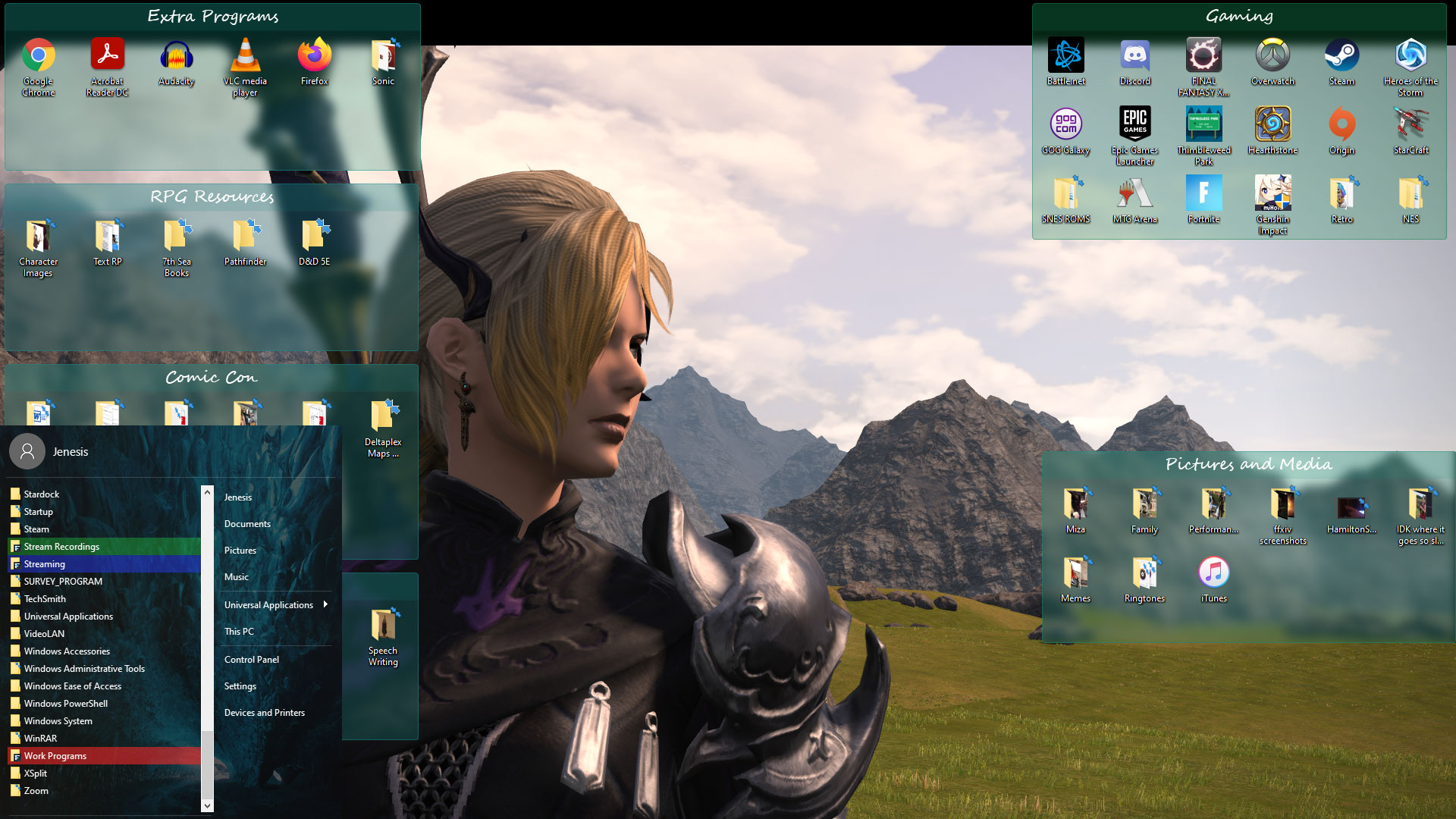
This is how I’ve made Fences work for me on multiple monitors, especially as I work from home. Do you use Fences more at work or at home, or equally at both? Share with me!
WinCustomize Monthly Wrap-up - November Edition
Tuesday, December 1, 2020 by Island Dog | Discussion: WinCustomize News
 Can you believe it's December already? I'm excited as the weather is getting cooler here and we're officially in Christmas season! But before we get ahead of ourselves, let's look back at the highlights of November.
Here's a wrap-up of some new, articles, forum posts, and skins you might have missed!
Community Posts You Might Have Missed:
Getting an Early Start on a Christmas Themed Desktop!
Inexplicable Monolith Discovered in Utah's Red Rock Country
For Workflow Efficiency, Look no Further than Groupy
Fences: Making Desktop Customization Work for YOU
Revisiting a Christmas Skinning Classic....ChristmasTime

New and Updated Skins, Themes, and Wallpapers:
Snowman in Winter Ice (Wallpaper)